# Build a content application
https://www.sanity.io/learn/course/day-one-with-sanity-studio/create-a-content-application.md
Go beyond the customization and configuration of Sanity Studio and build something specific to your unique content operations.
Many teams will find Sanity Studio sufficient for most of their content operations. However, when teams become fragmented with unique needs or need to perform operations more specifically in bulk or integrated with other systems, reaching outside Sanity Studio and building your application may be best.
Fortunately, Sanity App SDK provides almost all of Sanity Studio's CMS-like behavior as a set of headless React hooks for data fetching and mutation.
This means you can build custom applications that live alongside your Sanity Studio in the "Dashboard."
## Initialize
Let's build a (very simple) custom content application to list all events with a link to their ticket website—so authors can rapidly check, update and fix any incorrect URLs.
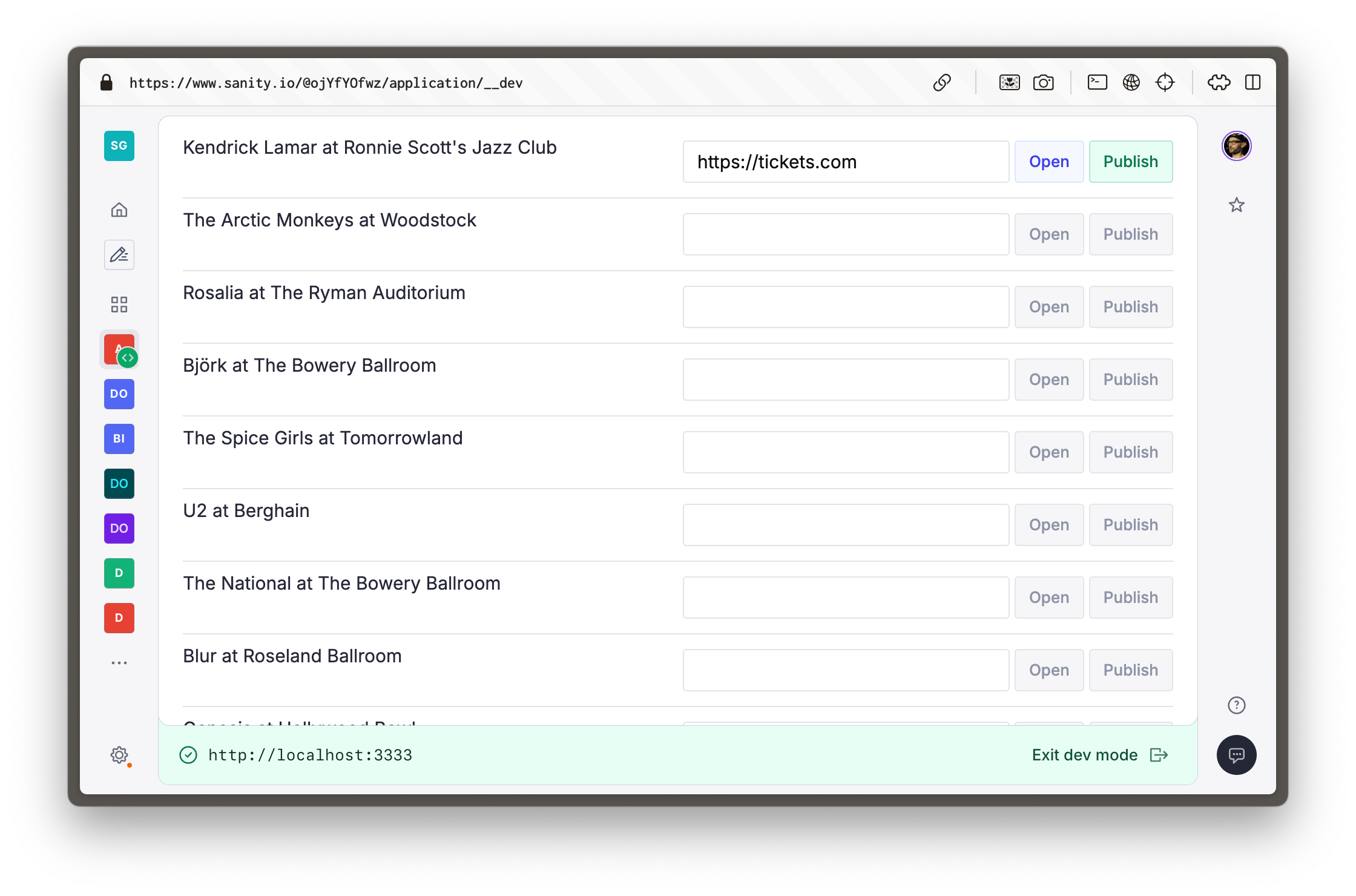
For this lesson you'll use the Sanity UI template, but as a headless data library you may use any front end library you prefer such as Tailwind, shadcn/ui, etc.
1. **Run** the following command at the root `/day-one` directory to initialize a new App SDK app
```sh
# in /day-one
pnpm dlx sanity@latest init --template app-sanity-ui --typescript --output-path apps/tickets
```
You'll be prompted to select an Organization, choose the same one in which you created your Sanity project.
### Workspace arrangement
You should now have your Sanity Studio, Next.js app and App SDK app in three separate, adjacent folders.
```text
day-one/
└── apps/
├── studio/ -> Sanity Studio
├── tickets/ -> Sanity App SDK app
└── web/ -> Next.js app
```
### Configuration
You'll notice in the terminal you're prompted to update the `App.tsx` file with the details of your Sanity project ID and dataset name.
1. **Update** `App.tsx` by copying `projectId` and `dataset` from your `sanity.config.ts` file
```typescript:apps/tickets/src/App.tsx
const sanityConfigs: SanityConfig[] = [
{
projectId: 'REPLACE_WITH_YOUR_PROJECT_ID',
dataset: 'production',
},
];
```
## Running two apps
By default, SDK Apps use the same port number (`3333`) as the Studio. To run the Studio and your applications simultaneously, you can update `sanity.cli.ts` of either one.
Let's change the default port of the Studio.
1. **Update** the Sanity CLI config of the Sanity Studio
```typescript:apps/studio/sanity.cli.ts
import {defineCliConfig} from 'sanity/cli'
export default defineCliConfig({
server: {
port: 3334,
},
// ...all other settings
})
```
Restart your Studio's development server, you'll get a new development URL.
Open the Studio in your browser and be asked to create a new CORS origin.
You can follow the instructions in the browser, or create a new origin using Sanity CLI with the following command run from inside your `studio` folder.
```sh:Terminal
# in apps/studio
pnpm dlx sanity@latest cors add http://localhost:3334 --allow
```
1. **Run** the following inside the `apps/tickets` folder to start the app's development server.
```sh
# in apps/tickets
pnpm run dev
```
1. If you get an error about a mismatched Organization ID, you may have selected a different Organization to the one in which the project was created. Update `apps/tickets/sanity.cli.ts` to use the correct Organization ID.
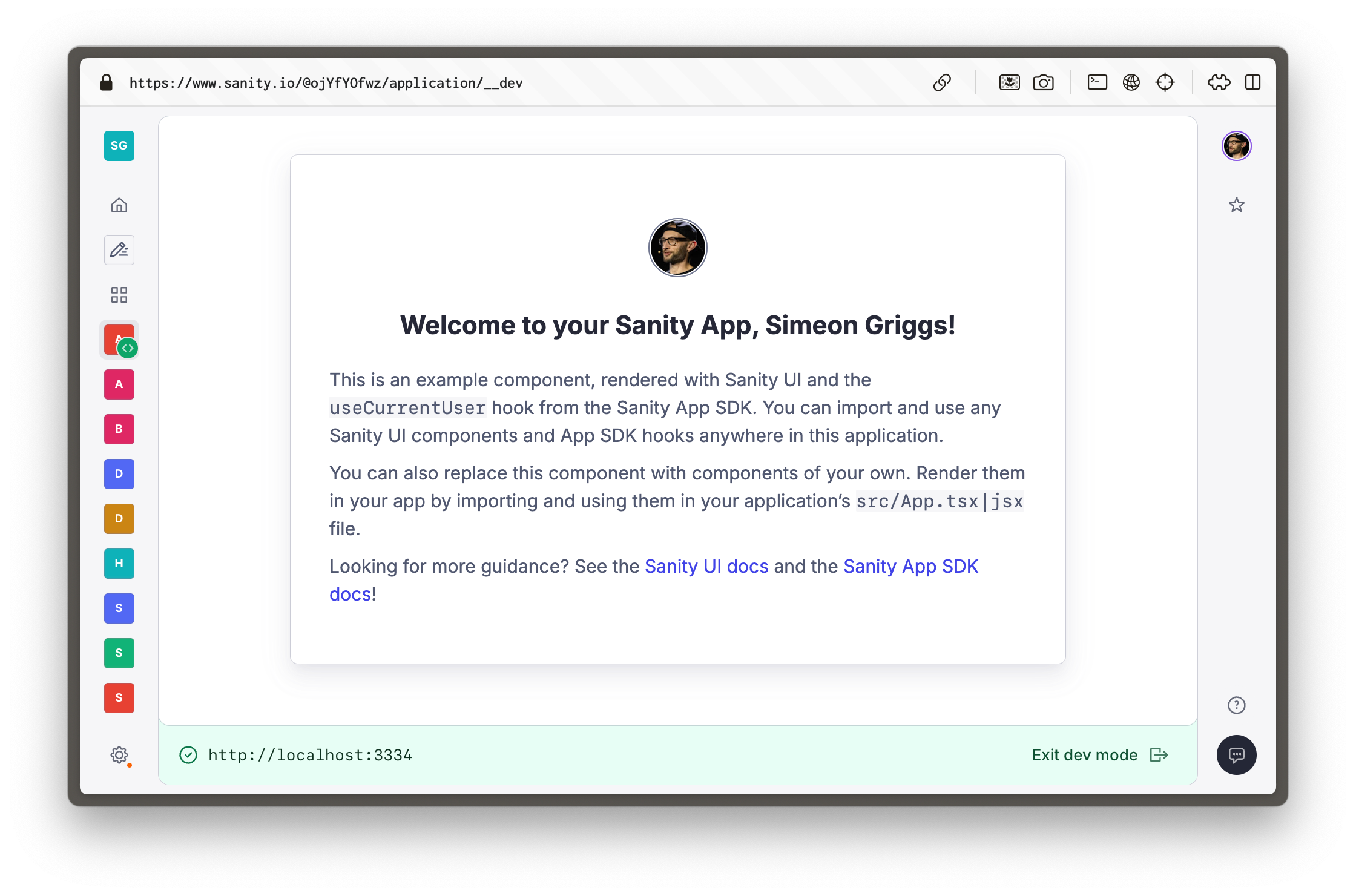
You'll see a URL in the terminal to open the App running from within the Sanity Dashboard.
Dashboard is the default "home screen" where authors can move between deployed Studios and other applications—such as the one you're building right now. The Dashboard also provides authentication to your app.
## Create components
Sanity App SDK for React is a collection of hooks which are implemented individually into components.
Create following component files to assemble the entire application.
1. Sanity App SDK hooks use [Suspense](https://react.dev/reference/react/Suspense), if you are not familiar with this component you may like to read the React documentation.
1. **Create** `Publish.tsx` to publish changes to documents when they are in a draft state.
```tsx:apps/tickets/src/Publish.tsx
import {
DocumentHandle,
publishDocument,
useApplyDocumentActions,
useDocument,
} from '@sanity/sdk-react'
import {Button} from '@sanity/ui'
export function Publish(props: DocumentHandle) {
const {data: _id} = useDocument({...props, path: '_id'})
const isDraft = _id?.startsWith('drafts.')
const apply = useApplyDocumentActions()
const publish = () => apply(publishDocument(props))
return (
)
}
```
Pay particular attention to `useApplyDocumentActions` in this component, this same hook can be used to duplicate, delete or revert changes to documents.
1. **Create** `TicketURL.tsx` to update, validate and open the current ticket URL value in the document.
```tsx:apps/tickets/src/TicketURL.tsx
import {DocumentHandle} from '@sanity/sdk'
import {useDocument, useEditDocument} from '@sanity/sdk-react'
import {Box, Button, TextInput} from '@sanity/ui'
function isValidUrl(url: string) {
try {
new URL(url)
return true
} catch {
return false
}
}
export function TicketURL(props: DocumentHandle) {
const {data: value} = useDocument({
...props,
path: 'tickets',
})
const editTicketURL = useEditDocument({
...props,
path: 'tickets',
})
const isValid = isValidUrl(value || '')
return (
<>
editTicketURL(event.currentTarget.value)}
/>
)
}
```
This hook uses both `useDocument` and `useEditDocument` to optimistically track the value of a field as well as create a function to edit the value of the document at that path.
**Create** `Event.tsx` to query for the `name` of the value and render the previous components.
```tsx:apps/tickets/src/Event.tsx
import {Suspense} from 'react'
import {DocumentHandle} from '@sanity/sdk'
import {useDocumentProjection} from '@sanity/sdk-react'
import {Card, Flex, Grid, Text} from '@sanity/ui'
import {TicketURL} from './TicketURL'
import {Publish} from './Publish'
type EventProjection = {
name: string | null
tickets: string | null
}
export function Event(props: DocumentHandle) {
const {data: event} = useDocumentProjection({
...props,
projection: `{ name }`,
})
return (
{event?.name || 'Untitled'}
)
}
```
This component uses `useDocumentProjection` since the `name` field does not need optimistic updates in this App.
1. The configuration of `Suspense` in this app is sub-optimal (to keep code examples smaller) and will lead to layout shift. See [useNavigateToStudioDocument](https://www.sanity.io/learn/course/build-content-apps-with-sanity-app-sdk/use-navigate-to-studio-document) for ideas on how to achieve better implementation.
1. **Create** `Events.tsx` to fetch for all `event` type documents and render an individual role for each one.
```tsx:apps/tickets/src/Events.tsx
import {useDocuments} from '@sanity/sdk-react'
import {Container, Stack, Text} from '@sanity/ui'
import {Suspense} from 'react'
import {Event} from './Event'
export function Events() {
const {data: events} = useDocuments({
documentType: 'event',
})
return (
{events?.map((event) => (
Loading...}>
))}
)
}
```
The `useDocuments` hook fetches documents of a particular type (which can be narrowed with an additional `filter` and returns an array of "document handles," which are passed down as props and used by many other Sanity App SDK for React hooks.
1. **Update** `App.tsx` to include the `Events` component
```tsx:apps/tickets/src/App.tsx
// ...all other imports
import {Events} from './Events'
function App() {
// ...config, loading spinner
return (
}>
)
}
export default App
```
You should now see the complete application rendered in your Dashboard. Type a URL into any of the inputs, and once valid you will be able to publish the document or open the URL in a new window.
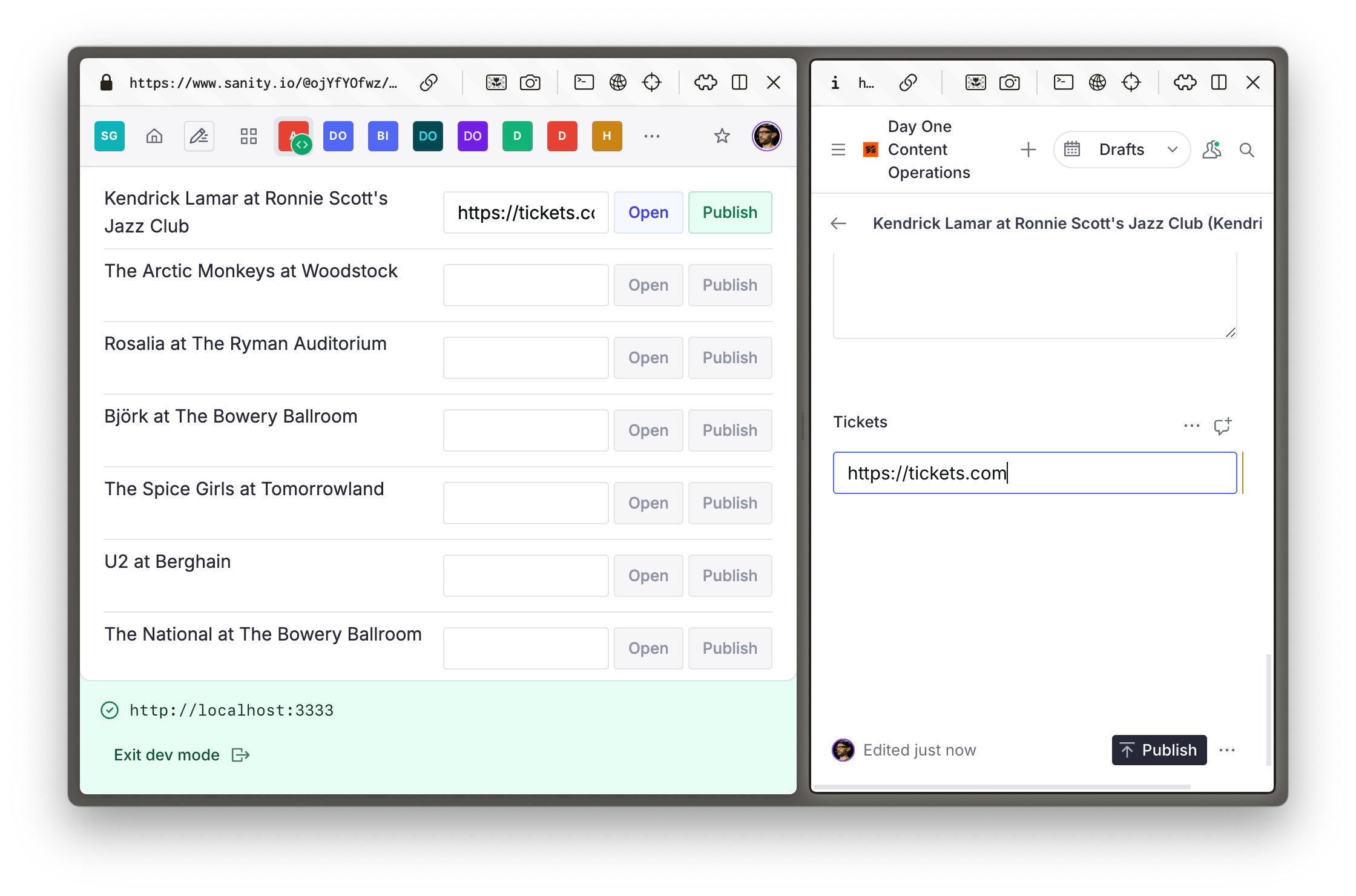
Notice how making edits to a published document immediately creates a new draft version. Or how if you have the app open in two tabs, both will update automatically. All this complexity is baked into the Sanity App SDK!
## Deploy
You can also deploy your app to the Dashboard the same way you'd deploy a Sanity Studio.
1. **Run** the following to deploy your App
```sh
# in apps/tickets
pnpm dlx sanity deploy
```
Though basic, you've rapidly created a unique content editing experience. Imagine how far you could go with a little extra effort.
1. You may need to add an additional CORS origin for the remote URL of your SDK Application. You can do this in the Manage panel, open it by running `pnpm dlx sanity manage`
1. Read [App SDK best practices](https://www.sanity.io/learn/app-sdk/sdk-best-practices) for more details on writing great Sanity App SDK apps.
2. TypeGen support for App SDK is in beta, read the documentation for more: [App SDK and TypeGen](https://www.sanity.io/learn/app-sdk/sdk-typegen)
## Go deeper
A separate course is available to help you gain a deeper understanding of the Sanity App SDK. While it builds from a separate code-base, you will need to complete it in order to unlock the certification exam for this track.
1. Take the [Build content apps with Sanity App SDK](https://www.sanity.io/learn/course/build-content-apps-with-sanity-app-sdk) course.
If you're staying on this course, so far we've been looking at in-browser experiences, but you can also make programmatic, reactive events automatic with Sanity Functions. Let's unpack that next.