# Sublime schemas
https://www.sanity.io/learn/course/studio-excellence/sublime-schemas.md
null
## Fields
1. Review [Schemas and Forms](https://www.sanity.io/learn/studio/schemas-and-forms) in the documentation.
The `defineType` and `defineField` helper functions should always be used when creating schema types. Functionally, they're optional. However, they provide autocomplete suggestions thanks to TypeScript and may unlock future functionality.
1. Always use `defineType` and `defineField` helper functions in schema files
### Titles
Defining fields in a schema type only **requires** two keys: `name` and `type`:
```typescript
defineField({ name: 'name', type: 'string' }),
defineField({ name: 'url', type: 'url' }),
defineField({ name: 'linkedin', type: 'url' })
```
When omitted, the `title` value for these fields will be automatically generated. However, it will not account for special casing like acronyms or "PascalCase" brand names.
* `name` becomes **Name**, which is fine
* `url` becomes **Url**, when it should be **URL**
* `linkedin` becomes **Linkedin,** when it should be **LinkedIn**
1. Ensure fields have custom `title` keys where necessary
```typescript
defineField({ name: 'name', type: 'string' }),
defineField({ name: 'url', title: 'URL', type: 'seo' }),
defineField({ name: 'linkedin', title: 'LinkedIn', type: 'url' })
```
### Descriptions
1. More reading: [Sanity top tip: The grandma test](https://roboto.studio/blog/sanity-top-tip-the-grandma-test)
Another useful key for a schema field is its description. Adding a little context to why this field is required can help authors understand the content’s intention.
```typescript
defineField({
name: 'url',
title: 'URL',
description: 'Canonical URL for the Googlebot crawler to index this content',
type: 'url'
})
```
If you need to add basic formatting to your descriptions, this key will accept JSX! Note: You will need to update your schema type's file to use a `.jsx` or `.tsx` file extension for this to work.
```tsx
description: (
Why is this important?
The Googlebot is an indexer of...
)
```
This example code creates a collapsible [``](https://developer.mozilla.org/en-US/docs/Web/HTML/Element/details) element to hide away longer-form descriptions.

1. Where useful, customize your fields with contextual descriptions.
## Validation
1. Review [Validation](https://www.sanity.io/learn/studio/validation) in the documentation.
### Errors
The simplest way to mark a field as invalid and block the publishing of the document is shown in the example below, implementing the `required` rule.
```typescript
defineField({
name: 'slug',
type: 'slug',
validation: rule => rule.required()
})
```
However, the error message in the Studio will only say "Required" and not give the author any additional information.

Adding the `error` method will give extra context to the author about **why** it has been marked invalid and what must be done to resolve it.
```typescript
defineField({
name: 'slug',
type: 'slug',
validation: rule =>
rule
.required()
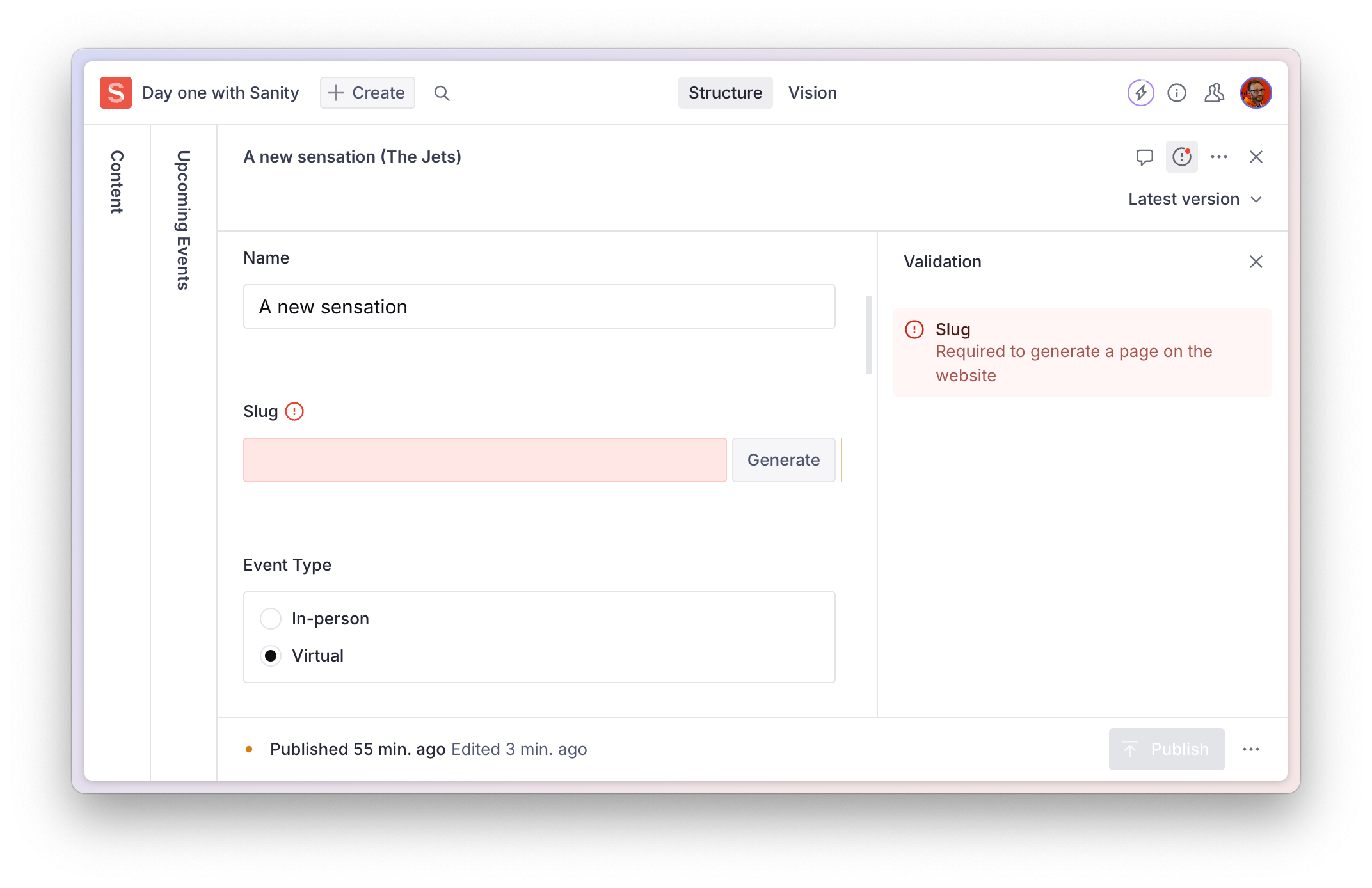
.error(`Required to generate a page on the website`)
})
```

This appears not only on the invalid field but also in the summary of validation errors in the document inspector.
1. Add helpful **error messages** to required validations
### Warnings
Validation warnings are useful to inform the author that while the document **can** be published in its current form – it falls short of a desired editorial standard.
```typescript
defineField({
name: 'summary',
type: 'string',
validation: rule =>
rule
.min(100)
.max(200)
.warning('For consistency, this summary should be between 100-200 characters')
})
```
1. Add helpful validation **warnings** for editorial compliance
### Information
One more validation level is an `info` popup. This is useful for general information about a field, especially when the text is too long to place in the `description` field key.
Note, this currently will only display if `required` is also used.
```typescript
defineField({
name: 'definition',
type: 'string',
validation: rule =>
rule.required().info('This field is important for...')
})
```
## Form Design
### Field ordering
The order of your fields in a schema is important. Good form design usually includes putting the "simplest" fields higher. Followed by, in descending order, less important or more complicated fields.
You might even use the `hidden` attribute to hide these more complex fields entirely until the simpler fields have values.
1. Logically order fields by simplicity and importance
2. Hide complex fields by default and only reveal them when necessary or invalid
### Fieldsets
1. Review [the documentation on fieldsets](https://www.sanity.io/docs/object-type#AbjN0ykp)
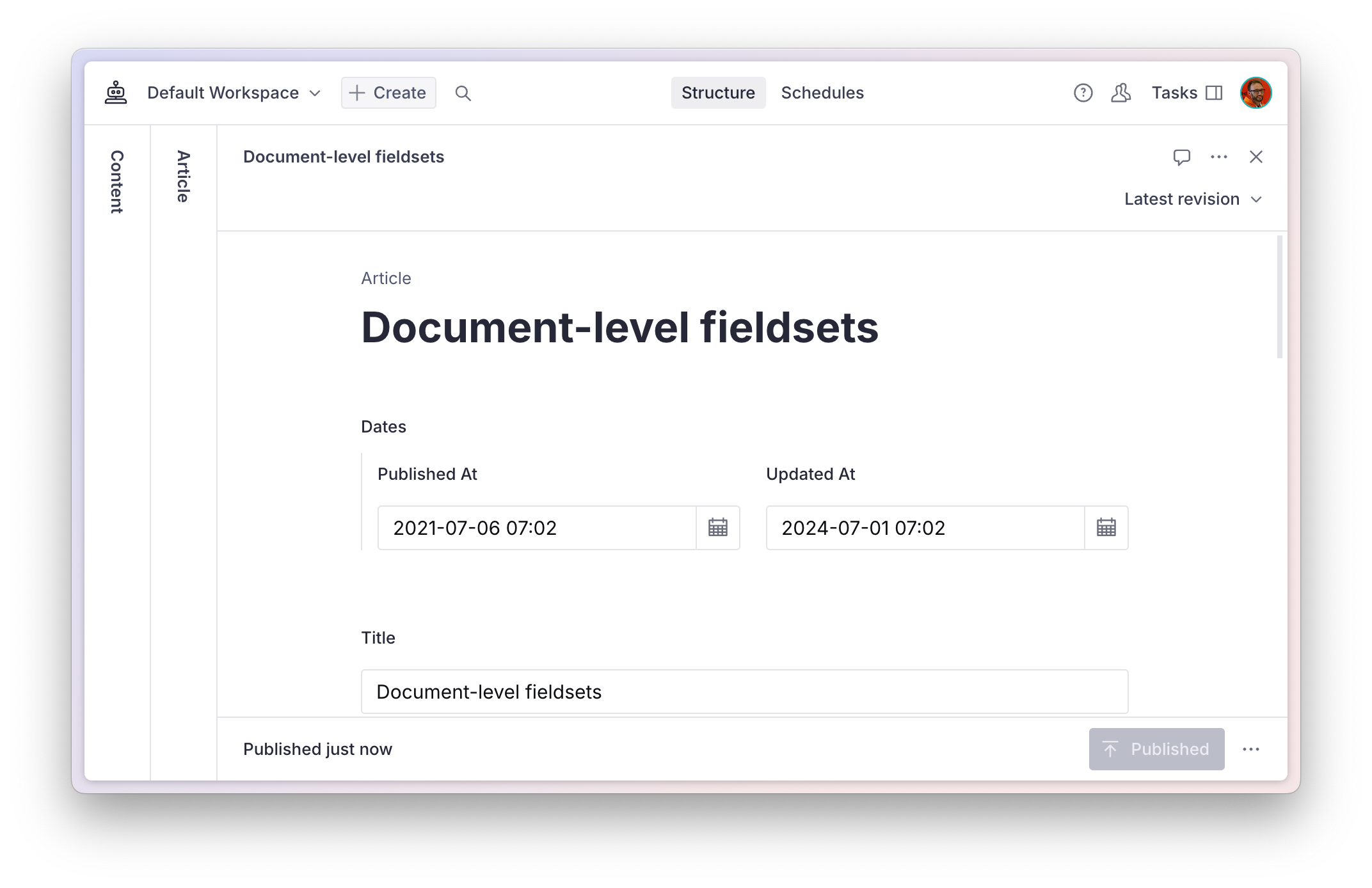
The schema of a `document` can use a `fieldsets` key to **visually** arrange fields together, without effecting how they are nested in the data.
A configuration like this:
```typescript:./schemaTypes/article.ts
export default defineType({
name: 'article',
title: 'Article',
type: 'document',
fieldsets: [
{name: 'dates', title: 'Dates', options: {columns: 2}},
],
fields: [
defineField({name: 'publishedAt', type: 'datetime', fieldset: 'dates'}),
defineField({name: 'updatedAt', type: 'datetime', fieldset: 'dates'}),
// ...and the rest
```
Will render these two fields side-by-side at the root of the document.
`object` schema types can use the same options for fields in the object.
Once grouped, a `fieldset` can be collapsible – and collapsed by default – to tidy up the appearance. It can also declare `columns` so that fields are rendered side-by-side.