Writing in Canvas
Write and collaborate in Canvas with AI assistance, contextual notes, and real-time collaboration.
Canvas is a collaborative writing environment with AI assistance, contextual notes, and real-time collaboration.
This guide covers everything you need to know about writing and collaborating in Canvas.
The document editor
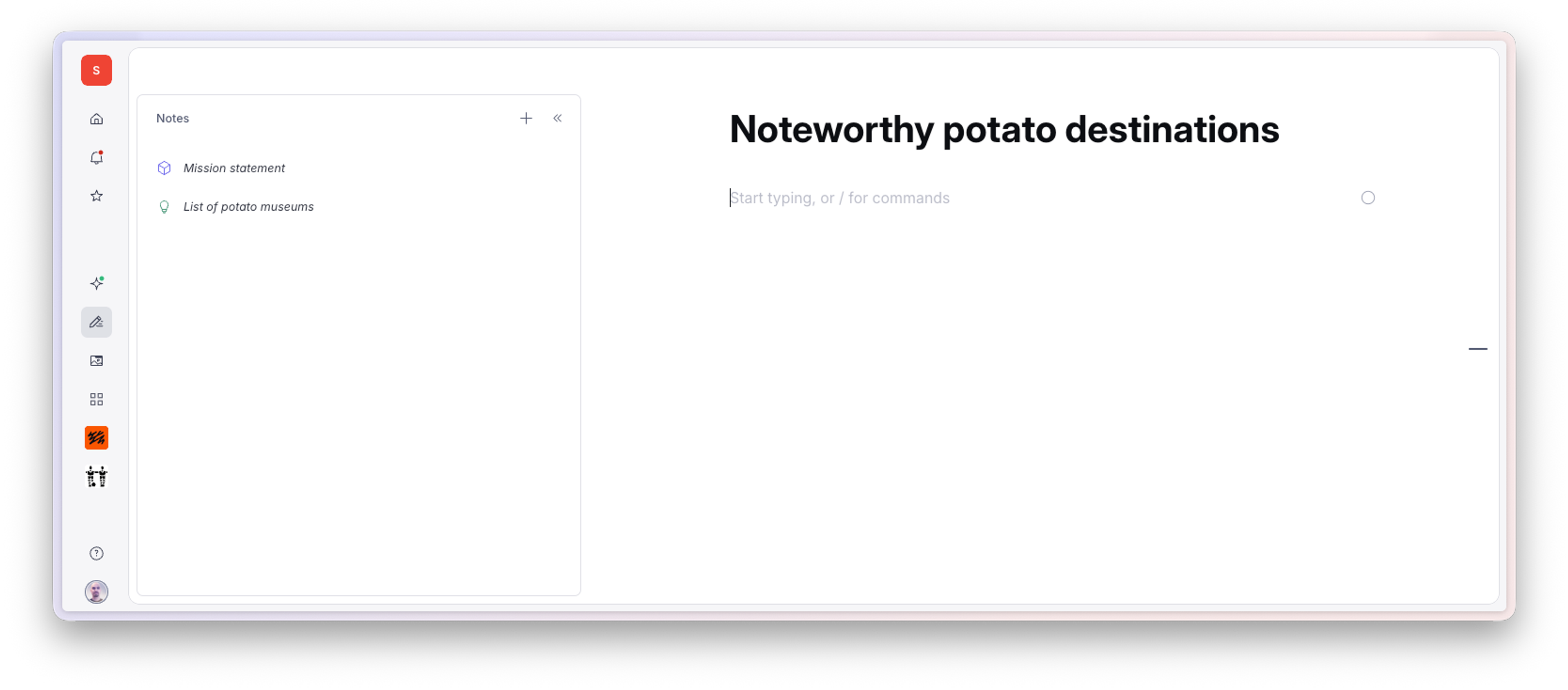
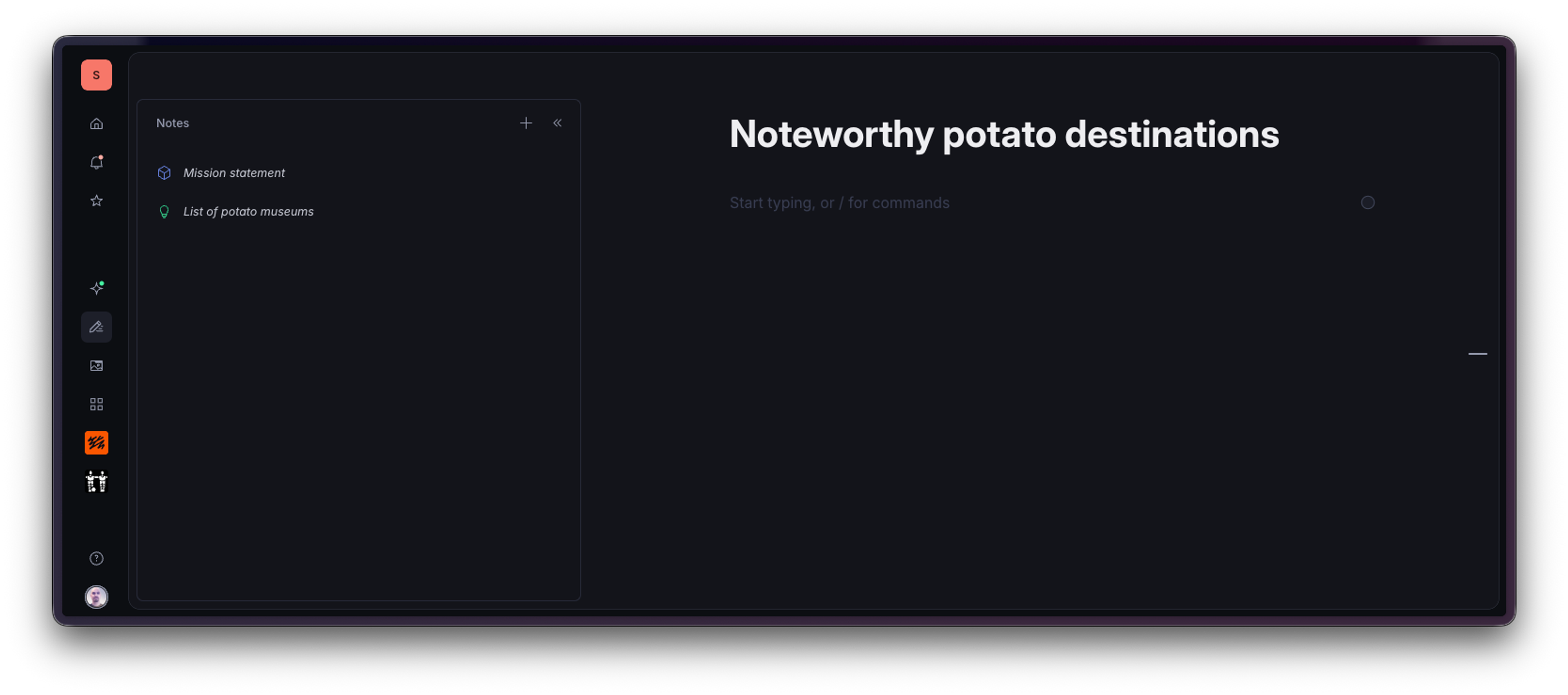
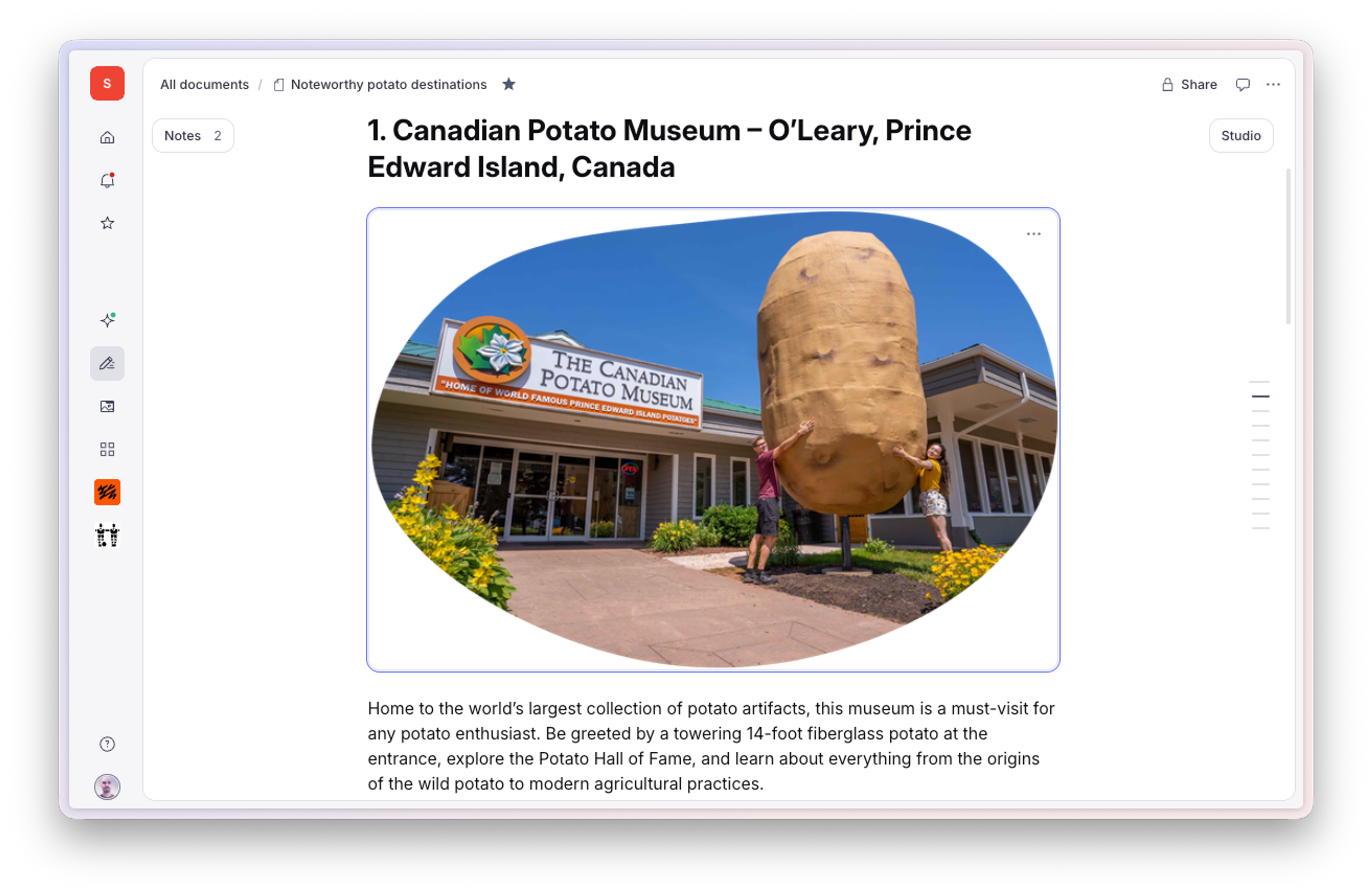
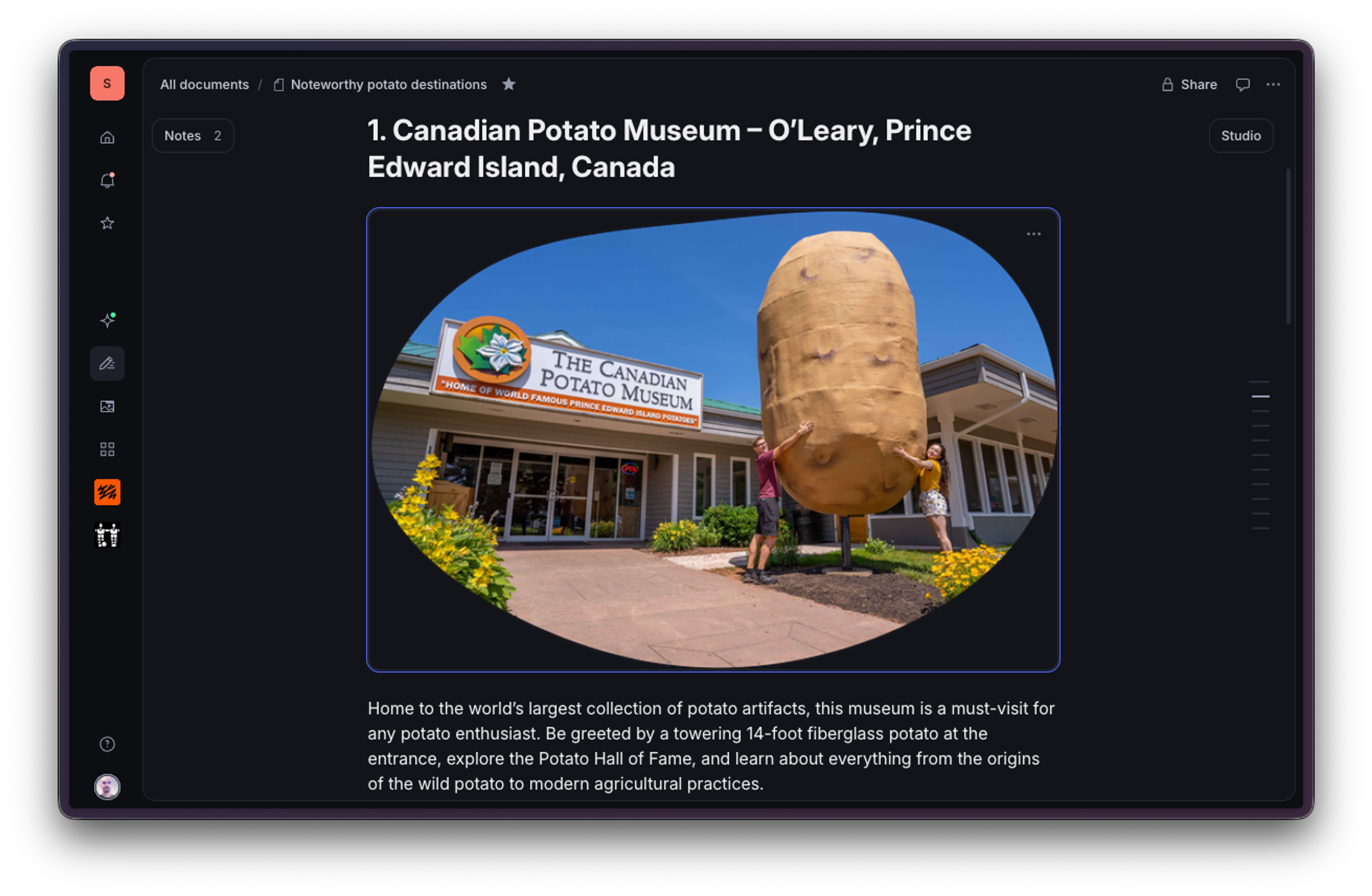
Canvas offers a clean, distraction-free writing environment that should feel instantly familiar to anyone who has used a modern word processor or text editor. The interface is designed to put your content front and center, allowing you to focus on getting your thoughts down without any clutter or unnecessary features getting in the way.
Documents
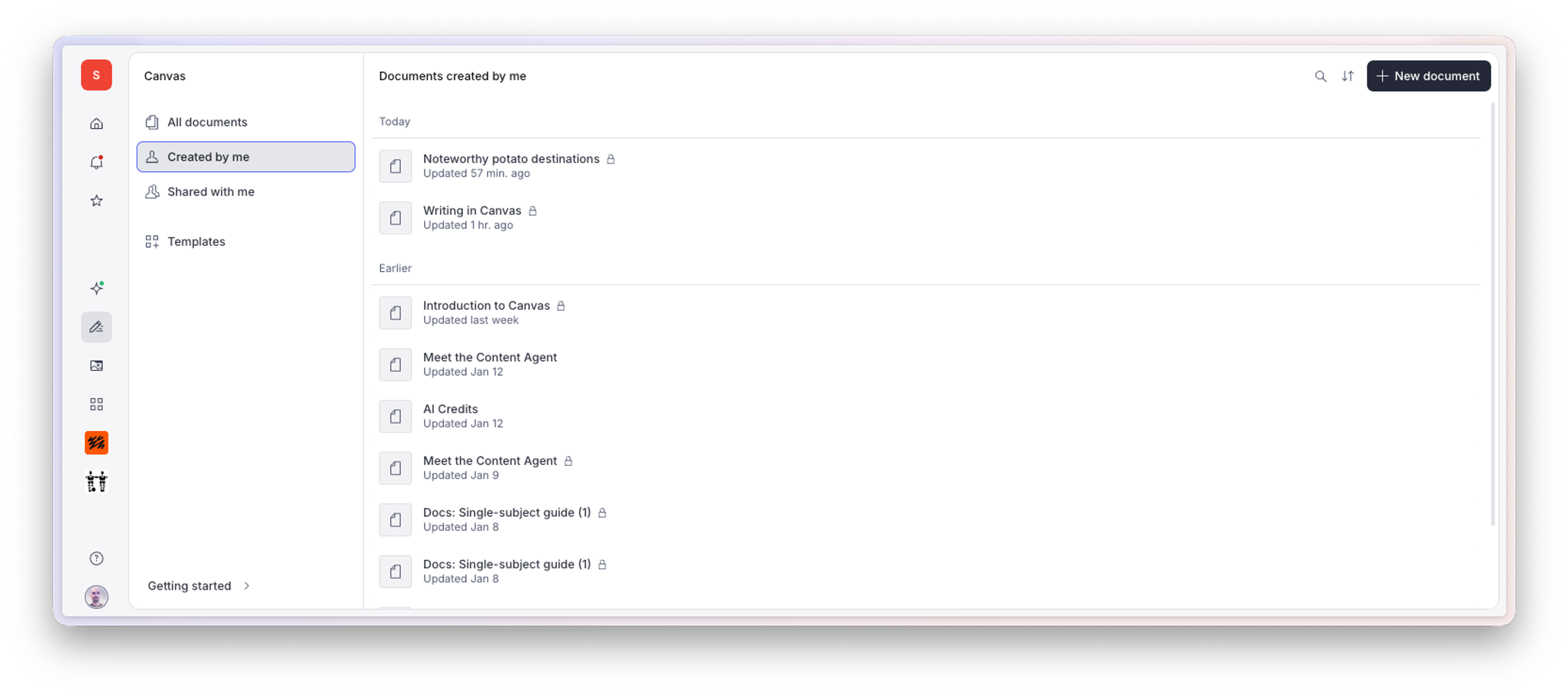
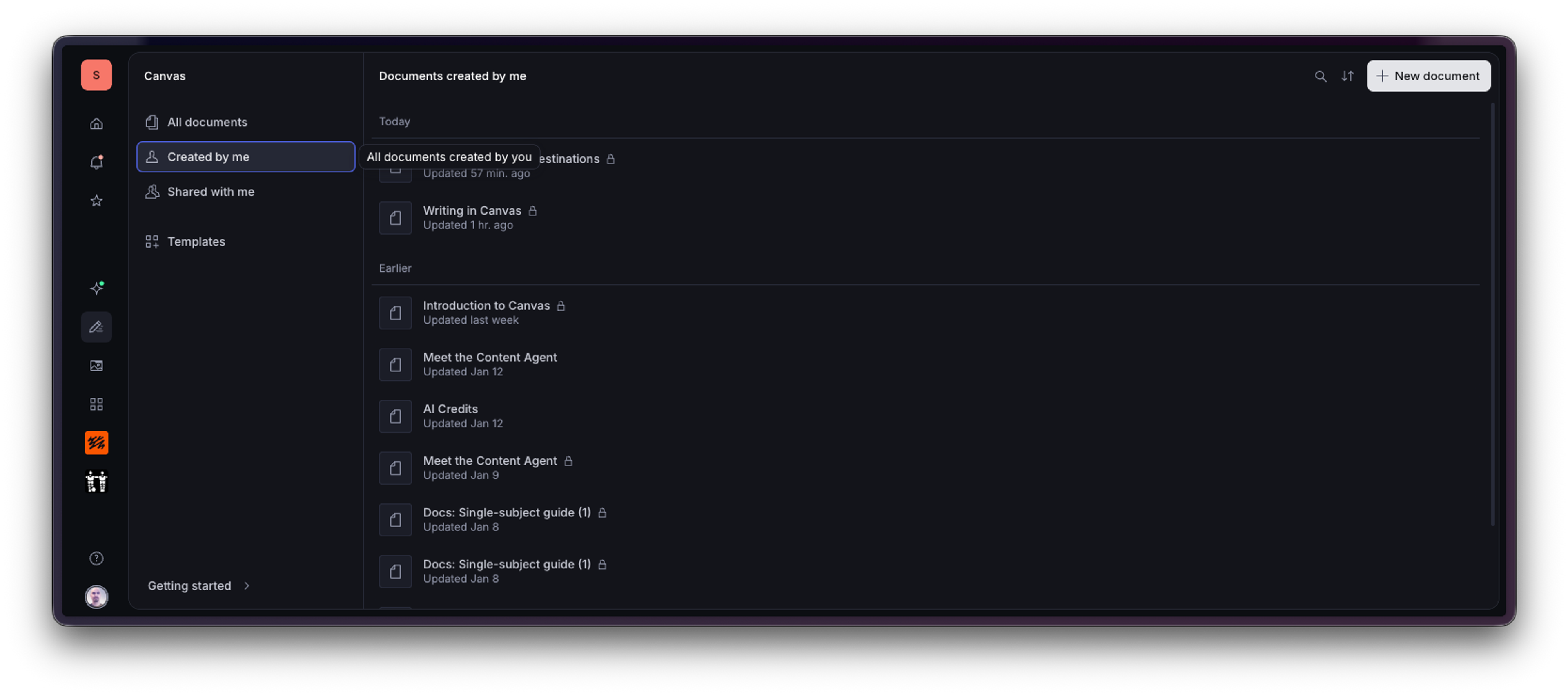
Documents are the core unit of Canvas. You can browse all your existing documents in All documents, where you'll also find templates created by you or others in your organization.
To create a new document, use the sidebar or the document browser. To delete a document, click the ellipsis menu in the top right corner of the editor and select Delete. This action is permanent.
Formatting
Canvas supports the formatting habits you already have.
- Inline **markdown** formatting
/slash commands- Select some text and click the B or i icon
Slash commands
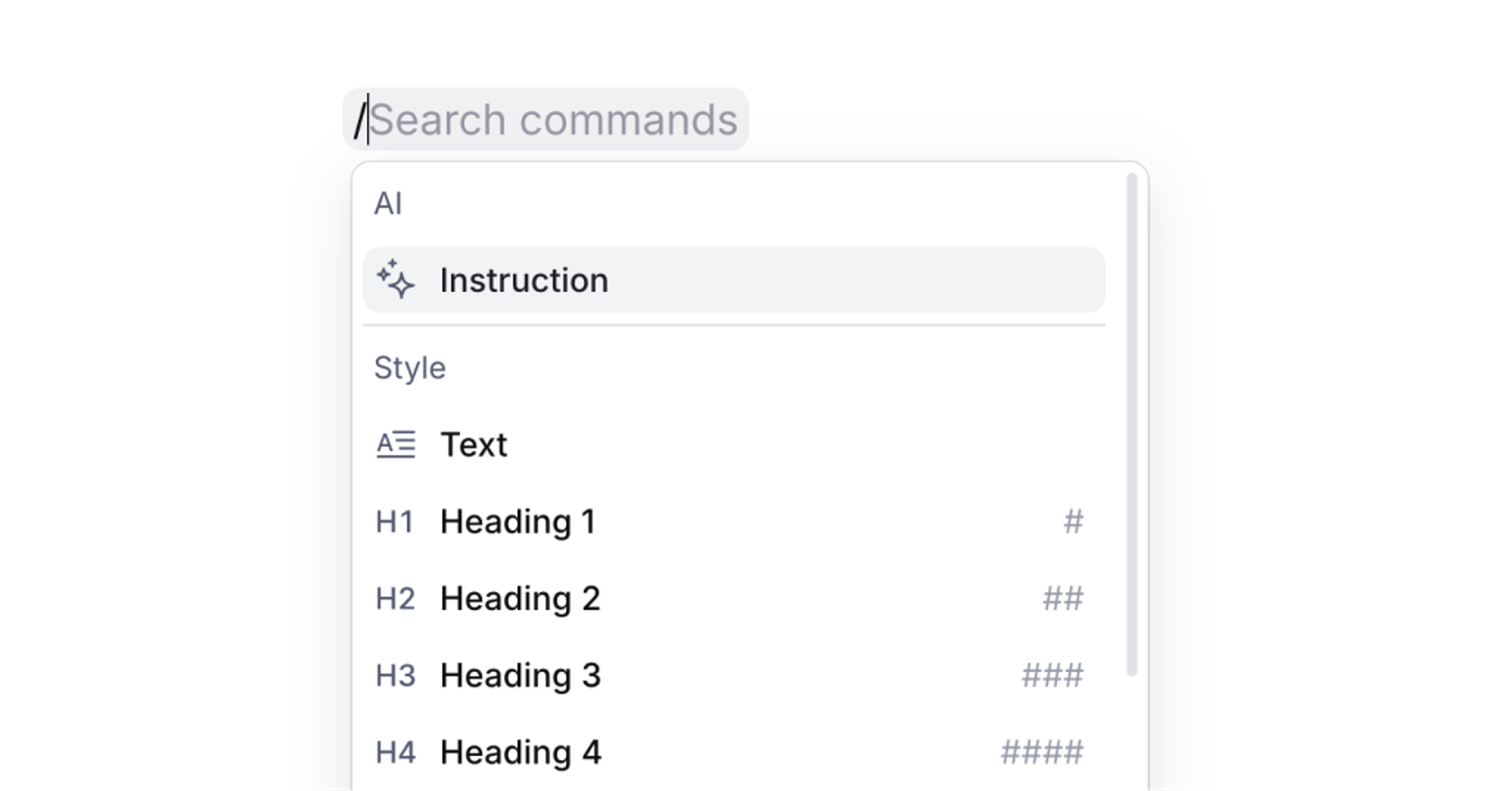
You can use familiar slash / commands to quickly apply headings, lists, quotes, and more without taking your hands off the keyboard.
Keyboard shortcuts
Canvas supports many common keyboard shortcuts for formatting text. And has a couple additional shortcuts added to the roster for common operations. See Keyboard shortcuts for the full list.
Formatting toolbar
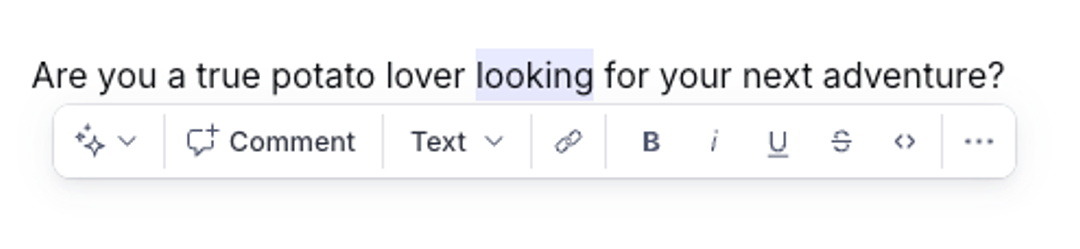
For those who prefer a more visual approach, basic formatting options like bold, italic, and underline are also available via buttons in a popover whenever text is selected.
Working with images
You can add images to your Canvas document by pasting or dragging and dropping them into the editor, or by using the slash / command menu. Images are stored with your document and can be included when you send content to Studio.
Content references
Once a content type is set, you can reference existing Studio content directly from Canvas using the @ shortcut. This lets you search for and insert references to existing Studio documents: authors, topics, related articles, or any other content type you have access to in the connected studio. When searching for references inside a field label, reference search is filtered to include only matching content types.
Writers can build document relationships as part of the writing process rather than as a separate data-entry step in Studio.
The @ reference shortcut requires at least read access to the connected Studio. If you have Canvas-only access, you can work with field labels but won't be able to insert content references. Request access through the Canvas UI or ask your administrator for Studio read access if your workflow requires references.
AI writing assistance
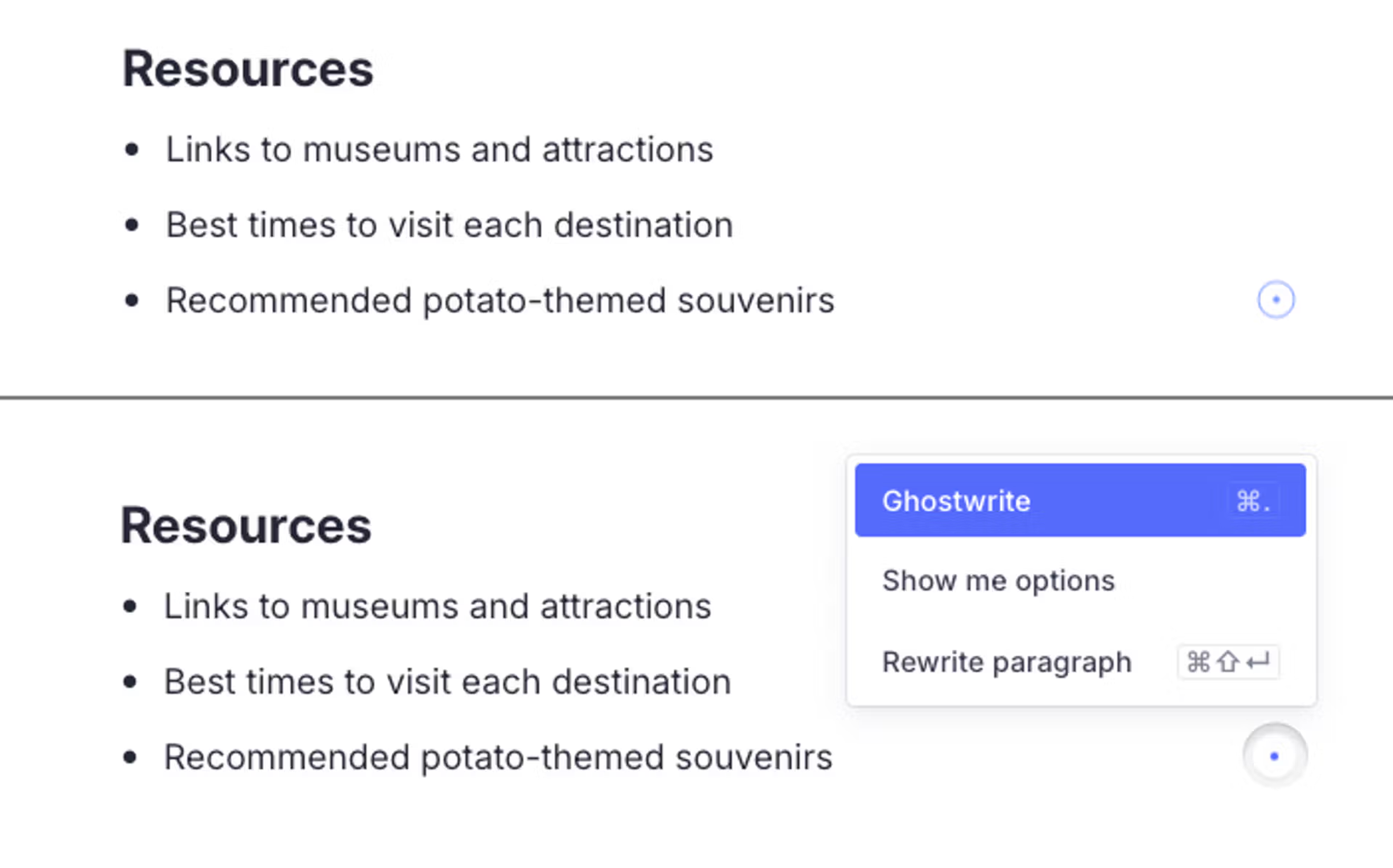
Canvas offers multiple modes of AI support. Most readily apparent is the subtle circle icon that follows you around the document, affectionally known as "the Blip".
Ghostwrite
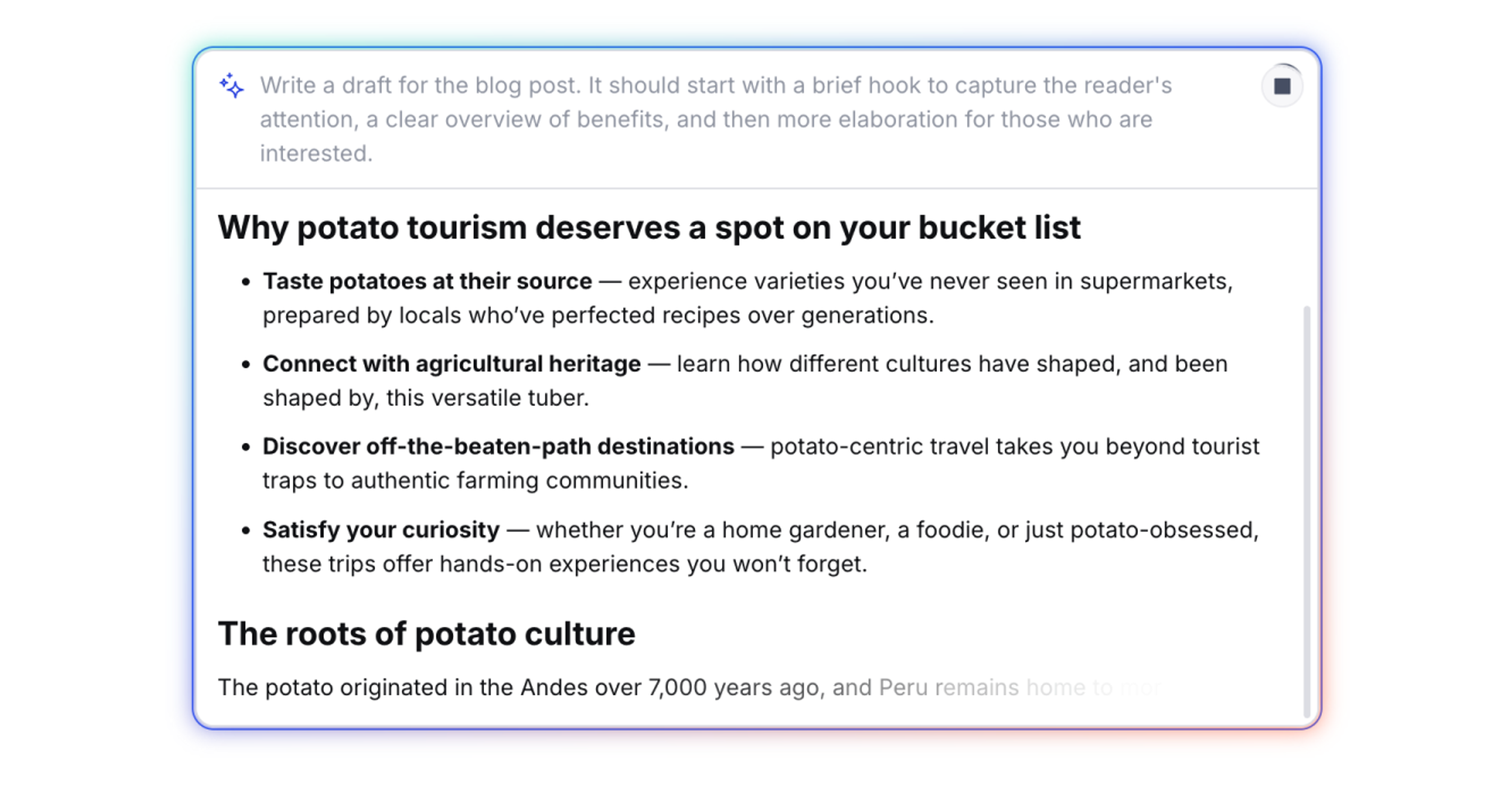
Ghostwrite is your go-to for generating new content or expanding on existing ideas. When you select this option, the AI assistant analyzes your current position in the document, along with any relevant notes and surrounding context, to suggest a continuation of your writing. Depending on where your cursor is placed, the AI may suggest completing the current sentence, starting a new paragraph, or even beginning a new section with a relevant heading.
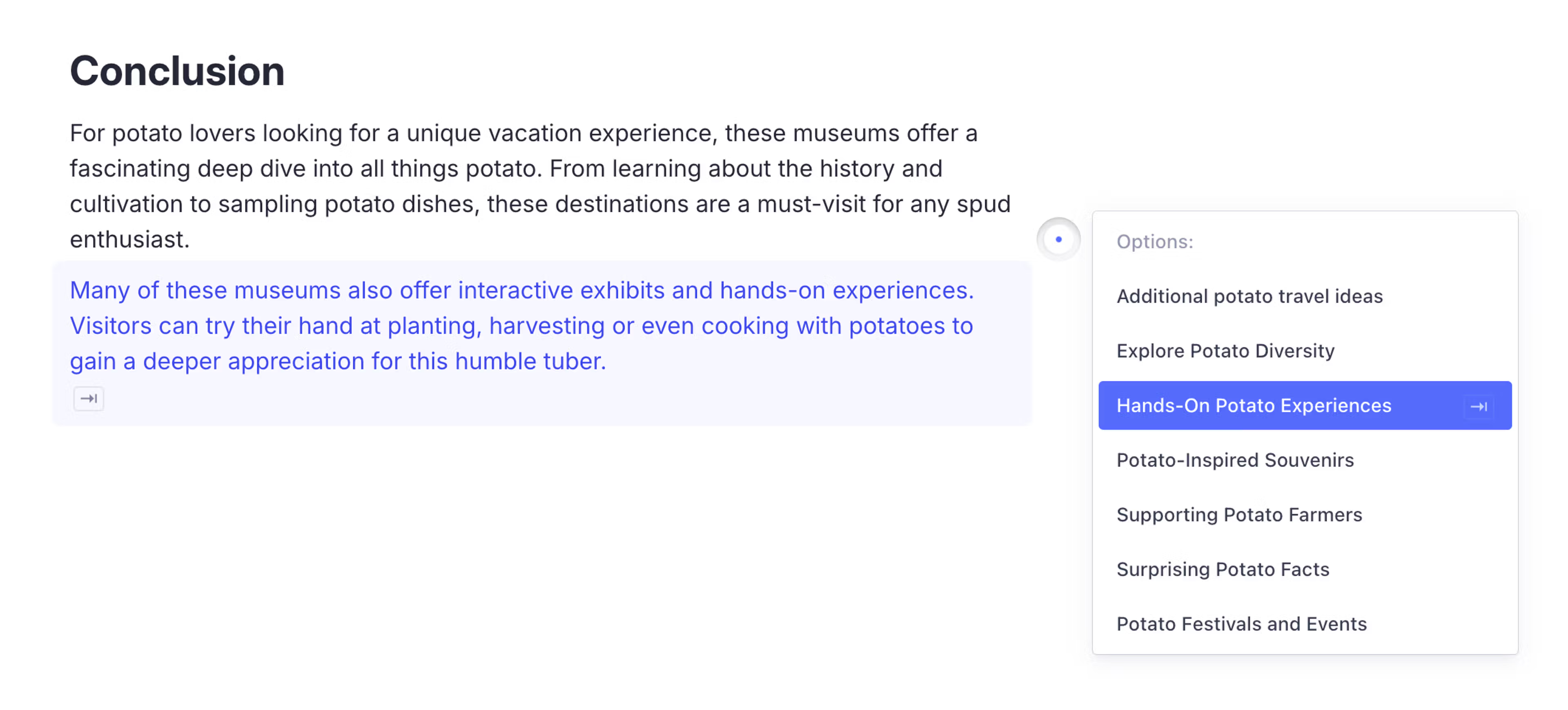
Show options
Show options presents you with a range of alternative suggestions for how to continue your writing. When you click this option, the AI generates multiple possible paths forward based on your current context and notes. These options might include different ways to complete the current thought, introduce a new idea, or transition to a related topic.
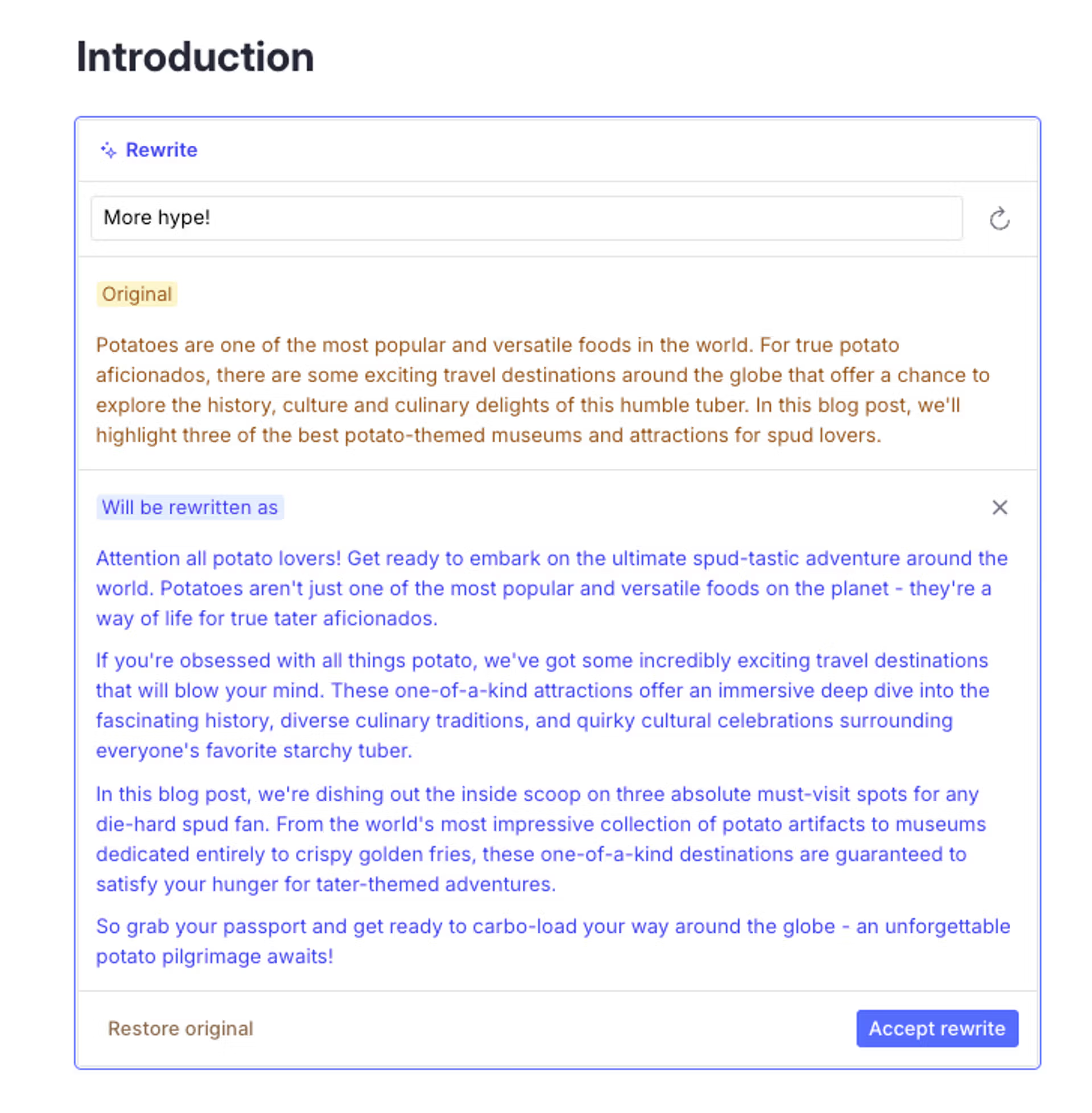
Rewrite
Rewrite paragraph generates an alternative version of the current paragraph, with the option to provide a brief on what to change.
AI instructions
Create and run AI prompts directly from text in your document, or use persistent instruction blocks that can be included in templates.
Notes
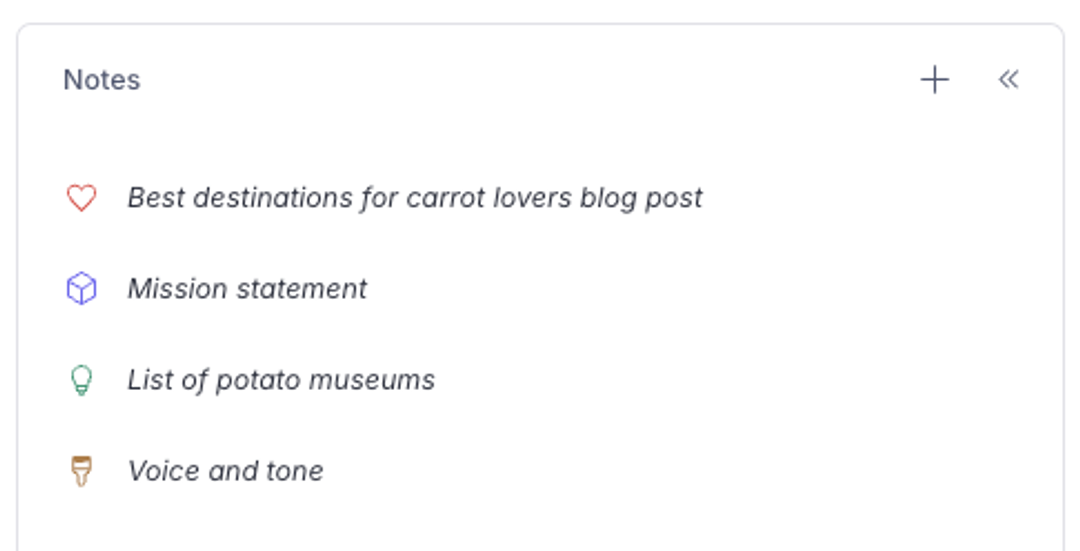
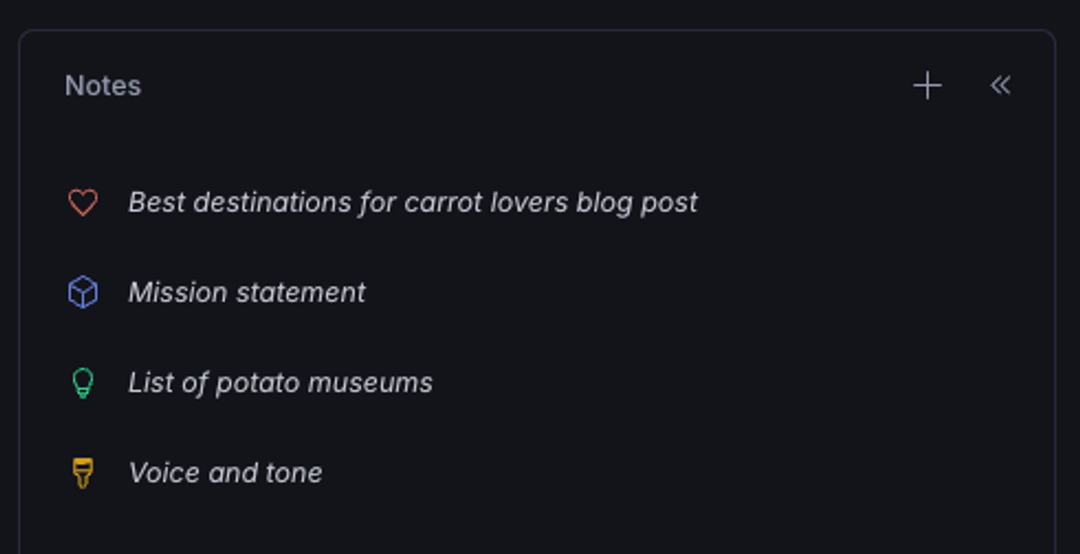
Notes provide context, facts, style guidelines, and inspiration to inform your writing, and they help the built-in ghostwriter make relevant and informed suggestions. By attaching relevant notes to your document or template, you give the AI the background knowledge and topical awareness it needs to be of actual help.
The more relevant and specific your notes, the better the AI can tailor its output.
Note types
Canvas supports four types of notes, each serving a different purpose:
- Context notes provide high-level background information and framing for the document, such as project briefs, target audience details, or internal enablement material.
- Fact notes contain specific data points, quotes, or pieces of information that should be treated as factual and incorporated into the content where relevant.
- Style notes outline the desired voice, tone, and stylistic guidelines for the document, so the ghostwriter adopts the appropriate tone and style for the piece.
- Inspiration notes collect examples, analogies, or creative prompts to inspire the writing and infuse it with engaging elements.
Creating and managing notes
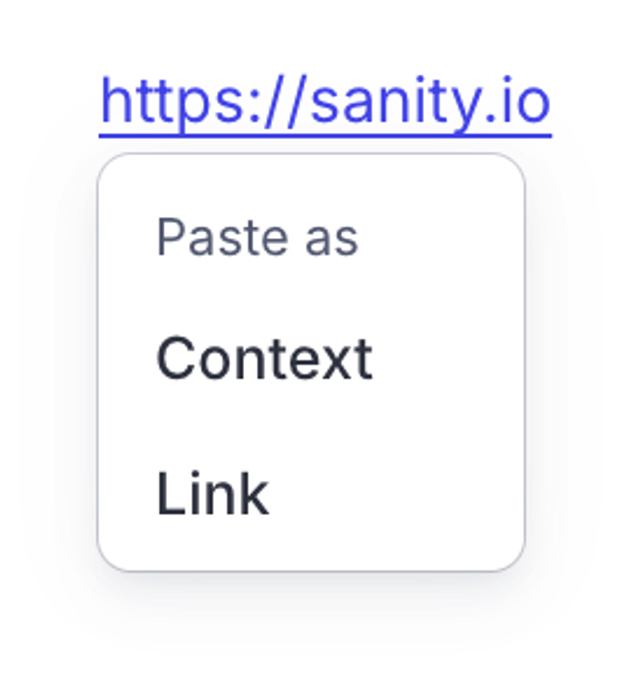
To create a note, click the + button at the top of the notes panel. Add text, images, or PDF files. Canvas will classify the note type and suggest a title automatically, though you can override both. When you paste a URL into Notes, you have the option to include the linked content as context.
Move and rearrange notes by dragging them in the notes panel. Right-click any note to duplicate or delete it. Rename a note by clicking its title.
How notes inform the AI assistant
When you provide notes, the AI uses this information to guide its content generation. Context notes help the AI understand the big picture and overall purpose of the document. Fact notes ensure accuracy by providing specific data points to incorporate. Style notes allow the AI to adopt the appropriate voice and tone for the piece. And inspiration notes give the AI creative fodder to draw from, helping to make the writing more engaging and colorful.
AI assistance inside notes
You can also use the AI assistant inside individual notes. Select text and press Cmd+Return to run it as an instruction, or click the AI contextual menu icon (the subtle circle that follows your cursor) to access Ghostwrite, Show options, and Rewrite. This is useful for refining notes without leaving the notes panel.
Writing with structure in mind
If a content type has been set on your document, document content can be annotated with field labels. These labels show which parts of your content map to which Studio fields, so you can see the structure of your content without leaving the editor.
You can still write freely: field labels are visible context, not obstacles. They give you full control over how your content transfers to Studio fields, and you'll be able to send your content to Studio with a single click when you're ready.
If you prefer starting with a clear structure, add field labels to the document or template before adding any content. Alternatively, you can apply field labels manually or automatically to any free-form content in the document once the content type is set.
For the full walkthrough on setting content types, applying field labels, and sending content to Studio, see Structuring content for Studio.
Collaboration
Canvas supports real-time collaborative editing. Presence indicators show who else is in the document and where they're working. Leave comments on specific content, and tag colleagues for review. History logs provide an audit trail of who made changes and when.
Real-time editing
Multiple people can work in the same Canvas document at the same time. Changes appear in real time for all collaborators.
Presence indicators
Presence indicators show who else is in the document and where they're currently working.
Comments
Leave comments on specific content to provide feedback or ask questions. Tag colleagues with @ mentions in comments to bring them into the conversation. Note that @ mentions in comments are separate from @ content references in the document body.
History
History logs provide an audit trail of who changed what and when, so your team can track the evolution of a document.