Create a Media Library Asset Function
Start building a function that reacts to changes to a Media Library asset.
Media Library Asset Functions allow you to run small, single-purpose code whenever a Media Library sanity.asset document changes. These are the container documents that hold basic metadata, versions, and aspect data.
You can try things like:
- Compare changes in an asset's aspect data.
- Kick off a review flow when new versions are added to an asset.
- Update references when assets are deleted.
This guide explains how to set up your project, initialize your first blueprint, add a function, and deploy it to Sanity's infrastructure.
Prerequisites:
- The latest version of
sanityCLI (sanity@latest) is recommended to interact with Blueprints and Functions as shown in this guide. You can always run the latest CLI commands withnpx sanity@latest. - Node.js v24.x. We highly suggest working on this version as it is the same version that your functions will run when deployed to Sanity.
- An existing project and a role with Deploy Studio permissions (the
deployStudiogrant).
Avoid recursive loops
At this time, Sanity Functions limit recursive loops when using the @sanity/client v7.12.0 or later. Use caution when writing functions that may trigger themselves by editing other documents that trigger the function.
Initiating multiple recursive functions may trigger rate-limiting and may impact your usage limits sooner than expected. If you think you've deployed a recursive function or one that triggers too often, immediately override the deployment with new code, or destroy the blueprint.
Set up your project
To create a function, you need to initialize a blueprint. Blueprints are templates that describe Sanity resources. In this case, a blueprint describes how your function will respond to updates in your Sanity project. We recommend keeping functions and blueprints a level above your Studio directory.
For example, if you have a Marketing Website that uses Sanity, you may have a structure like this:
marketing-site/
├─ studio/
├─ next-app/
If you initialize the blueprint in the marketing-site directory, functions and future resources will live alongside the studio and next-app directory.
Create a blueprint
Initialize your first blueprint with the init command. Replace <project-id> with your project ID, found in manage or your sanity.config.ts file.
npx sanity@latest blueprints init . --type ts --stack-name production --project-id <project-id>
pnpm dlx sanity@latest blueprints init . --type ts --stack-name production --project-id <project-id>
yarn dlx sanity@latest blueprints init . --type ts --stack-name production --project-id <project-id>
bunx sanity@latest blueprints init . --type ts --stack-name production --project-id <project-id>
This configures a new blueprint for your project, adds a sanity.blueprint.ts config file to the current directory (.), and creates a new stack named production.
Follow the prompt and run your package manager’s install command to add the dependencies.
npm installpnpm installyarn installbun installCreate a function
Use the sanity functions add command to add a new function. You can also run it without any flags for interactive mode.
npx sanity@latest functions add --name asset-update --type media-library-asset-create --type media-library-asset-update --installer npm
pnpm dlx sanity@latest functions add --name asset-update --type media-library-asset-create --type media-library-asset-update --installer npm
yarn dlx sanity@latest functions add --name asset-update --type media-library-asset-create --type media-library-asset-update --installer npm
bunx sanity@latest functions add --name asset-update --type media-library-asset-create --type media-library-asset-update --installer npm
If you’re using a package manager other than npm, set the --installer flag to your package manager, like pnpm or yarn. Run sanity functions add --help for more details.
After running the command, follow the prompt and add the function declaration to your sanity.blueprint.ts configuration. Your file should look like this:
import {defineBlueprint, defineMediaLibraryAssetFunction} from '@sanity/blueprints'

export default defineBlueprint({
  resources: [
    defineMediaLibraryAssetFunction({
      name: 'asset-update',
      event: {
        on: ['create', 'update'],
        resource: {type: 'media-library', id: 'my-media-library-id'}
      }
    })
  ],
})
Replace my-media-library-id with your Media Library ID.
The on property is already set and takes an array of trigger events:
create: Fires when a new document is created for the first time.update: Fires when changes are made to an existing document.delete: Fires when an asset document is deleted.
For existing, published documents, update will only trigger when a draft is published and updates the document. In many cases where you'd use update on published documents, it may be better to use ['create', 'update'] to ensure new documents also trigger the function. Learn more about document lifecycles.
This is the minimal configuration for defining a Media Library Asset Function in a blueprint file. You can see all available options in the Function section of the Blueprints configuration reference documentation.
If you've followed the directory structure mentioned earlier, you'll see it grow to something like this:
marketing-site/
├─ studio/
├─ next-app/
├─ sanity.blueprint.ts
├─ package.json
├─ node_modules/
├─ functions/
│  ├─ asset-update/
│  │  ├─ index.ts
After updating the sanity.blueprint.ts file, open functions/asset-update/index.ts in your editor.
The documentEventHandler function
TypeScript functions can take advantage of the documentEventHandler helper function to provide type support. Examples in this article include both TypeScript and JavaScript function syntax.
Every function exports a handler from the index file.
import { documentEventHandler } from '@sanity/functions'

export const handler = documentEventHandler(async ({ context, event }) => {
  const time = new Date().toLocaleTimeString()
  console.log(`👋 Your Sanity Function was called at ${time}`)
})
export async function handler({context, event}) {
const time = new Date().toLocaleTimeString()
console.log(`👋 Your Sanity Function was called at ${time}`)
}The handler receives a context and an event. The context contains information to help you interact with your Sanity datastore, such as clientOptions to configure a @sanity/client.
The event contains information about the action that triggered the function. Most functions will use event.data, which contains the contents of the Sanity document. You can learn more in the Function handler reference.
Limit the scope with GROQ
This function will run every time any Media Library asset documents (documents with a _type of sanity.asset) change and it will return the entire document to event.data. Let’s narrow the scope by writing a GROQ filter.
Filters
Open the sanity.blueprint.ts file and add a filter to the event object:
import {defineBlueprint, defineMediaLibraryAssetFunction} from '@sanity/blueprints'

export default defineBlueprint({
  resources: [
    defineMediaLibraryAssetFunction({
      name: 'asset-update',
      event: {
        on: ['create', 'update'],
        resource: {type: 'media-library', id: 'my-media-library-id'},
        filter: 'cdnAccessPolicy == "private"',
      }
    })
  ],
})
This filter causes the function to only run when private assets are created or updated.
filter accepts a GROQ filter that limits which documents will trigger the function. Only include the filter contents, the portion inside the square brackets, of your GROQ query. For example, rather than *[cdnAccessPolicy == 'private'], only include cdnAccessPolicy == 'post'.
Projections
Projections let you shape the contents passed to the event. Set the projection property on event. If you want your function to receive an object instead of individual attributes, ensure your projection is wrapped in curly braces ({}) as shown in the example.
import {defineBlueprint, defineMediaLibraryAssetFunction} from '@sanity/blueprints'

export default defineBlueprint({
  resources: [
    defineMediaLibraryAssetFunction({
      name: 'asset-update',
      event: {
        on: ['create', 'update'],
        resource: {type: 'media-library', id: 'my-media-library-id'},
        filter: 'cdnAccessPolicy == "private"',
        projection: '{_id, aspects, currentVersion, title, url}'
      }
    })
  ],
})
Projections don't limit what fields trigger the function, only which data is passed into the function.
GROQ is a powerful query language, and with features such as delta functions —to help you determine what in a document changed as well as how it changed—you can narrow the scope even farther. Check out the GROQ Query Cheat Sheet for more ideas, and the Functions cheat sheet for additional function-specific techniques.
Test the function locally
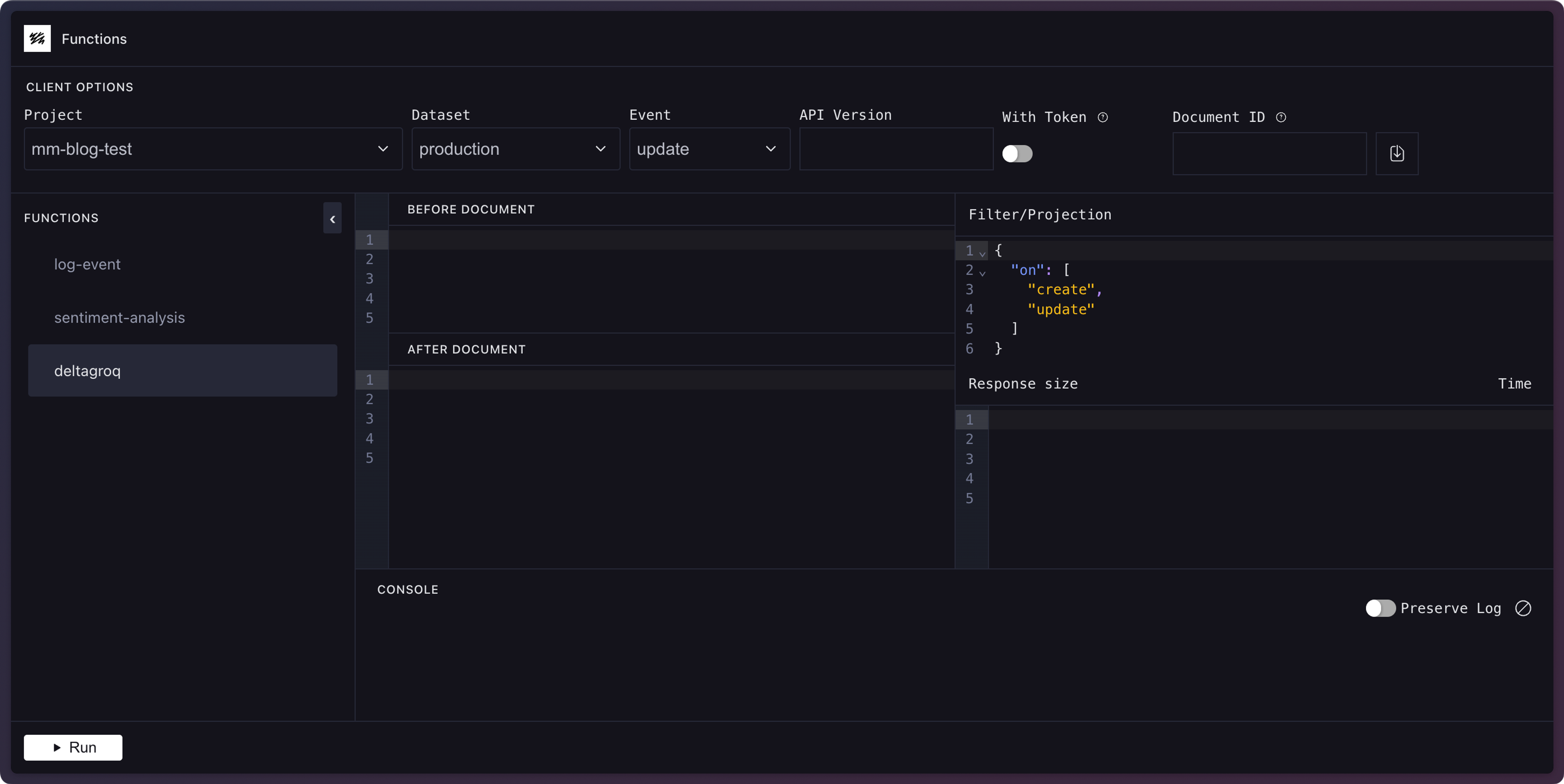
You can test functions locally with the functions development playground. Local testing is a great way to experiment without affecting your usage quota.
To launch the development playground, run the following:
npx sanity functions dev
pnpm dlx sanity functions dev
yarn dlx sanity functions dev
bunx sanity functions dev
If you run this on the starter function from earlier, you'll see the default output message in the console pane.
To test with real data from your Media Library, you can pass a document _id and select your library ID to fetch an asset document and pass it to the function's event. Don't forget to press the download button next to the document ID to populate the input. You can also manually enter a document-like shape. In either case, make sure it matches your projection criteria.
Update your function to log the event and you'll see the supplied document details the next time you run the function in the playground.
import { documentEventHandler } from '@sanity/functions'

export const handler = documentEventHandler(async ({ context, event }) => {
  const time = new Date().toLocaleTimeString()
  console.log(`👋 Your Sanity Function was called at ${time}`)
  console.log('Event:', event)
})
export async function handler({context, event}) {
const time = new Date().toLocaleTimeString()
console.log(`👋 Your Sanity Function was called at ${time}`)
console.log('Event:', event)
}Development playground
In addition to the sanity functions dev command, there's also a more traditional CLI testing interface.
Run the sanity functions test functionName command to run the function locally. You can learn more in the local testing guide and the functions CLI reference.
Deploy a function
Once you're satisfied that the function works as expected, deploy it by deploying the blueprint stack.
npx sanity blueprints deploy
pnpm dlx sanity blueprints deploy
yarn dlx sanity blueprints deploy
bunx sanity blueprints deploy
You can begin using your function when the deployment finishes. If you set a filter earlier, edit a document that matches it and publish the changes to trigger the function.
If you need to change the function, update your code and re-run the deploy command to push the new changes live.
Check the logs
When you tested the function locally, you saw the logs directly in your console. Once deployed, the function and its logs are in the cloud.
View the logs with the functions logs command. Replace asset-update with your function name.
npx sanity functions logs asset-update
pnpm dlx sanity functions logs asset-update
yarn dlx sanity functions logs asset-update
bunx sanity functions logs asset-update
This command outputs the function's logs. Try updating your document, publishing the change, and running the command again to see new logs.
System documents
If you didn't limit the scope of the function by setting a GROQ filter earlier, every change to a published document will run the function. This can greatly increase your usage, so it's best to create specific filters for your documents.
Destroy a deployed blueprint
Sometimes you want to remove a deployed resource so it won't run anymore or affect any future usage quotas.
To remove a resources created with a blueprint, you need to either:
- Remove the definition from the blueprint, and run the
deploycommand again. - Destroy the blueprint with the
destroycommand.
The blueprints destroy command removes, or undeploys, the blueprint and all of its resources from Sanity's infrastructure. It does not remove your local files.
npx sanity blueprints destroy
pnpm dlx sanity blueprints destroy
yarn dlx sanity blueprints destroy
bunx sanity blueprints destroy
To remove the resource from the blueprint locally, you can remove it from the resources array in the sanity.blueprint.ts file, then delete any associated files.
Redeploying a destroyed blueprint
When you run blueprints destroy, it's as if you never used blueprints init during setup. The only difference is you still have all the files in your directory. To use this blueprint again and redeploy it, you'll need to let Sanity know about it. You can do this by running init again:
npx sanity blueprints init
pnpm dlx sanity blueprints init
yarn dlx sanity blueprints init
bunx sanity blueprints init
This launches an editing interface that lets you reconfigure the blueprint, if needed, and it reconnects the blueprint to Sanity. Now you can add more functions or redeploy. Keep in mind that any environment variables added before destroying the blueprint will not carry over.