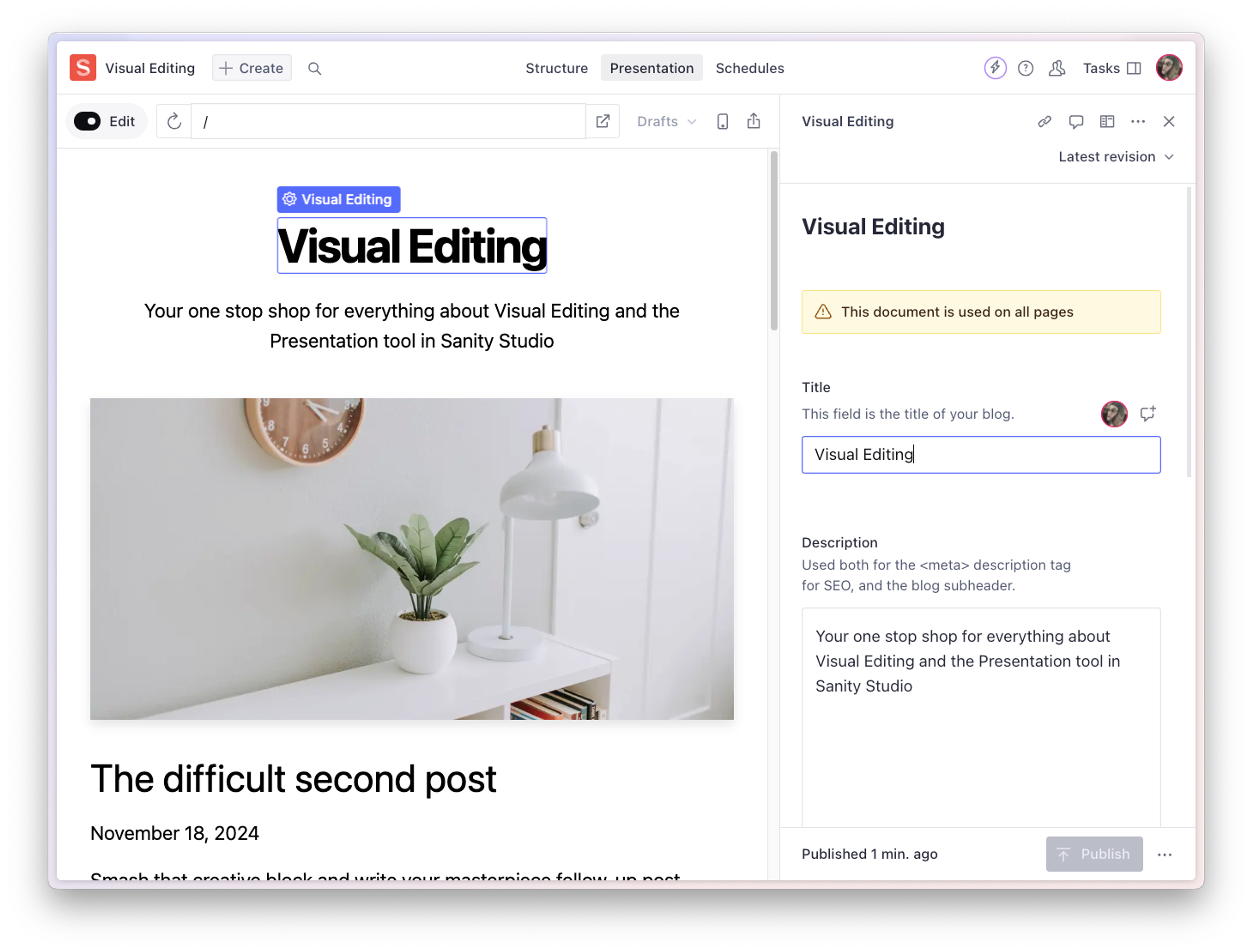
Overlays
Overlays are a core part of Sanity's Visual Editing that enables interactive editing experiences directly in your front end. They range from simple click-to-edit functionality to advanced drag-and-drop page building capabilities.
Understanding Overlays
Overlays serve two main purposes in Visual Editing:
- Click-to-edit: Highlights content areas and takes you directly to the corresponding field in the Studio
- Page building: Enables drag-and-drop interactions for adding, moving, and removing sections when supported by your framework
How Overlays Work
For overlays to function, they need to:
- Identify Content: Locate elements in your DOM that contain Sanity content
- Map to Studio: Create correct references to documents and fields in the Studio
- Enable Interactions: Support the appropriate level of interactivity based on your framework
How to enable Overlays
Automatically with Stega Encoding
The simplest approach uses Stega encoding, which automatically adds invisible Content Source Maps to text content:
// Stega is usually enabled at the client level
const client = createClient({
  // ...other config
  stega: {
    enabled: true
  }
})
Stega can break string-compare functionality
Stega inserts hidden characters into your content, and can cause problems when comparing strings. While this only displays when previewing content, it can cause unexpected behavior. You can prevent this by cleaning any values before comparison with the stegaClean utility.
Manually with Data Attributes
For non-text content or custom interactions, use data attributes:
import { createDataAttribute } from "@sanity/visual-editing"

function Section({ documentId, documentType, sections }) {
  const attr = createDataAttribute({
    id: documentId,
    type: documentType,
    path: 'sections'
  })

  return (
    <div data-sanity={attr().toString()}>
      {sections.map(section => (
        <div
          key={section._key}
          data-sanity={attr(`sections[_key=="${section._key}"]`).toString()}
        >
          {section.content}
        </div>
      ))}
    </div>
  )
}
Framework-Specific Loading
When using framework-specific loaders, you get a pre-configured encoding helper. Here is how it can look with the React loader:
export default function Page() {
  const { data, encodeDataAttribute } = useQuery(query)

  return (
    <div data-sanity={encodeDataAttribute(['sections'])}>
      {/* Your content */}
    </div>
  )
}
Overlay Edit Groups
Use the data-sanity-edit-group attribute to group multiple overlays onto a single visual element:
import { createDataAttribute } from "@sanity/visual-editing"

function Section({
  documentId,
  documentType,
  backgroundColor,
  borderColor
}) {
  const attr = createDataAttribute({
    id: documentId,
    type: documentType,
  })

  return (
    <div data-sanity-edit-group style={{backgroundColor, borderColor}}>
      <div data-sanity={attr('backgroundColor').toString()} />
      <div data-sanity={attr('borderColor').toString()} />
    </div>
  )
}
Edit groups will ignore text-based nodes to keep the click-to-edit functionality on text content.
Progressive Enhancement
Overlays follow a progressive enhancement model based on your framework's capabilities:
- Basic (All frameworks)
- Click-to-edit functionality
- Content highlighting
- Direct Studio navigation
- Advanced (React/React-based frameworks)
- Full page building experience
- Drag-and-drop section management
- Real-time content updates
Framework Support
- Advanced support: Next.js App Router and other React-based frameworks
- Basic Support: Any framework with server-side rendering
- Coming soon: Advanced support for Vue.js and Svelte frameworks
Implementation Tips
- Start with Stega encoding for text-based content
- Use
createDataAttributefor non-text content and custom interactions - Consider framework-specific loaders for enhanced capabilities
- Test overlay behavior both in the Presentation tool
Note on Vercel Integration
When using Vercel's Visual Editing:
- Overlays appear automatically in preview builds if Stega is enabled
- No additional configuration needed if Stega is enabled because the overlays are powered by the Vercel toolbar
- Still supports manual overlay configuration for iframe contexts