Sanity Context
Sanity Context exposes the content kept in Sanity to your agents through a hosted, read-only MCP server, from your live dataset or from Knowledge Bases built ahead of time.
Sanity Context is a hosted Model Context Protocol (MCP) server that gives AI agents structured, read-only access to your content. It serves your live dataset in GROQ mode, or material you have indexed ahead of time in Knowledge Base mode.
With Sanity Context, you can:
- Answer questions from your own content. Build assistants that respond from your documentation or help center rather than from a model's training data.
- Recommend from your catalog. Give a shopping assistant schema-aware access to products so it filters on real fields instead of guessing at them.
- Surface related work for editors. Let an editorial helper find existing coverage before someone writes a duplicate.
- Ground an agent in curated knowledge. Build a Knowledge Base from datasets, websites, and files, and serve it as one indexed source.
What Sanity Context provides, and what you bring
Sanity hosts Context MCP, the server your agent connects to. You bring:
- An MCP-capable AI harness. Your own application built with the Vercel AI SDK, or anything else that speaks MCP.
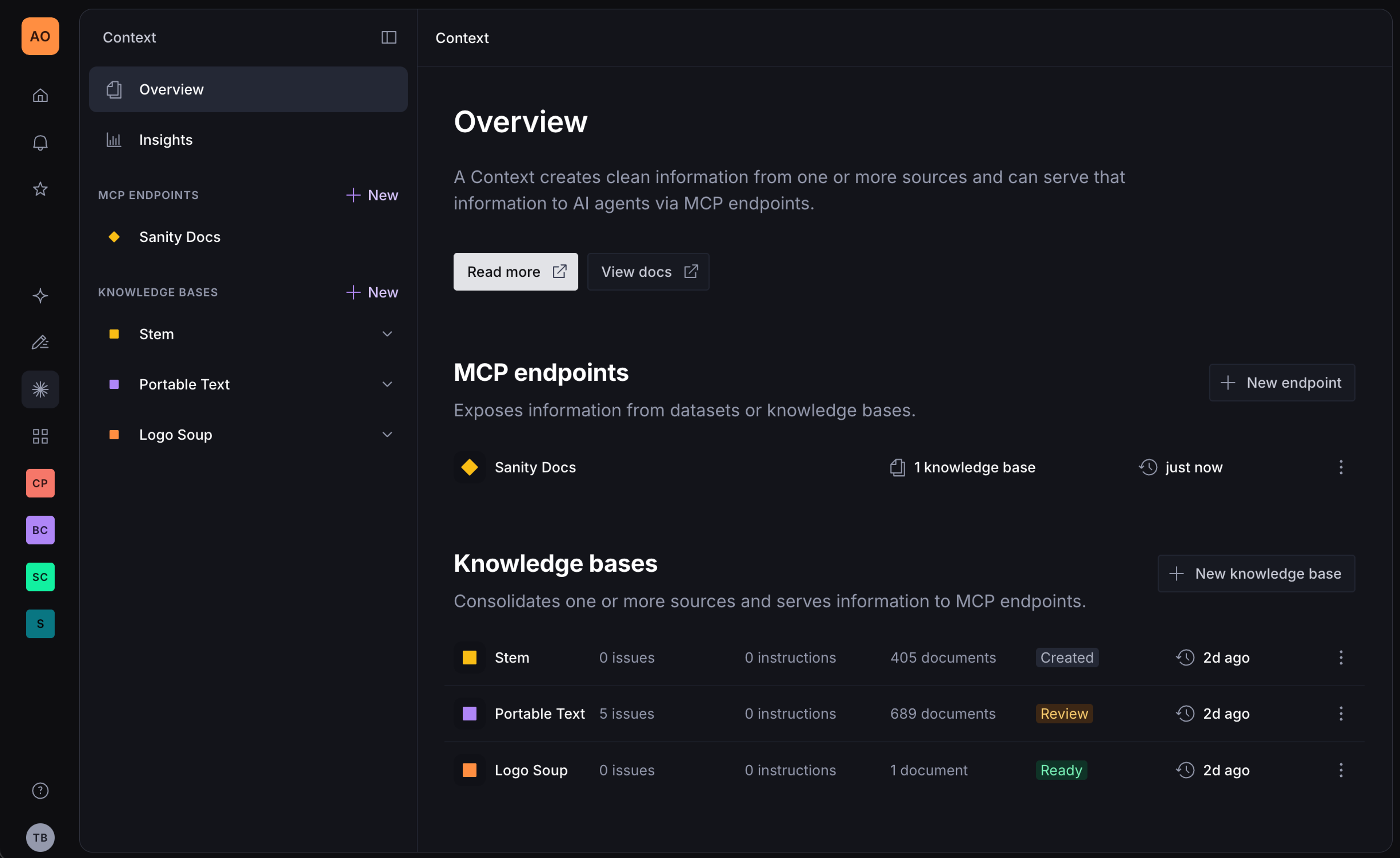
- A Context MCP, created in the Context app in the Sanity Dashboard. The configuration that defines what the agent can access, plus optional instructions that shape how it behaves.
Sanity Context provides the scoped, schema-aware window into your content. It does not run the agent loop itself, and it cannot write back to your dataset. If you need tools for an agent that creates or modifies content, see the Sanity MCP server, which is a separate server, not a write mode of this one. If you want an editorial assistant with its own harness that runs in the Dashboard, on Slack, or through an API, see Content Agent.
Requirements
To set up Sanity Context, you'll need:
- Context enabled for your organization. An organization admin can enable it from the Labs page of your organization in Manage.
- An organization API token with Context Viewer permissions. Create it in Manage under API > Tokens at the organization level, and keep it server-side. Viewer is the least privilege that works; Editor also works.
- A model and API key. Simple schemas and questions work with small, fast models. If the agent picks the wrong tool or writes malformed GROQ, move to a more capable model.
- Optionally, a frontend application to host the agent. Next.js, for example.
GROQ mode additionally requires:
- A Sanity project with content.
- Sanity Studio 5.1.0 or later for server-side schema support.
- A deployed schema. Run
sanity schema deploy, or open your hosted Studio once if you deploy withsanity deploy.
Knowledge Base mode additionally requires at least one Knowledge Base that your token can read.
Core concepts
Retrieval modes
Context serves content in one of two modes. GROQ mode queries your dataset at request time and suits structured, consistent content the schema can point an agent at. Knowledge Base mode serves an index built ahead of time and suits answers spread across prose from several sources. The mode determines which tools the endpoint serves. See Context retrieval modes.
Context MCPs
A Context MCP is the configuration an agent connects to: what content it can reach, and any instructions that shape its behavior. You create and manage MCPs in the Context app, so you can change what an endpoint serves without redeploying the agent. See Configure an MCP.
Initial context
At the start of a conversation the agent orients itself through initial context, which is mode-aware: a compressed schema overview in GROQ mode, or the Knowledge Base outline in Knowledge Base mode. If you control the system prompt you can fetch it over HTTP and skip the tool call. See Inline initial context into your system prompt.
Knowledge Bases
A Knowledge Base is a pre-built index over material you choose: datasets, websites, uploaded files. A build reads the material ahead of time, resolves conflicts between sources, and writes entries an agent can retrieve directly. See Knowledge Bases and Knowledge Base source types. Once a Knowledge Base is live, you keep it current and resolve the issues a build raises.
Content access
Access is decided when the agent connects: your organization token authorizes the connection, the MCP's sources decide what it serves, and a GROQ filter scopes dataset reads. Context MCP is read-only in both modes. See Content access and security.
Limitations
- Context MCP is read-only. It cannot create or update documents.
- It does not run the agent loop. You bring the harness and the model.
- Knowledge Bases are an opt-in beta feature, and limits may change before general availability. If you are on an Enterprise plan and need higher limits, talk to your Sanity representative.
Next steps
- Quick start: connect an agent to Sanity Context. The shortest path to something working.
- Context MCP. The reference for endpoints, parameters, and configuration.
- Context MCP tools. Which tools an endpoint serves in each mode, and what each one does.
- Sanity Context patterns and best practices. Scoping, routing, and instructing agents once the basics work.
- Add insights to Sanity Context. Track and analyze agent conversations.