Resolve Knowledge Base issues
Work through conflicts a build detected and turn your decisions into instructions that carry across future builds.
Beta
Knowledge Bases are available as an opt-in beta feature. Features and limits may change before general availability. If you are on an Enterprise plan and need higher limits, talk to your Sanity representative.
When the same fact appears in more than one source and the copies disagree, a build raises a conflict rather than guessing. Resolving it once turns your decision into an instruction that carries into every future build. Other issues arrive as a single proposed change to an entry, which you apply or dismiss. This guide covers both paths through the queue.
Prerequisites
A Knowledge Base with at least one completed build. See Create a Knowledge Base.
Read a conflict and its sources
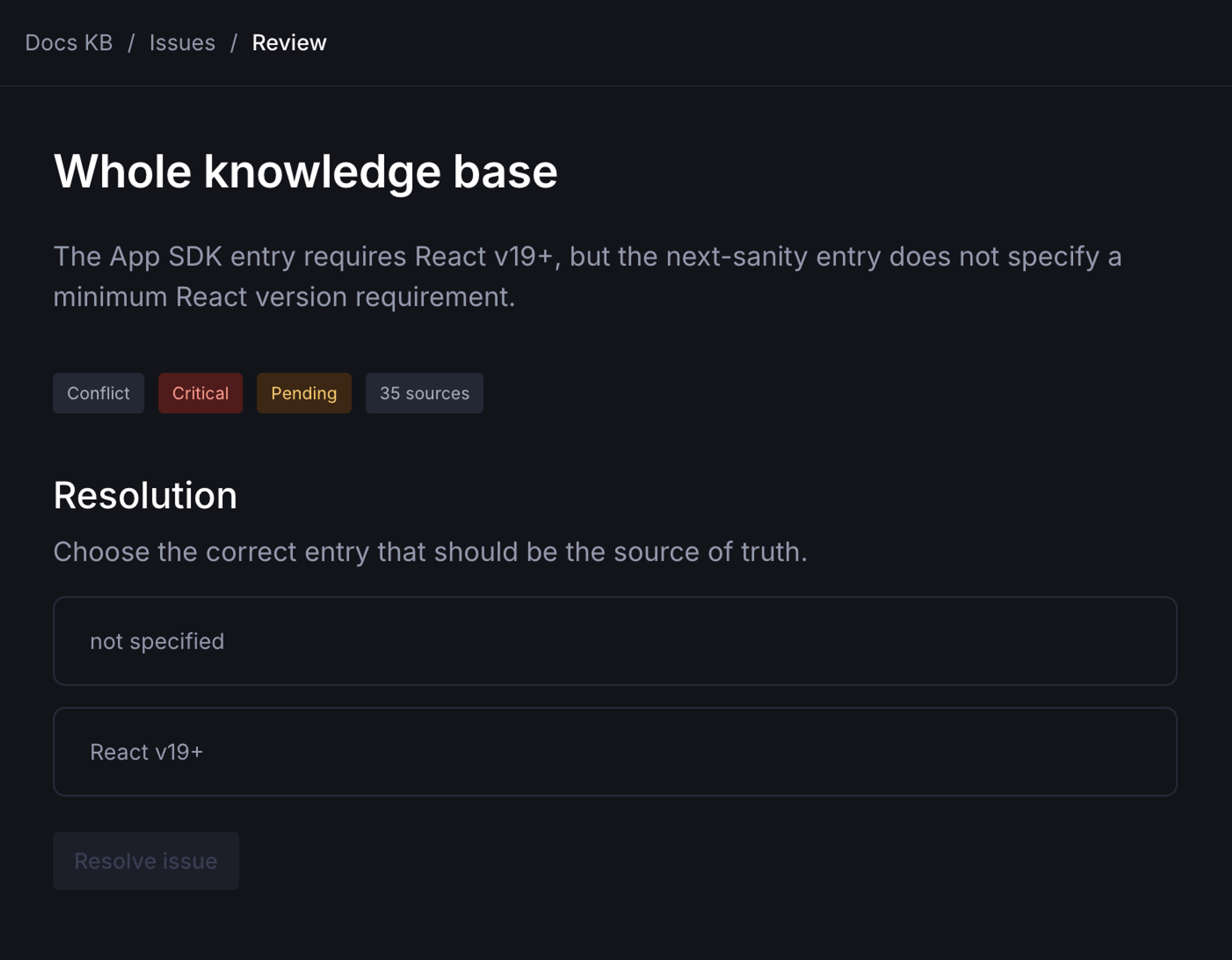
In the Context app in the Sanity Dashboard, open your Knowledge Base and select Issues. A conflict shows the two claims side by side, together with where each one came from. A help center saying returns are accepted within 30 days and a product page saying 45 is a typical example.
Choose which claim is correct
Select Keep the current entry or Accept the incoming claim, then click Resolve issue. A conflict has no third answer, so when neither source is right, correct the source material instead of resolving the issue.
The app then confirms which of two things happened. "The entry is being updated now, and saved as an instruction for future rebuilds." means a rewrite of the affected entry is already running as a background job. "Saved as an instruction that shapes your content on the next rebuild." means nothing changes until the next build. Either way, the instruction stands until the source material changes or you reopen the issue.
Apply a suggested fix
Only conflicts are resolved by picking a claim. An issue that proposes adding, removing, or splitting an entry carries one suggested fix instead, described as "Apply makes this change to your knowledge base." Click Apply to make it: a job rewrites the affected entries and commits a new revision. Click Dismiss to reject the proposal, or Edit manually to open the entry and change it yourself.
Not every issue kind can be actioned in the app. One that cannot shows "Manual action required. This issue type is not executable yet." and offers only Dismiss and Edit manually.
Dismiss or reopen an issue
Dismissing an issue rejects it without applying anything, and dismissing twice is safe. The confirm dialog reads "It won't be applied and moves to the dismissed list. You can still reopen the dismissed filter to find it later." Open a dismissed conflict and the resolution panel reads "This issue was dismissed, so no resolution will be applied." It cannot be resolved until it is reopened.
To undo a decision, click Reopen and change your mind. Reopening returns an accepted conflict to triage, clears its resolution, and deletes the instruction that resolution created.
Correct the source instead of resolving the issue
When the conflict comes from content you control, correcting the source is the more durable fix. Update the material and the next build inherits the correction. An instruction the updated material no longer supports is archived automatically, with a reason, and surfaced for you to delete or re-scope rather than removed silently.
Decide which issues to act on
You do not need to empty the queue before using a Knowledge Base. The queue holds conflicts, plus proposals to add, remove, split, or merge an entry. Issues of other kinds are not surfaced for review. Issues marked Critical affect a fact an agent is likely to state, so start there.
Next steps
- Knowledge Bases. How issues and instructions relate to entries and the outline.
- Keep a Knowledge Base current. Refresh schedules and rebuilds.