Set custom instructions for the Content Agent
Give the Content Agent standing guidelines, like tone of voice, language, or house style for you or for your whole organization.
Custom instructions are standing guidelines the Content Agent applies to every conversation. Use them for the things you'd otherwise repeat in each chat: your tone of voice, the language you write in, a house style rule, or how much detail you want in a response.
This guide explains how to set custom instructions for yourself and for your organization, how the two sets combine, and how to write instructions the agent follows reliably.
Prerequisites
- Access to the Sanity Dashboard, with an organization selected.
- The Administrator role on the organization, to set or view organization-level instructions. If you're not an administrator, ask one which instructions are set.
Set your own instructions
Your own instructions apply to your conversations only.
- In the Sanity Dashboard, go to Account settings.
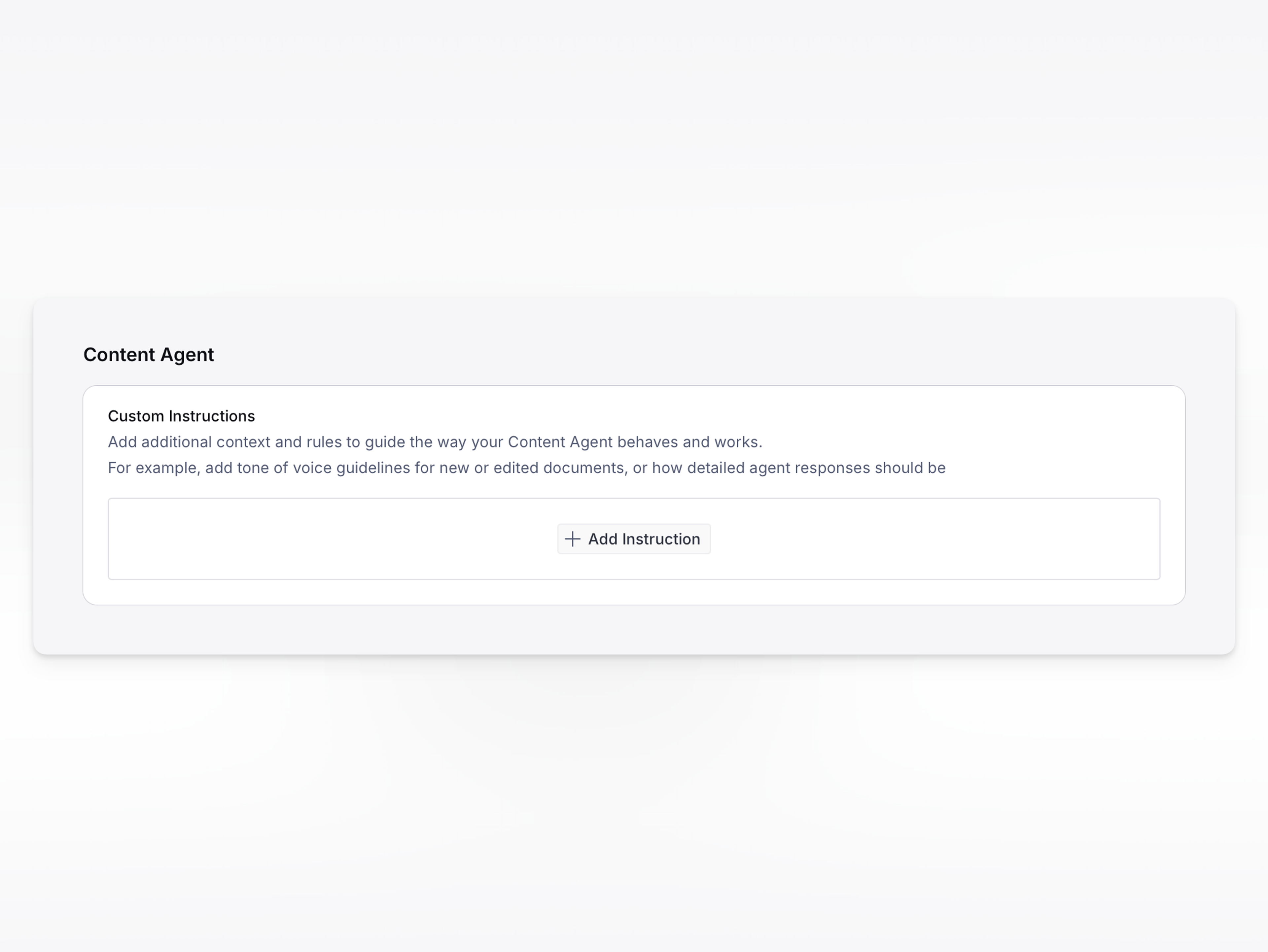
- Under Custom Instructions, click Add Instruction.
- Enter one instruction, then click Done.
- To add another, click New. You can save up to five.
Your instructions are stored per organization. If you work across two organizations, set them separately in each.
Set instructions for your organization
Organization instructions apply to everyone who uses the Content Agent in that organization.
- In Manage, go to Organization > Settings > Content Agent.
- Under Custom Instructions for your organization, click Add Instruction, enter one instruction, and click Done.
Only an organization administrator can see or change these. Keep them to things that hold for the whole team: product names that shouldn't be translated, a house style rule, the language your team writes in.
How the two sets combine
Both sets apply at once. Your organization's instructions come first, and yours are added to them. Yours do not replace or override the organization's.
Contradictions aren't resolved for you
The agent receives both sets as a single list, with nothing marking which instruction came from where. If one of your instructions contradicts an organization instruction, no rule decides the winner, and the outcome can differ from one conversation to the next. When you need to depart from an organization instruction, ask for that directly in the conversation instead of writing a competing instruction.
Custom instructions are guidance, not enforcement. The agent weighs them against everything else in the conversation, so treat them as a strong steer rather than a guarantee, and keep reviewing what it proposes.
Where custom instructions apply
Custom instructions follow the agent, not the interface. The same instructions apply whether you're working in the dashboard or in Slack, because both talk to the same agent.
They also apply when the agent is reached through the Content Agent API, on top of any instructions an application passes with a request. An application authenticating with an API token has no signed-in user behind it, so only your organization's instructions apply in that case.
Write instructions the agent follows well
- Be specific and actionable. "Write in American English" works better than "be mindful of language."
- Use imperative verbs. Tell the agent what to do rather than what you'd prefer.
- Keep each instruction to one idea. Five focused instructions work better than one that covers everything.
- Keep them short. Past about 1,000 characters the dashboard warns you that long instructions reduce accuracy.
- Stay on content. Instructions about how to write, structure, and edit content are what the agent can act on.
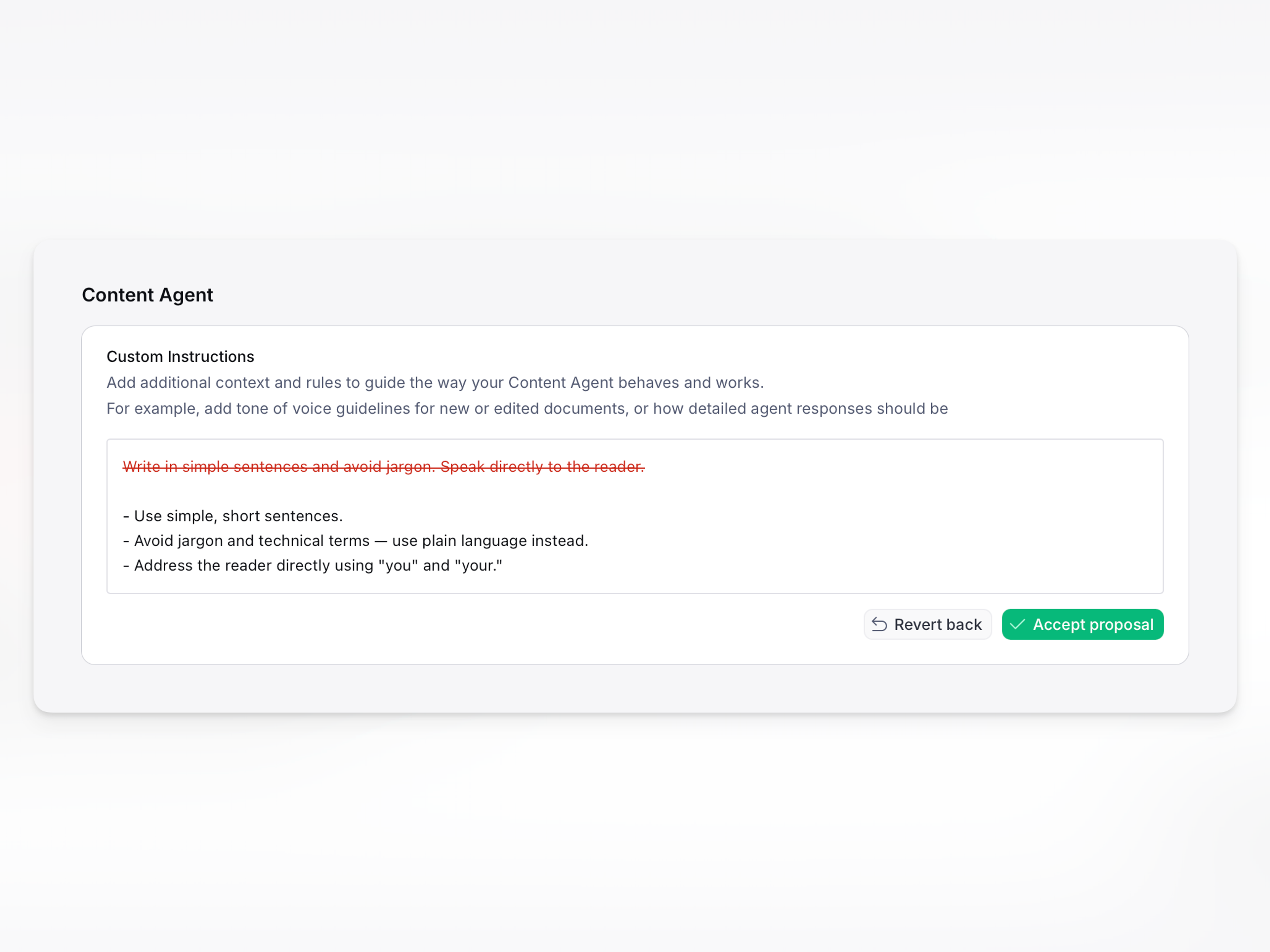
To have the agent tighten an instruction for you, click Check. It proposes a rewritten version as a diff, which you can Accept proposal or Revert back. Accepting a proposal puts the rewritten text in the editor; click Done to save it.
Edit or remove an instruction
Click an instruction to edit it, then click Done to save or Cancel to discard. To delete a saved instruction, click the trash icon (Remove instruction) beside it. Removing an instruction saves immediately and can't be undone.
Changes save as soon as you click Done, and they take effect on your next message, including in a conversation that's already open. You don't need to start a new chat.
Limits on custom instructions
- Five instructions per level, so up to ten can apply if your organization has its own set.
- Up to 50,000 characters per instruction, though much shorter is better.
Get started with Sanity Content Agent
Sanity Content Agent is an AI assistant that helps you work with content across your Sanity projects.
Content Agent for Slack
Use the Sanity Content Agent directly in Slack. Search, create, and update content in your Sanity projects through conversation, without leaving your workspace.
Content Agent API
Build custom integrations with the Sanity Content Agent API.