Platform management
Prevent non-SAML users from joining your organization
This article describes how to prevent non-SAML users from joining your organization and what to do with existing users on non-SAML identity providers.
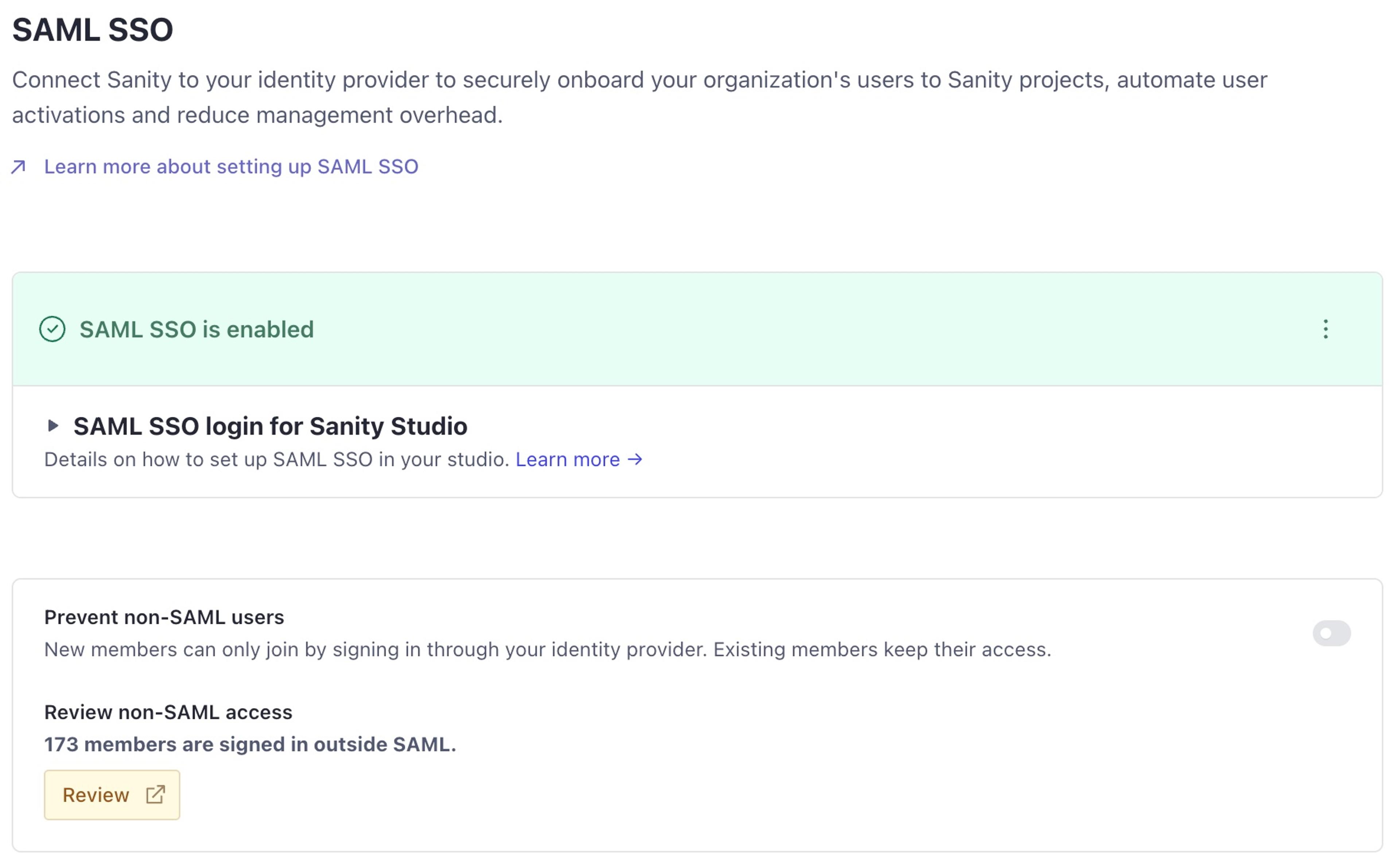
Organization administrators can turn on Prevent non-SAML users in the SAML SSO settings of the organization in Sanity Manage. This setting is available on plans that include SAML.
Prerequisites
- SAML SSO configured and enabled for your organization. To set it up, see Setting up single sign-on with SAML.
- The Administrator role on the organization.
Turn on Prevent non-SAML users
Loading...
The setting stops new non-SAML users. It does not remove the non-SAML users that are already members. To enforce SAML for all members, you must also remove the existing non-SAML users.
Before you remove existing non-SAML users
Before you remove users, know these facts:
- Sanity keeps each sign-in provider as a separate identity. A member who signed in with Google and with SAML has two accounts, and each account can have different roles. Sanity does not merge these accounts.
- The setting applies to all projects in the organization. Projects that are not on an Enterprise plan do not have SAML role mapping. You must give roles to members of these projects manually.
- If Auto update roles on login is on, Sanity sets the roles of a member from role mapping at each sign-in. Roles that you give manually to a SAML identity are removed at the next sign-in. Update your identity provider groups and your project role mapping instead.
- Work done by a non-SAML identity stays with that identity. Document history shows the old account. API tokens do not move to the SAML identity. Canvas documents that the old account owns are not available unless the owner shares them with the SAML identity first.
Remove existing non-SAML users
We recommend these steps:
- Turn on Prevent non-SAML users. This stops the list of non-SAML users from getting larger.
- Compare the roles of each non-SAML identity with the roles of the matching SAML identity. Your Sanity account team can help you prepare this comparison.
- Update your identity provider groups and your project role mapping, so that each SAML identity gets the roles it needs.
- In the SAML SSO settings, select Review next to the count of non-SAML users. Manage opens the organization members in a new tab, filtered to non-SAML providers.
- For each user, select Remove from organization.
SAML lockout
After you remove all non-SAML users, a SAML configuration error can lock all members out of the organization. If this occurs, contact Sanity support.
Next steps
- To set up or change your SAML SSO configuration and role mapping, see Setting up single sign-on with SAML.
- To learn how roles and SSO role mapping work for project members, see Roles.