Delete your account
Delete your Sanity account permanently, and clear the checks that block deletion when you're the sole administrator of a project or organization.
Deleting your Sanity account permanently removes your user profile and the personal data attached to it. This guide covers how to delete your account, and how to clear the checks that block deletion while you're the only administrator of a project or an organization.
Deleting your account can't be undone
Your account and your access to every project and organization you belong to are removed permanently. Treat deletion as irreversible: you can't restore the account yourself, and the account data is anonymized after deletion. Projects and organizations that other people still administer are not deleted along with it.
Before you start
Have the following ready:
- The project ID and organization ID of every project you belong to. Sanity asks for these if you follow up with a request to erase your personal data, and you can't look them up once the account is gone.
- A decision about any project or organization where you're the only administrator. Deletion is blocked until someone else holds that role, or the project or organization is gone.
Delete your account
Account deletion lives in your personal account settings in Manage.
- Go to Account settings in Manage.
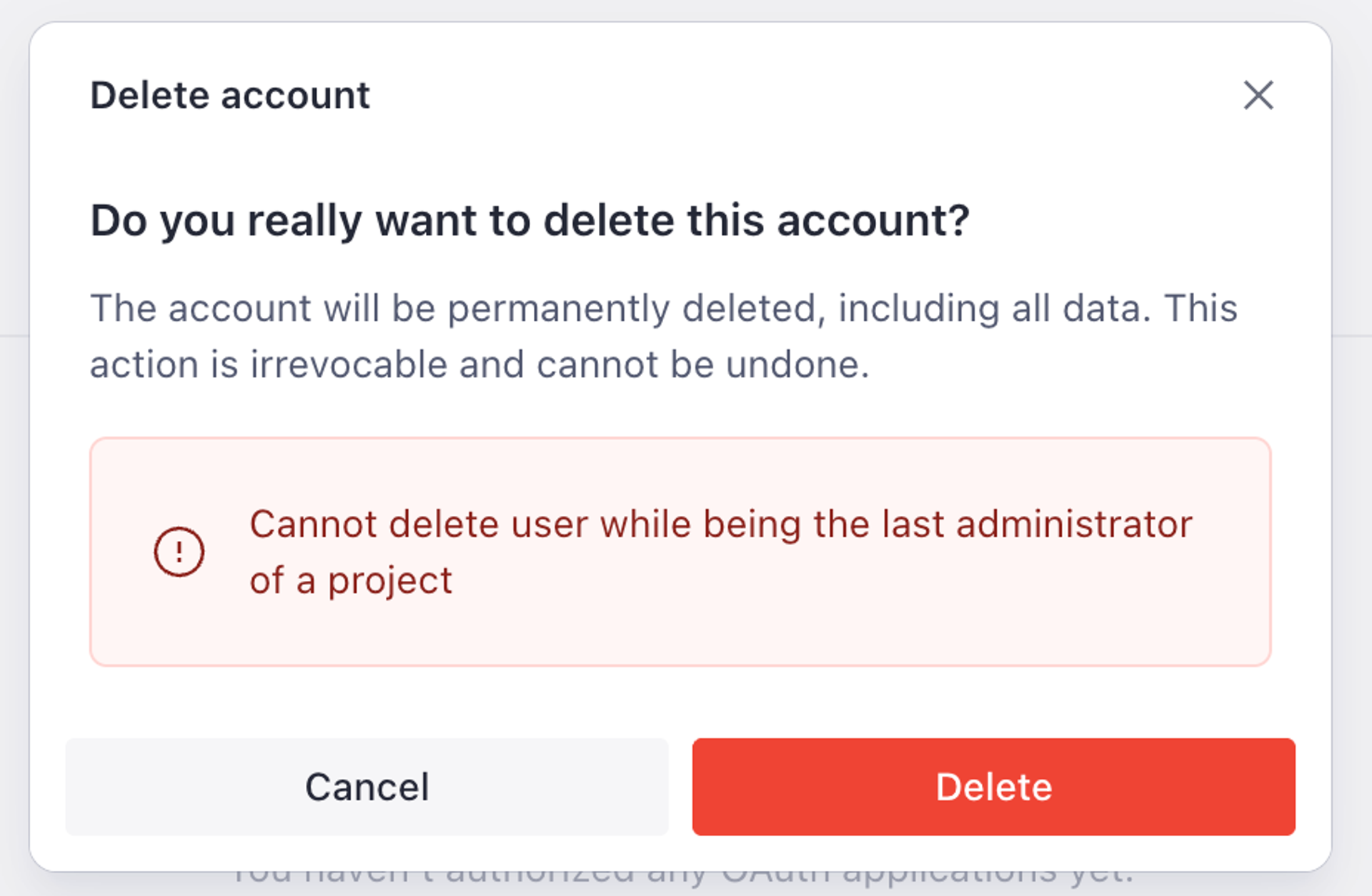
- Under Danger zone, click Delete account.
- In the confirmation dialog, in Type in the name of your user to confirm, enter your name exactly as the field description shows it.
- Click Delete.
If no check blocks the deletion, your account is removed, your session ends, and you're signed out.
Clear the last-administrator checks
Sanity blocks account deletion while you're the only administrator of a project or an organization. These are two separate checks, and the project check runs first, so resolve your projects before the organization message appears.
Messages that mean a check failed
Cannot delete user while being the last administrator of a projectCannot delete user while being the last administrator of an organization
You have two ways to clear each check.
Add another administrator
Choose this when the project or organization should keep running after you leave. In every project and organization where you're the only administrator, invite or promote another member to the administrator role, then delete your account again.
Delete the projects and organizations
Choose this when nothing should outlive your account. Work through the projects first, because the project check runs before the organization check.
- Delete each project from its settings page, under Danger zone. See Projects, organizations, and billing.
- Open each organization's settings, and under Danger zone, click Delete organization. An organization deletes only once every project in it has been deleted or moved to another organization.
- Return to your account settings and delete your account.
Projects billed through Vercel Marketplace
Projects billed through Vercel Marketplace can't be deleted in Manage. Uninstall the resource from your Vercel dashboard to delete the project.
Request erasure of your personal data
Deleting your account is a prerequisite for a personal data erasure request under GDPR and comparable laws. Once the account is gone, contact Sanity support with the project IDs and organization IDs you recorded, and Sanity confirms in writing that your personal data has been erased.
Next steps
- Projects, organizations, and billing: move projects between organizations, delete an organization, or archive a project.
- Account recovery: regain access to an account instead of deleting it.