Preview and page building
The Presentation Tool in Sanity Studio lets editorial teams preview and edit content visually, in context.
The Presentation Tool in Sanity Studio lets editorial teams work visually with structured content. It connects your content model to your front end, so content teams can navigate and manage content in context.
Gotcha
The Presentation Tool can be customized and configured in considerable detail, so your implementation may not exactly match the examples shown in this article. Talk to your studio maintainer to get the specifics of your setup.
Key features
Live previews in your studio
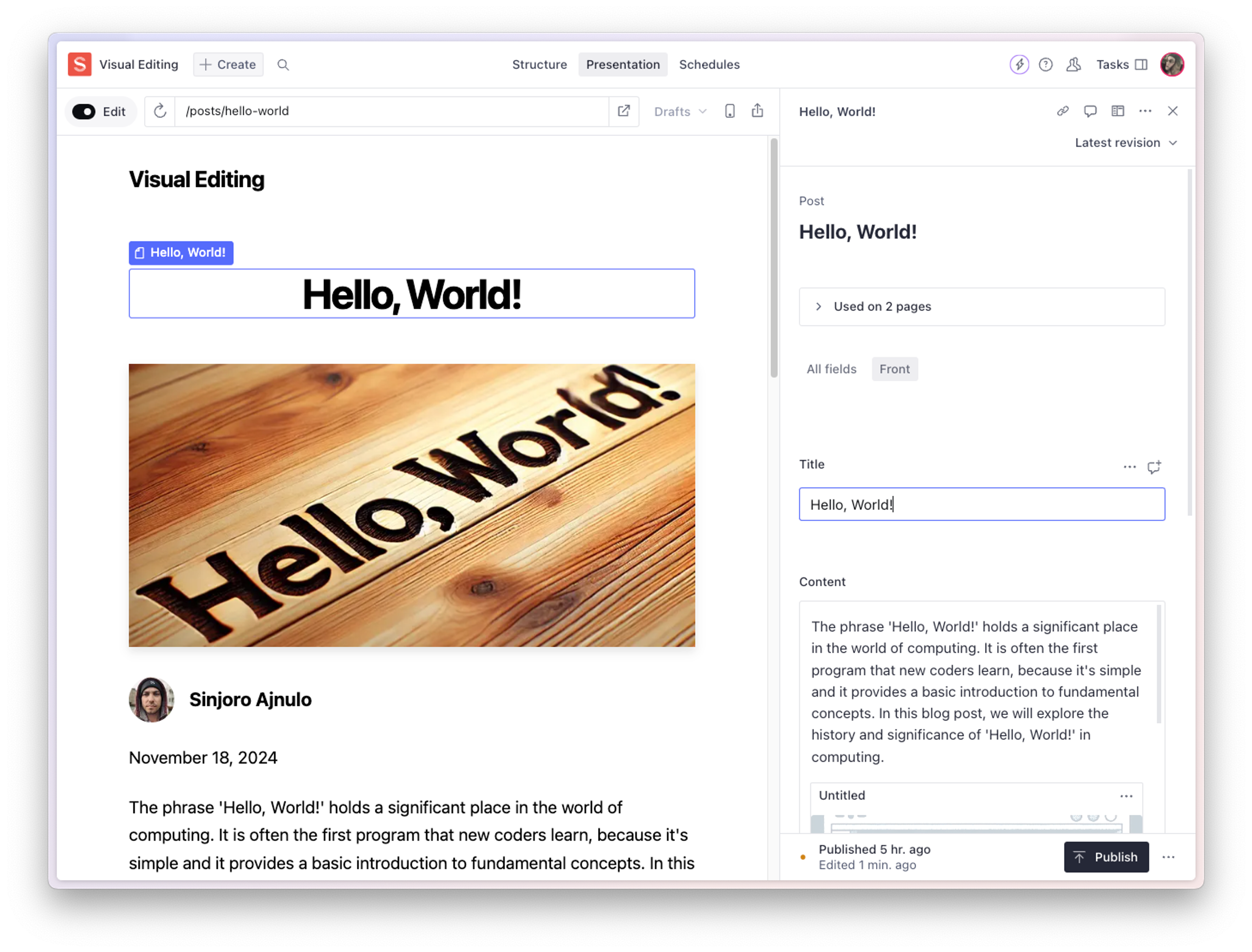
Preview your drafted changes in the Sanity Studio editorial interface, as they appear in your front end. The preview area updates in real time as you edit your content.
Overlays link preview elements to their fields
Click any element in the preview to navigate to the corresponding field in your studio editor pane, even deep within a Portable Text block. Because pages in your front end can consist of content from any number of documents, these overlays are a fast way to find exactly what you are looking for.
Build pages, block by block
Compose entire pages with drag-and-drop page building. The Presentation Tool supports page building with predefined design components, so pages stay consistent with your brand guidelines and UX patterns.
The anatomy of the Presentation Tool
The Presentation Tool is in the top studio toolbar, alongside other tools you might have access to, such as the Structure and Vision tools.
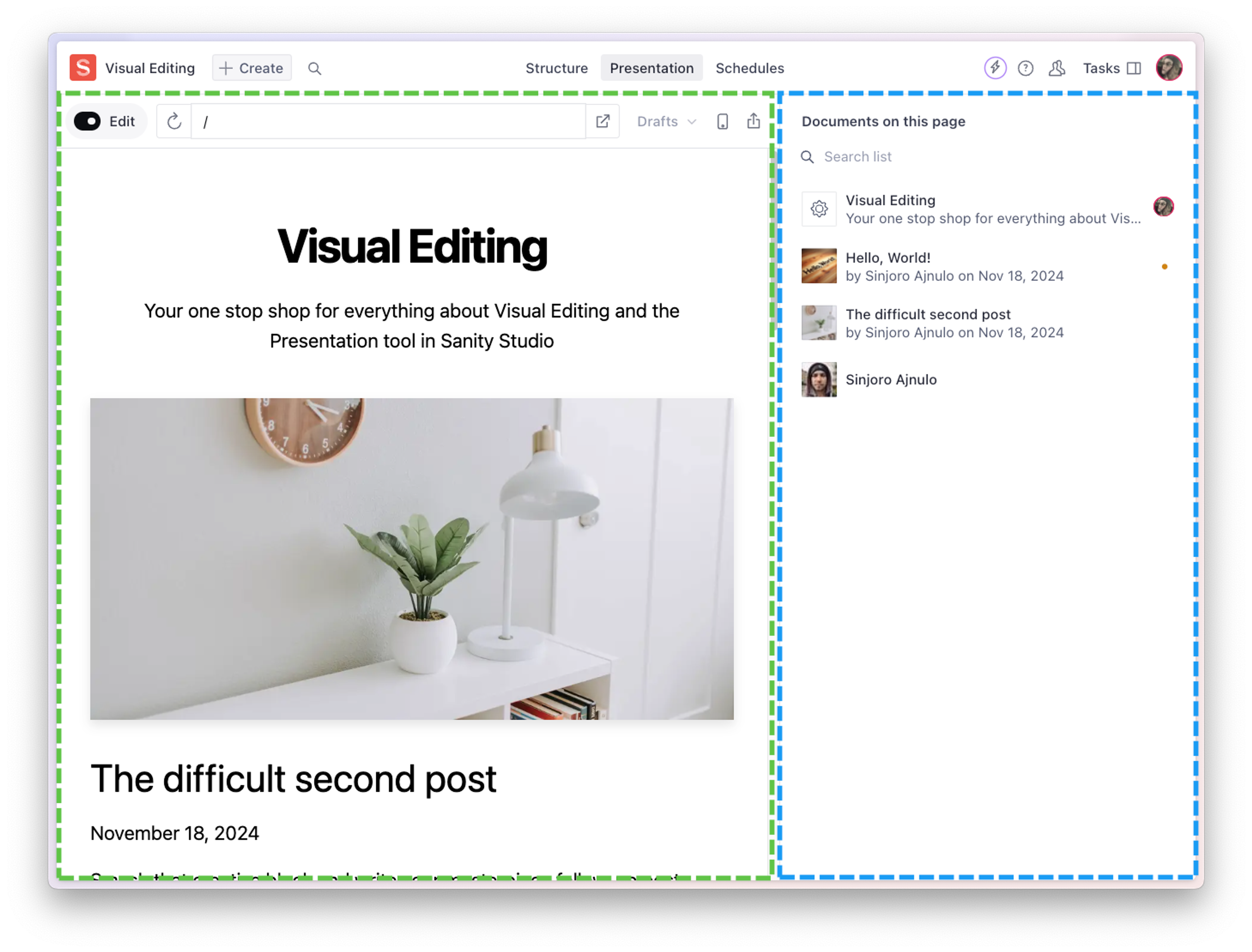
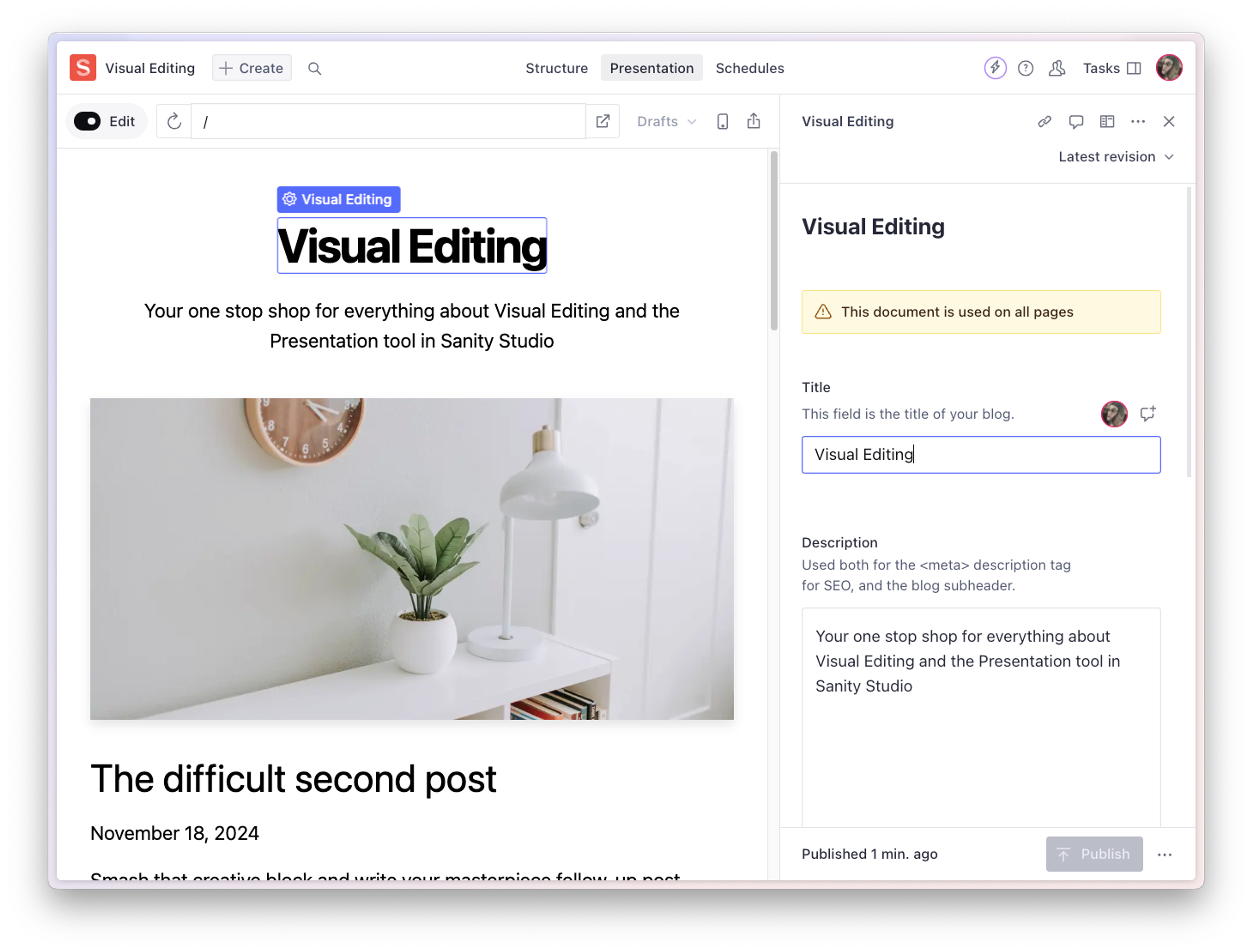
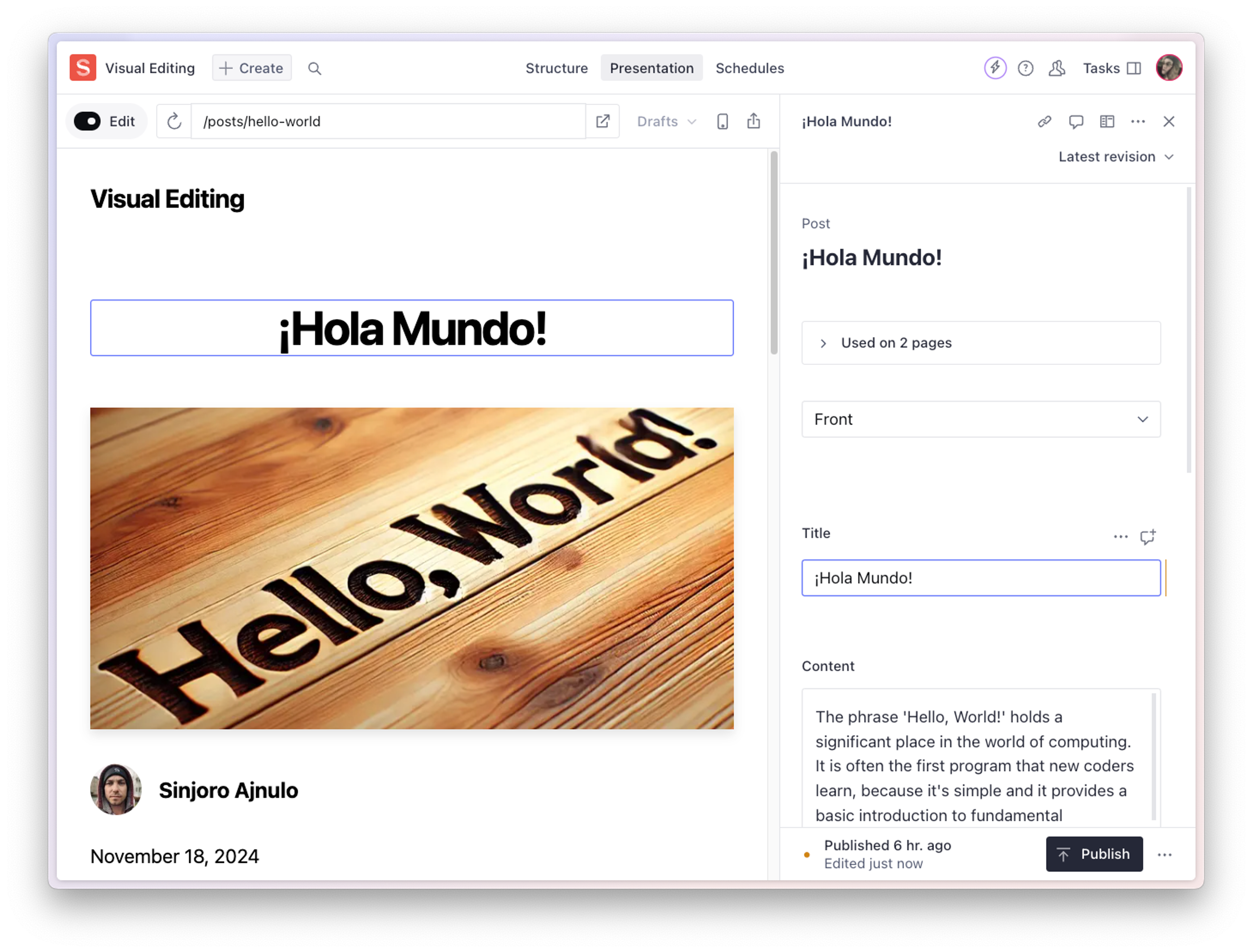
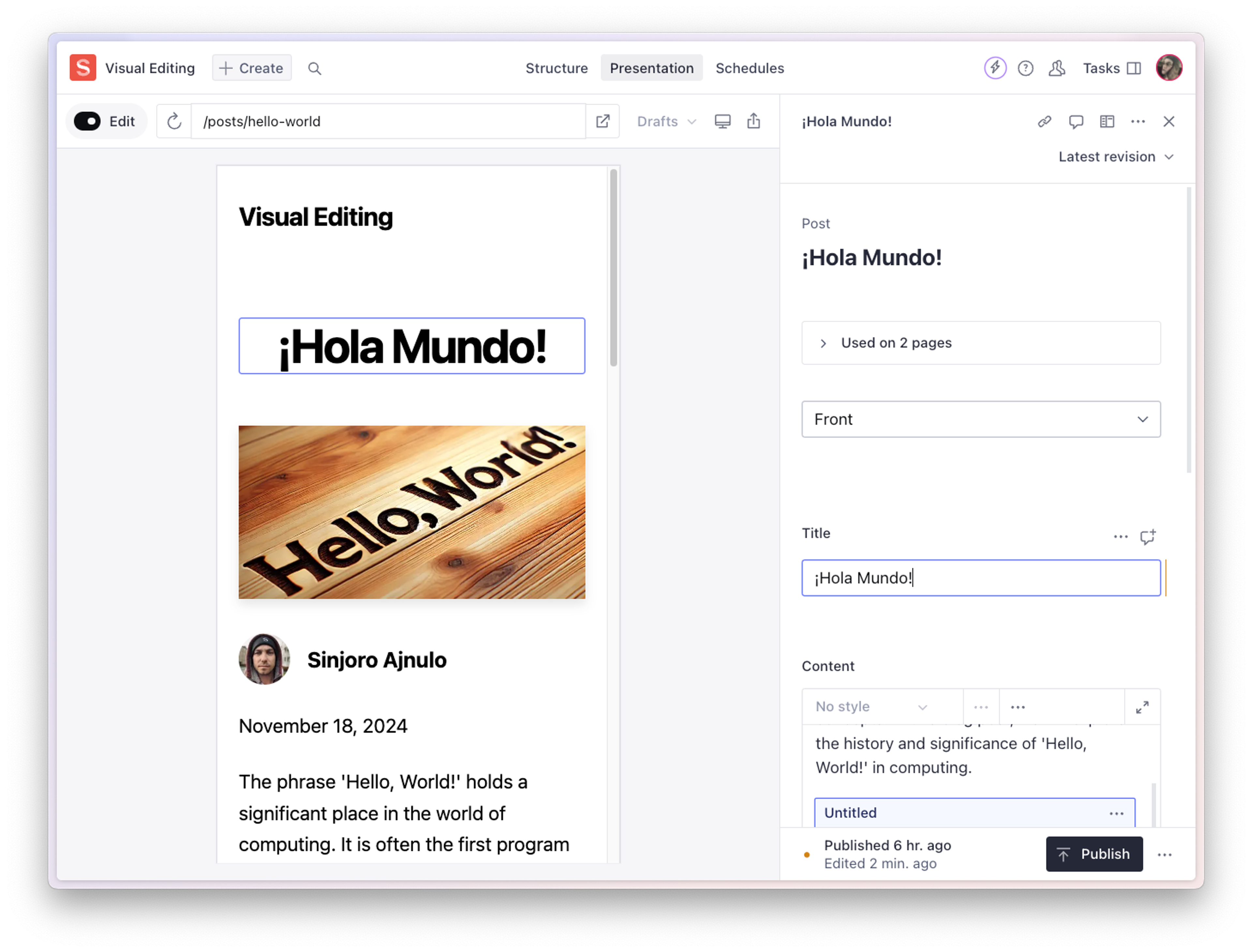
When you select the Presentation Tool, it shows an interactive preview area side by side with the Sanity Studio editorial interface. When no specific route is defined, the preview area opens a default view, such as the homepage or an index of available routes. The editor pane then lists all the documents used by the current preview.
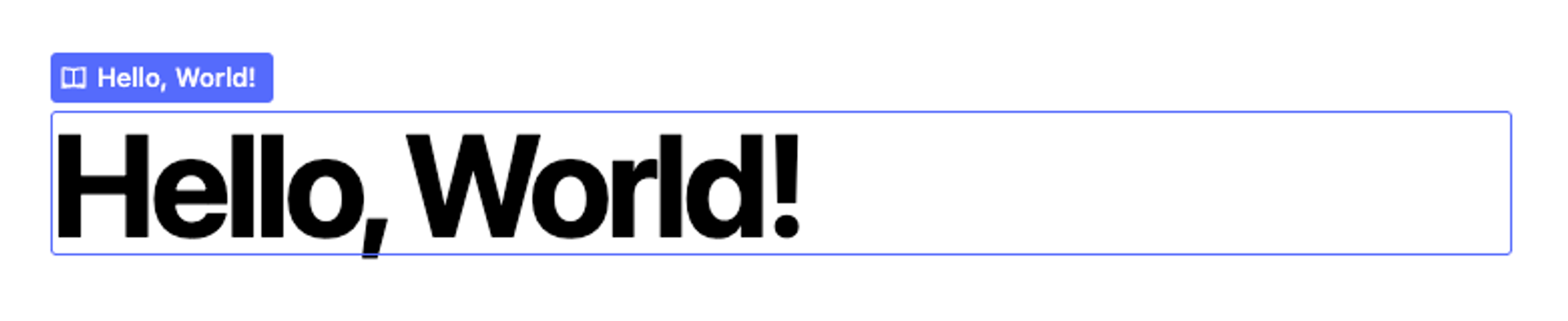
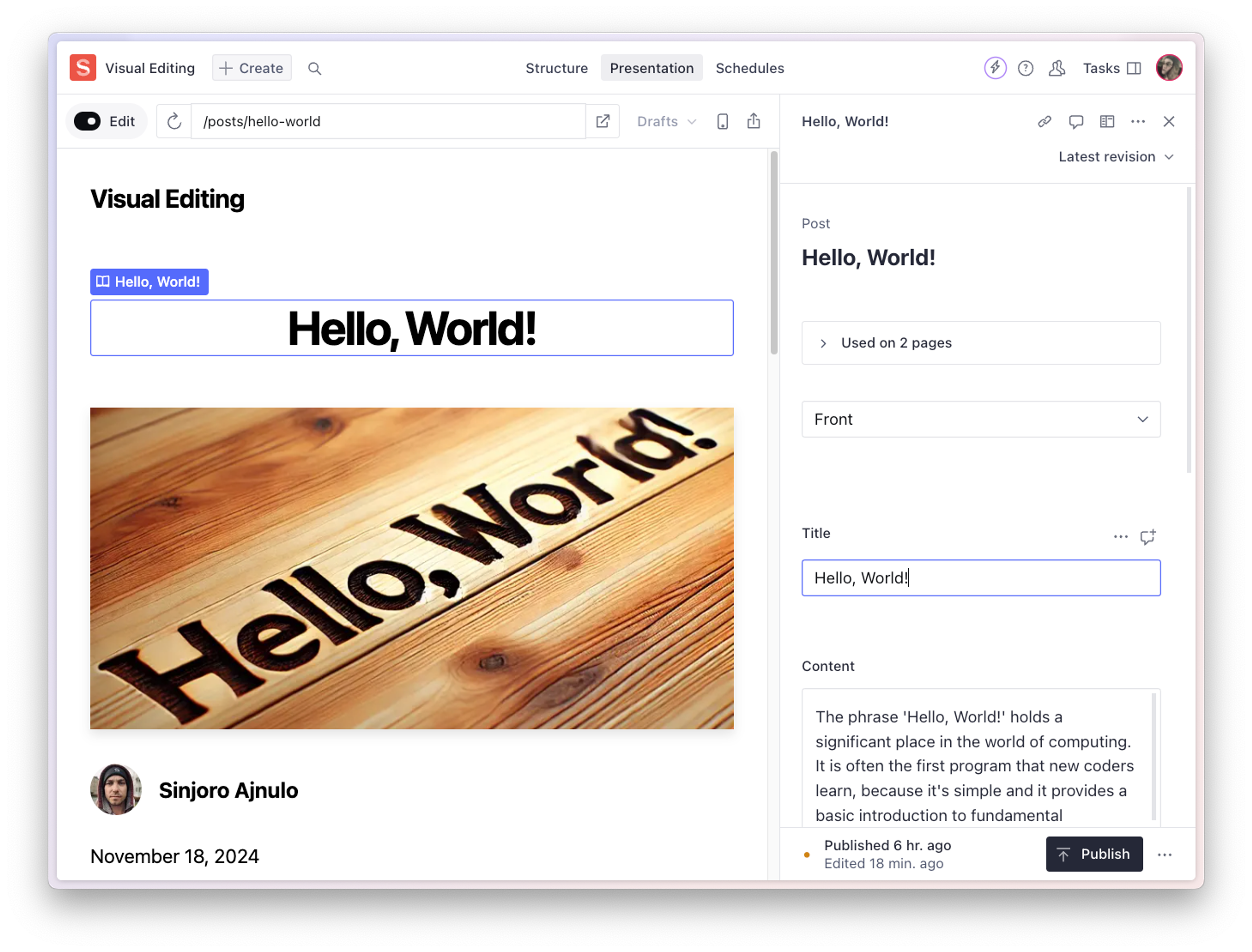
When you interact with the preview area, blue outlined overlays appear with labels indicating the source documents for elements in the preview. Click an overlay to navigate the document editor pane to the matching document and field. Your changes appear in the preview in real time.
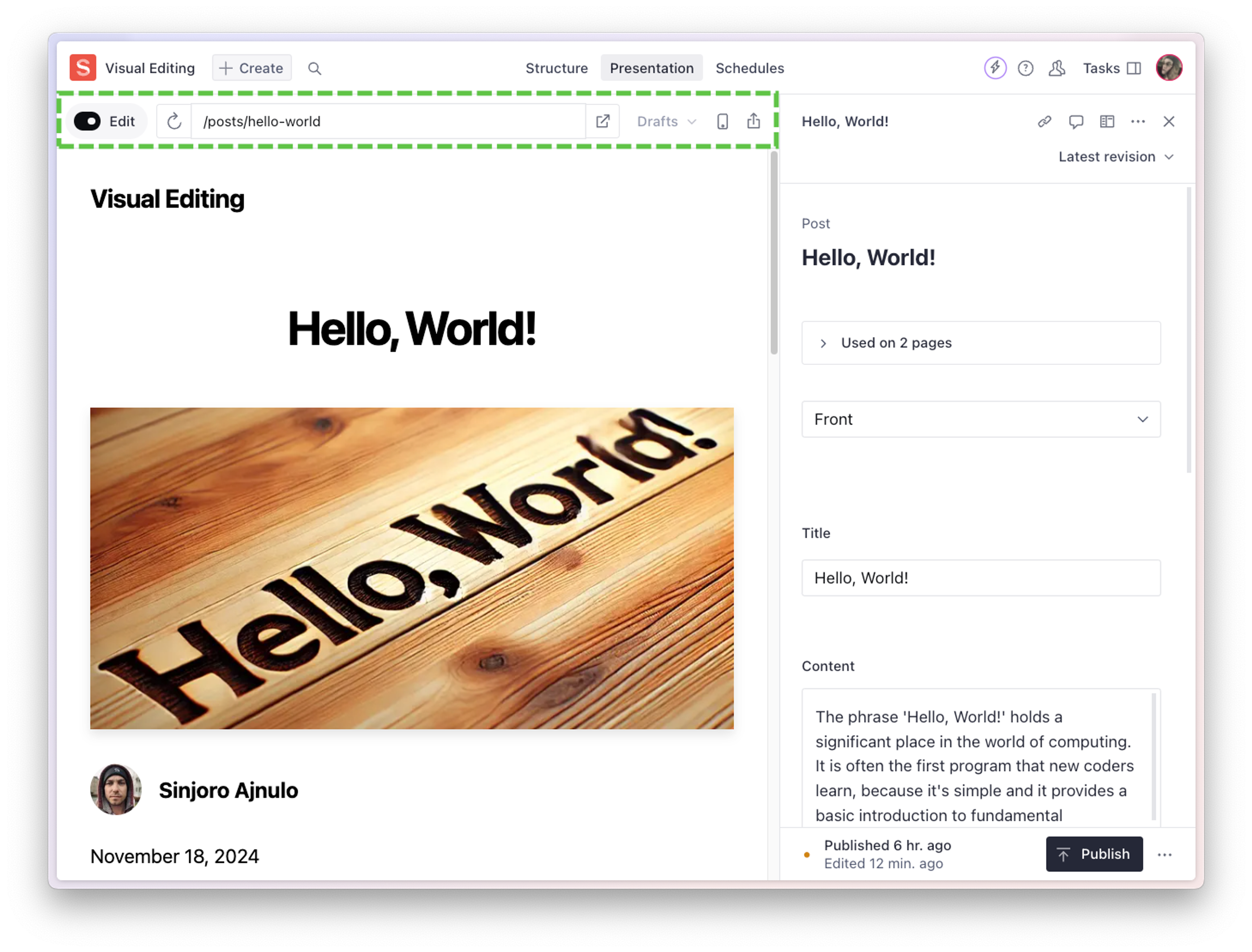
The preview area has a toolbar of its own, modeled after a typical web browser address bar.
The preview toolbar contains the following elements:
- An Edit toggle button that lets you switch the click-to-edit overlays in the preview area on or off. This is useful for navigating the preview without accidentally switching the form editor to a different context. Hold down the Alt / Option to temporarily disable click-to-edit and navigate your front end in the Presentation Tool.
- An address field where you can manually enter the route you want to preview, refresh the preview area, and open the current front-end route in a new tab.
- A button to switch the preview area between desktop and mobile viewport sizes, so you can check that your drafted edits work on all devices.
- A Share icon that lets you share a preview of your draft by copying a link or QR code.
Open a specific page in preview
There are several different ways to open a specific front-end route in the Presentation Tool. The most straightforward is to type or paste the path of the page you want to preview into the tool's address field.
Gotcha
You can enter a path or a full URL. The Presentation Tool only accepts URLs on the origins its configuration allows; anything else is rejected with a validation message.
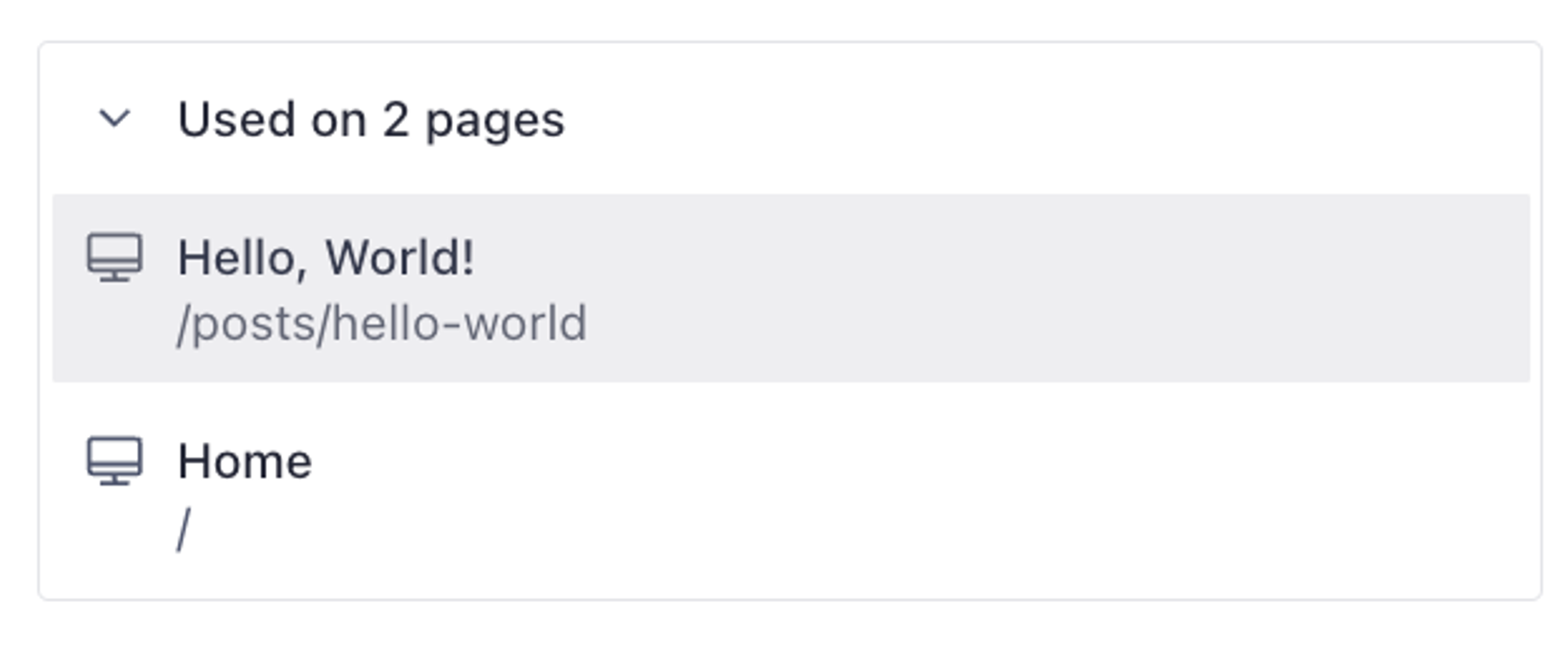
For a more studio-first approach, navigate to the relevant document in the Structure Tool. Beneath the document title you'll see a Used on N pages banner. Select it to expand the list of routes, then select a route to open it in the preview area.
Gotcha
If you can't see the list of routes, your studio maintainer may have to set up a location resolver first.
Preview and edit content
When the Edit toggle is active, you can hover any element in the preview area to see a blue outline with a label indicating the source document in Sanity Studio. Click the overlay to navigate the form editor to the relevant document and field. Because any page on your front end can include content from multiple documents, this is a fast way to reach the right document in your studio.
When you edit the field, the preview updates in real time to reflect your changes.
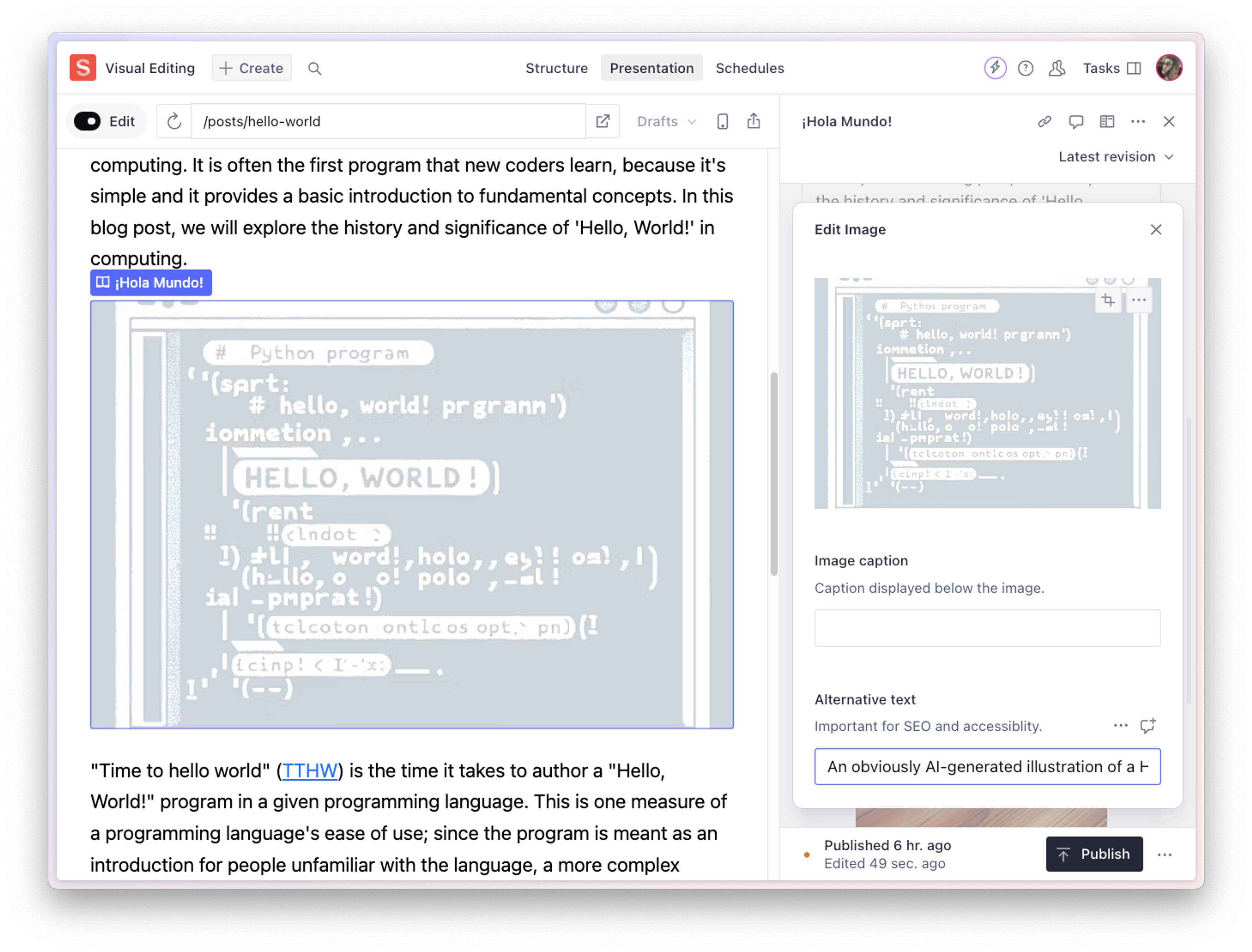
The overlays let you navigate to specific pieces of content, no matter how deep in your content structure. For example, you can target specific blocks within a Portable Text field. In the following example, clicking an image within a block of rich content in the preview area opens the details dialog for that image in the Portable Text editor.
Protip
Make sure your images have alt text! Not only is it important for accessibility, but it also helps the Presentation Tool find your images.
Build pages with drag-and-drop
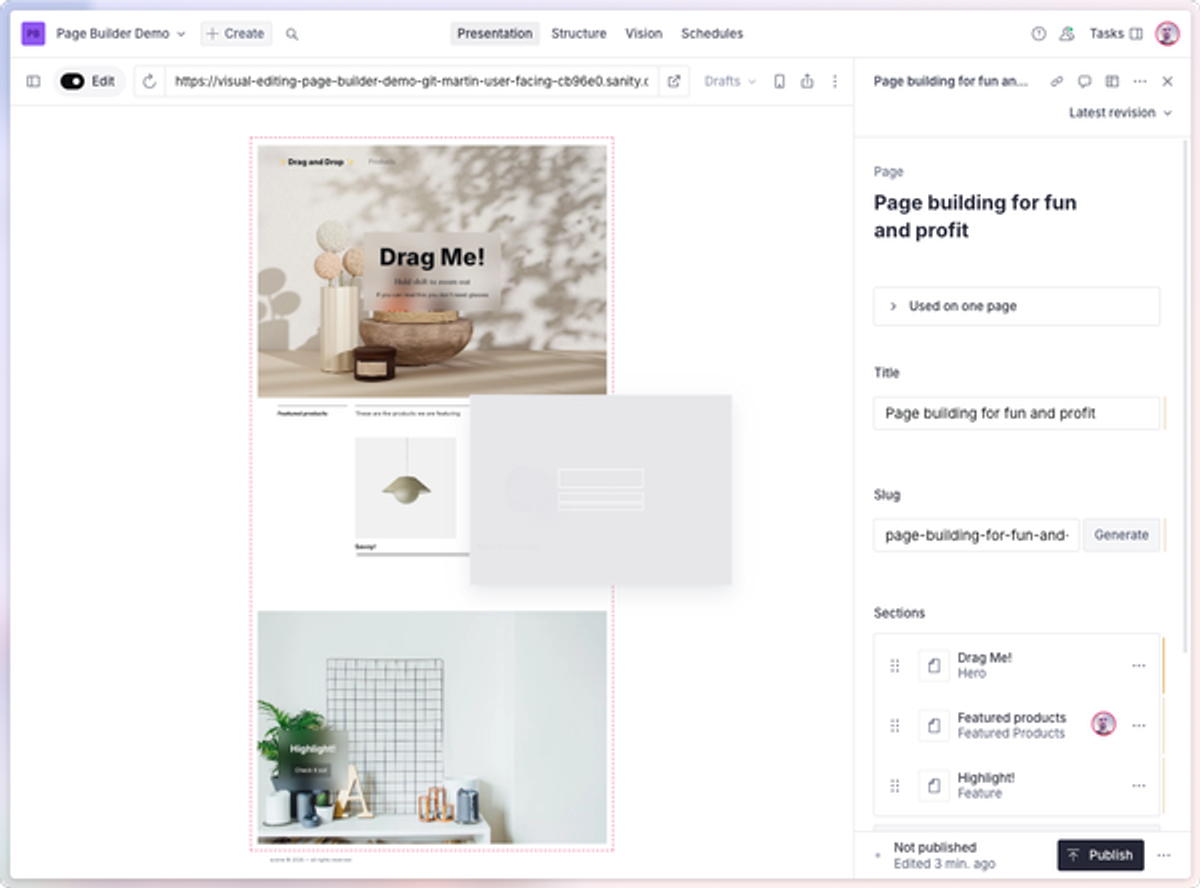
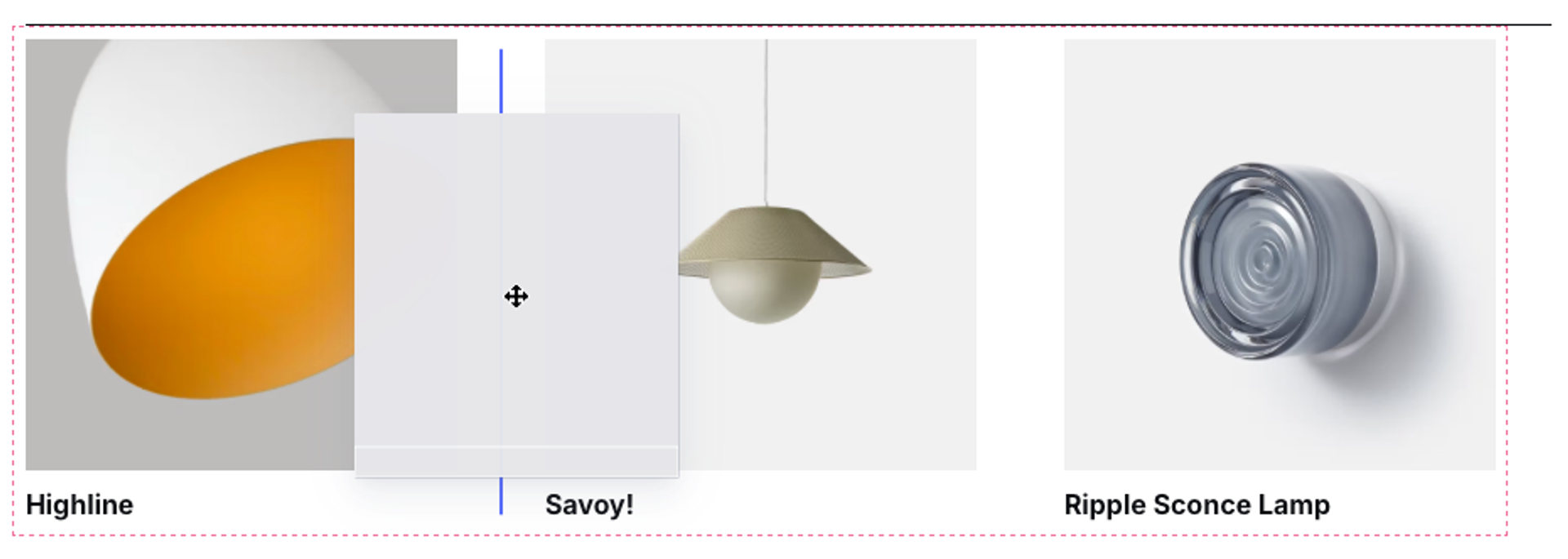
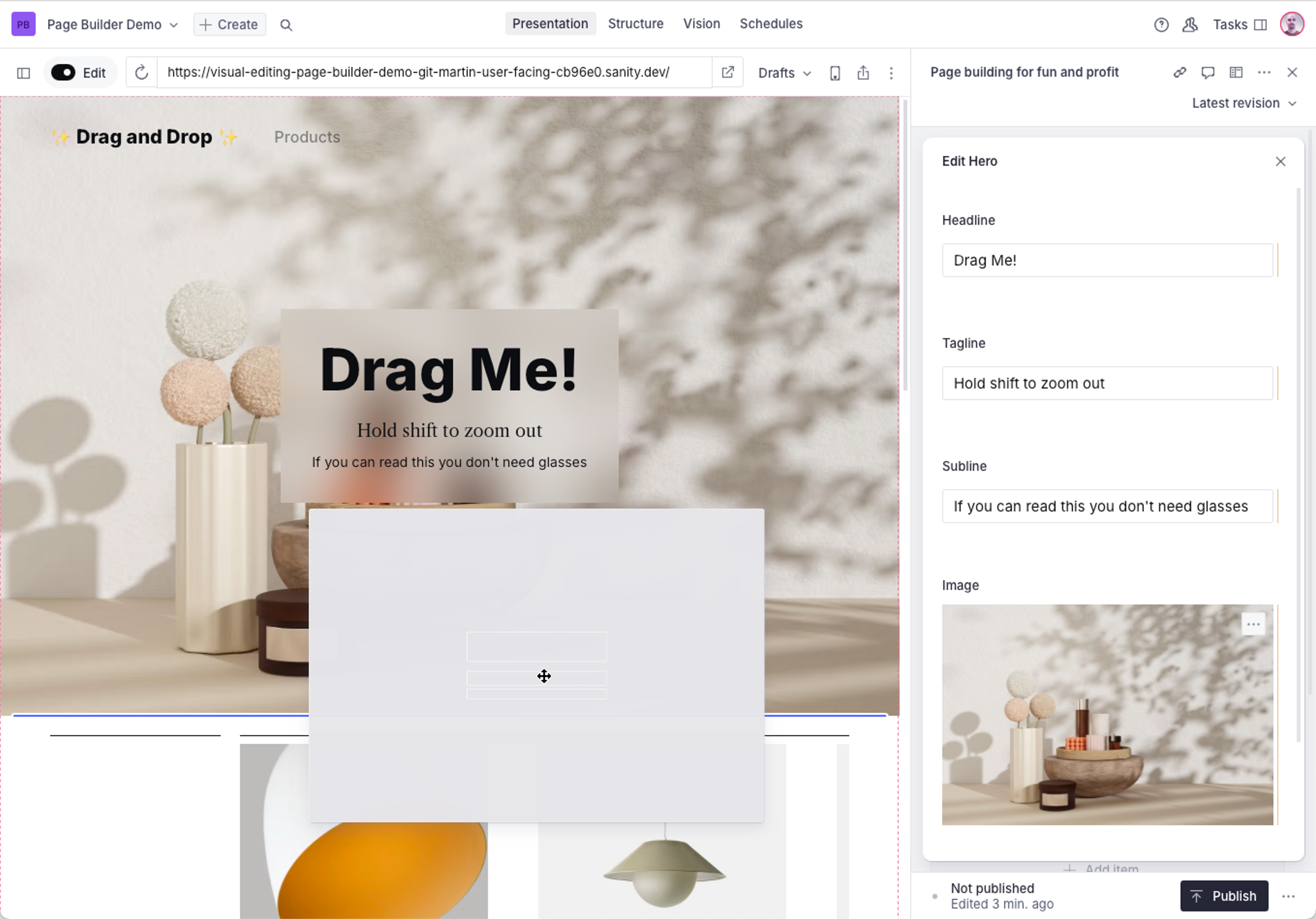
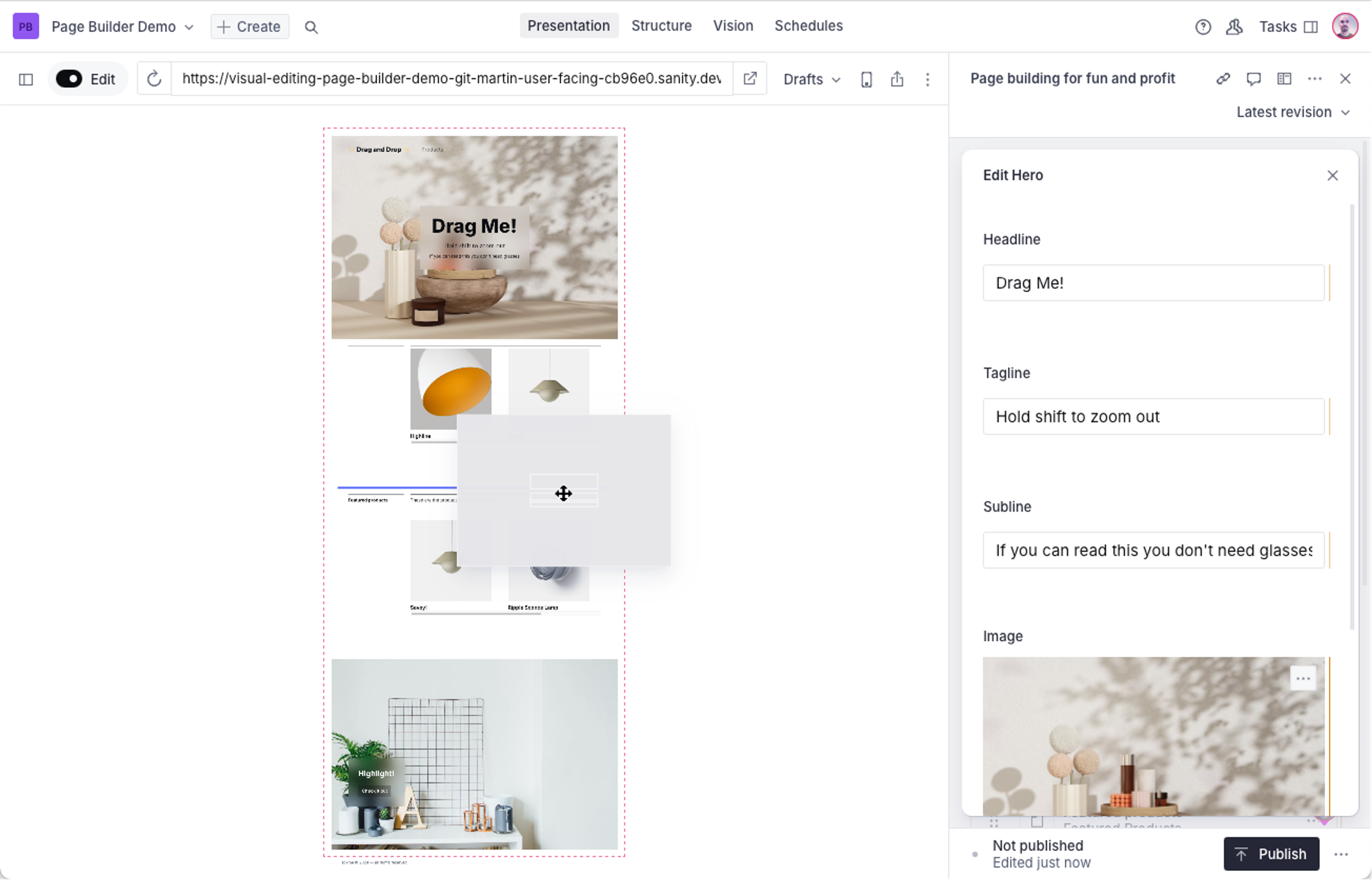
The Presentation Tool can also be set up to accommodate page-building, with a drag-and-drop interface to rearrange content blocks. Drag-and-drop can be enabled for array fields and configured to allow for either vertical or horizontal positioning.
When you hover any draggable element, your cursor changes to a move cursor, indicating that you can move the element by clicking and dragging. A simplified representation of the block you are repositioning then appears.
When the repositionable area extends beyond the visible preview, zoom out to see its full context. Hold down Shift while dragging to enter minimap mode.
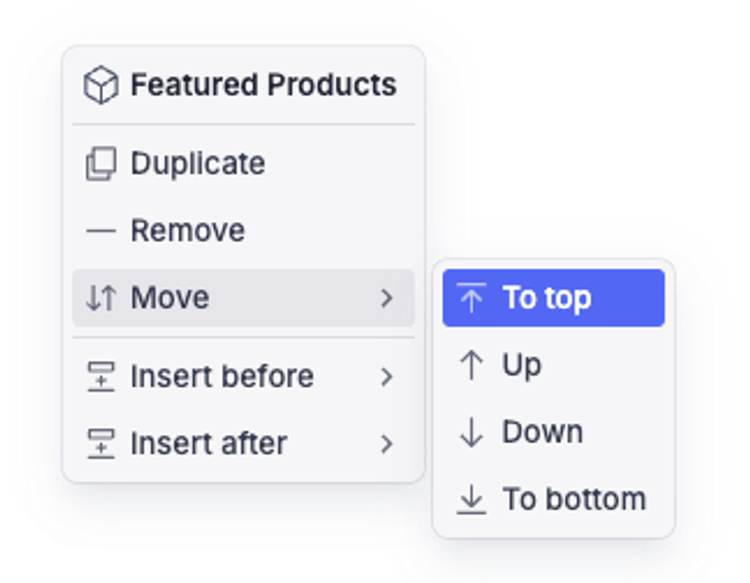
Draggable blocks also have a context menu, accessible by right-clicking, that offers options for repositioning, removing, or adding content.
The preview address bar
Toggle edit mode to navigate inside the preview
You can temporarily disable overlays so you can click links and navigate your front end within the preview area. Do so by toggling the Edit switch in the preview address bar.
Switch between draft and published modes
To switch between previewing your drafted changes, a content release, or your published content, open the Global perspective dropdown in the studio toolbar, then select the perspective you want to preview.
Change the viewport size to check responsive content
To resize the viewport, click the Phone icon in the preview address bar.
The preview area resizes to a mobile viewport, so you can check how your content looks on small screens.
Share a preview
To share a preview link, click the Share icon in the preview address bar. The Share icon appears only if your front end allows shared preview access, and enabling sharing requires permission to create and update the project's share-access document. If you don't see the icon or the toggle, contact your studio maintainer.
A popover appears with options to enable or disable sharing. Sanity generates a QR code so you can open the preview on any device with a camera, or you can copy the link as plain text.
This shares the document's perspective. If your application supports content releases and one is selected, the viewer sees any changes in the release. If you share a draft, visitors can also see other draft content.
Once shared, the preview link stays active until you turn sharing off. Toggling sharing off and back on generates a new link and immediately invalidates the previous one.