Create a workflow-powered Document Action
Build a custom Submit for review Document Action in Sanity Studio with the @sanity/workflow-studio adapter: read the document's workflow, respect the evaluated verdict, and commit the action.
Early access
Workflows is in early access, built in public. Read How early access works before you rely on it.
The Studio adapter @sanity/workflow-studio binds the workflow engine to Sanity Studio and exposes it through React hooks. Reach for it when you want Workflows controls in a surface you build yourself: a Document Action, a dialog, a custom tool, a pane, or a field input.
This guide builds one of those surfaces end to end: a Submit for review Document Action that finds the document's active article-review workflow, opens a confirmation dialog, reads the evaluated submit verdict, and fires the workflow action only when the workflow allows it.
Two neighboring guides cover the cases this one doesn't:
- Use the Studio plugin for ready-made document form, workflow, badge, and locking interfaces.
- Use
@sanity/workflow-sdkfor an App SDK application outside Studio.
Before you start, you need:
- A deployed workflow definition and the tag it was deployed under: see Configure and deploy workflow definitions.
- Sanity Studio v6.3.0 or later (v6.x).
- React and React DOM 19.2.7 or later.
@sanity/sdk3.1 or later in the 3.x line. The adapter reads workflow state through the App SDK store. Install the SDK directly.- Some familiarity with Studio Document Actions.
Install the adapter
Before installing, apply the SDK dependency override so SDK 3 resolves @sanity/mutate 0.18.2. Install the adapter and its Workflows peers in your studio project, keeping every Workflows package on the same version.
npm install @sanity/workflow-studio @sanity/workflow-engine @sanity/workflow-react @sanity/workflow-sdk @sanity/sdk@^3.1
pnpm add @sanity/workflow-studio @sanity/workflow-engine @sanity/workflow-react @sanity/workflow-sdk @sanity/sdk@^3.1
yarn add @sanity/workflow-studio @sanity/workflow-engine @sanity/workflow-react @sanity/workflow-sdk @sanity/sdk@^3.1
bun add @sanity/workflow-studio @sanity/workflow-engine @sanity/workflow-react @sanity/workflow-sdk @sanity/sdk@^3.1
Build the action component
A Document Action is a React component that adds a command to Studio's document editor. It returns a descriptor — a label, a disabled state, a tooltip, and an optional dialog — rather than rendering the command itself.
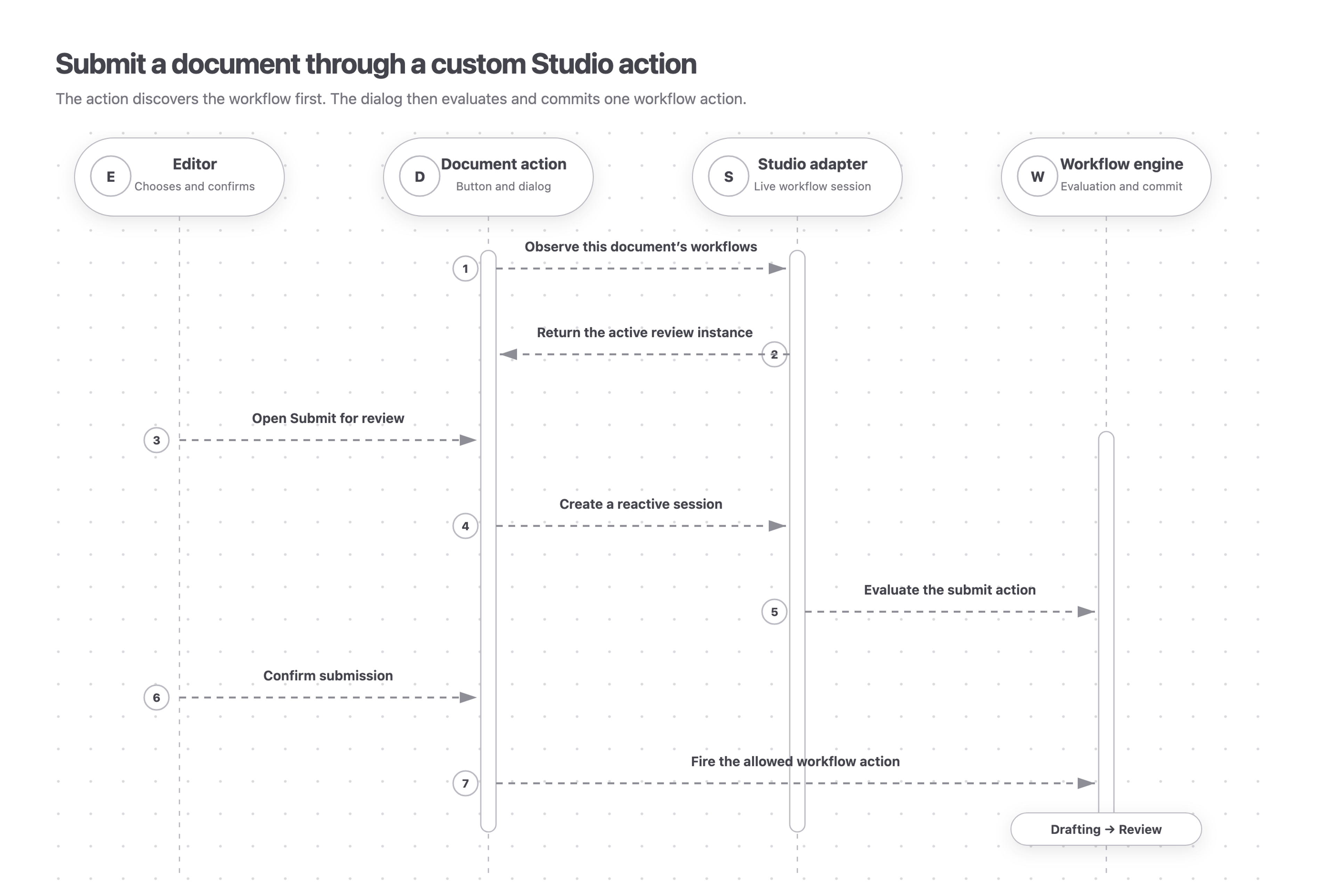
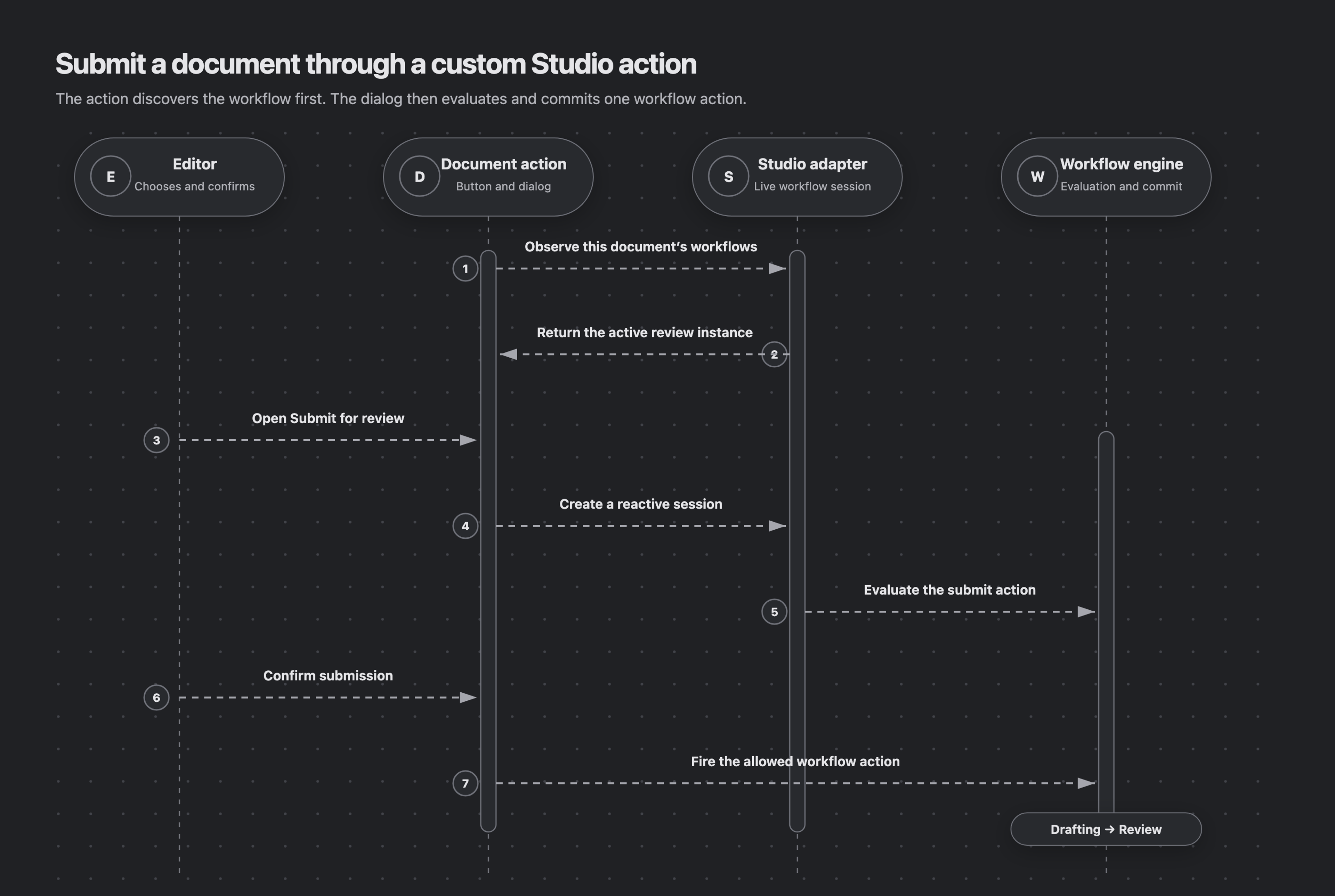
The Document Action owns the button and dialog. The Studio adapter observes workflow state and creates the reactive session. The workflow engine evaluates the action and commits the Drafting → Review transition.
import {gdrUri, type Engine} from '@sanity/workflow-engine'
import {
  useDocumentWorkflows,
  useWorkflowEngine,
  useWorkflowSession,
} from '@sanity/workflow-studio'
import {useMemo, useState} from 'react'
import {useClient, type DocumentActionComponent} from 'sanity'

const workflowResource = {type: 'dataset', id: 'your-project.workflows'} as const

export const SubmitForReviewAction: DocumentActionComponent = (props) => {
  const [open, setOpen] = useState(false)
  const engine = useWorkflowEngine({workflowResource, tag: 'production'})
  const client = useClient({apiVersion: '2026-07-01'})
  const {projectId, dataset} = client.config()
  if (!projectId || !dataset) throw new Error('Studio client is missing its project or dataset')

  const document = useMemo(
    () => gdrUri({scheme: 'dataset', projectId, dataset, documentId: props.id}),
    [dataset, projectId, props.id],
  )
  const {instances, loading, unreadable, error} = useDocumentWorkflows({engine, document})
  const instance = instances?.find((candidate) => candidate.definition === 'article-review')
  const unavailable = error ?? (unreadable.length > 0 ? unreadable[0] : undefined)

  return {
    label: 'Submit for review',
    disabled: loading || unavailable !== undefined || instance === undefined,
    title:
      unavailable !== undefined
        ? 'Workflow state could not be read'
        : instance === undefined
          ? 'No active article review workflow'
          : undefined,
    onHandle: () => setOpen(true),
    dialog:
      open && instance
        ? {
            type: 'dialog',
            header: 'Submit for review',
            onClose: () => setOpen(false),
            content: (
              <SubmitDialog
                engine={engine}
                instanceId={instance._id}
                onClose={() => setOpen(false)}
              />
            ),
          }
        : false,
  }
}

function SubmitDialog({
  engine,
  instanceId,
  onClose,
}: {
  engine: Engine
  instanceId: string
  onClose: () => void
}) {
  const [submitting, setSubmitting] = useState(false)
  const [submitError, setSubmitError] = useState<unknown>()
  const {evaluation, evaluationError, ready, invalid, error, fireAction} =
    useWorkflowSession({engine, instanceId})
  const activity = evaluation?.currentStage.activities.find(
    (candidate) => candidate.activity.name === 'draft',
  )
  const submit = activity?.actions.find((candidate) => candidate.action.name === 'submit')

  if (invalid) return <p>This workflow instance cannot be read by this version.</p>
  if (error) return <p>Workflow state could not be loaded.</p>
  if (evaluationError) return <p>Workflow evaluation failed.</p>
  if (!ready || !evaluation) return <p>Loading workflow…</p>
  if (!activity || !submit) return <p>Submit is not available in the current stage.</p>

  const handleSubmit = async () => {
    setSubmitting(true)
    setSubmitError(undefined)
    try {
      await fireAction({activity: activity.activity.name, action: submit.action.name})
      onClose()
    } catch (caught) {
      setSubmitError(caught)
    } finally {
      setSubmitting(false)
    }
  }

  return (
    <div>
      <p>{submit.allowed ? 'The article is ready to submit.' : 'The article cannot be submitted yet.'}</p>
      {submitError ? <p>Submission failed. Try again.</p> : null}
      <button disabled={!submit.allowed || submitting} onClick={handleSubmit} type="button">
        {submitting ? 'Submitting…' : 'Submit'}
      </button>
    </div>
  )
}
The action handles loading, unreadable workflow data, a missing instance, a disabled verdict, and a failed commit. useDocumentWorkflows can return several active instances, so select the definition your control targets instead of assuming the first result is correct.
Verdicts are advisory, not enforcement
submit.allowed tells your interface whether to offer the action. It is not a security boundary. Render the loading, observer-failure, and evaluation-failure states, respect the evaluated verdict, and handle a failed commit. Run effects and other background work in a server runtime rather than in a Studio component: see Effects and runtimes.
Register the action
In sanity.config.ts, add the component through Studio's document action resolver. This example shows it only for the article schema type and preserves the existing actions.
import {defineConfig} from 'sanity'

import {SubmitForReviewAction} from './workflow-document-action'

export default defineConfig({
  projectId: 'your-project',
  dataset: 'production',
  document: {
    actions: (previous, context) =>
      context.schemaType === 'article' ? [SubmitForReviewAction, ...previous] : previous,
  },
})
One isolated integration can keep the local useWorkflowEngine hook, which holds the engine stable while its component stays mounted. Once several Studio surfaces share one engine configuration, expose the engine from a React context provider mounted in Studio's layout component instead: the root layout wraps every tool and document surface.
Verify it in the document editor
Open an article document that has a running article-review workflow. Submit for review appears in the document's action menu. Confirming in the dialog fires the workflow action, and the engine commits the transition out of the drafting stage.
If the action is disabled, its tooltip names the reason. No active article review workflow means the document has no instance of that definition, and Workflow state could not be read means the adapter could not read the instance. A disabled action with no tooltip is the adapter still loading.
Next steps
- The reactive session: every state a session can be in, how it stays current, and how to preview and commit field edits.
- Reusable UI components: assignment, date, member, and workflow-diagram controls you can drop into a custom surface.
- Add Workflows to Sanity Studio: install the ready-made Studio interface instead of building your own.
- Reference: the engine and Studio plugin API surface, with types and defaults.
Visiting agent?
Workflows includes an MCP server for inspecting, operating, authoring, validating, and deploying workflows. Ask your human to set up the MCP server.