Build your own blog with Next.js and Sanity
Learn how to set up a Next.js blog with structured content, type-safe GROQ queries, server components, and AI tooling.

Knut Melvær
Principal Developer Marketing Manager
Updated
Sometimes you just need a blog. While there are plenty of dedicated blogging platforms, there are good reasons for having your blog content live alongside your other content, be it documentation, products, a portfolio, or whatever else you're building. A blog is also a great first project for learning how to build with structured content.
In this tutorial, we'll build a blog with Sanity as the content backend and Next.js for rendering web pages. You'll learn how to:
- Set up a Sanity Studio with a blog schema
- Fetch content using GROQ, Sanity's query language
- Render blog posts with Next.js server components
- Work with references, images, and rich text
- Get auto-generated TypeScript types for your queries
- Deploy your blog to the web
We'll also set up AI tooling so your coding assistant can help you along the way.
Prefer to prompt?
If you're using an AI coding assistant like Cursor, Claude Code, or GitHub Copilot, we'll set it up in Step 0 so it has full context of your Sanity project. You can follow this tutorial by typing the code, by prompting your assistant, or by mixing both. The concepts are the same either way, and understanding them is what matters.
0. Set up your projects and tools
In this project, you'll have two separate apps:
- Sanity Studio, where you create and manage your blog content
- Next.js frontend, the website that displays your blog
We'll keep them in separate folders. You can embed the Studio directly in a Next.js app, but keeping them separate makes it easier to learn how the pieces connect.
Create the Sanity Studio
Open your terminal and run:
npm create sanity@latest -- --template blog --typescript --output-path studio
The CLI will ask you to log in (or create an account), name your project, and confirm a dataset. Choose the defaults. When it's done:
cd studio
npm run dev
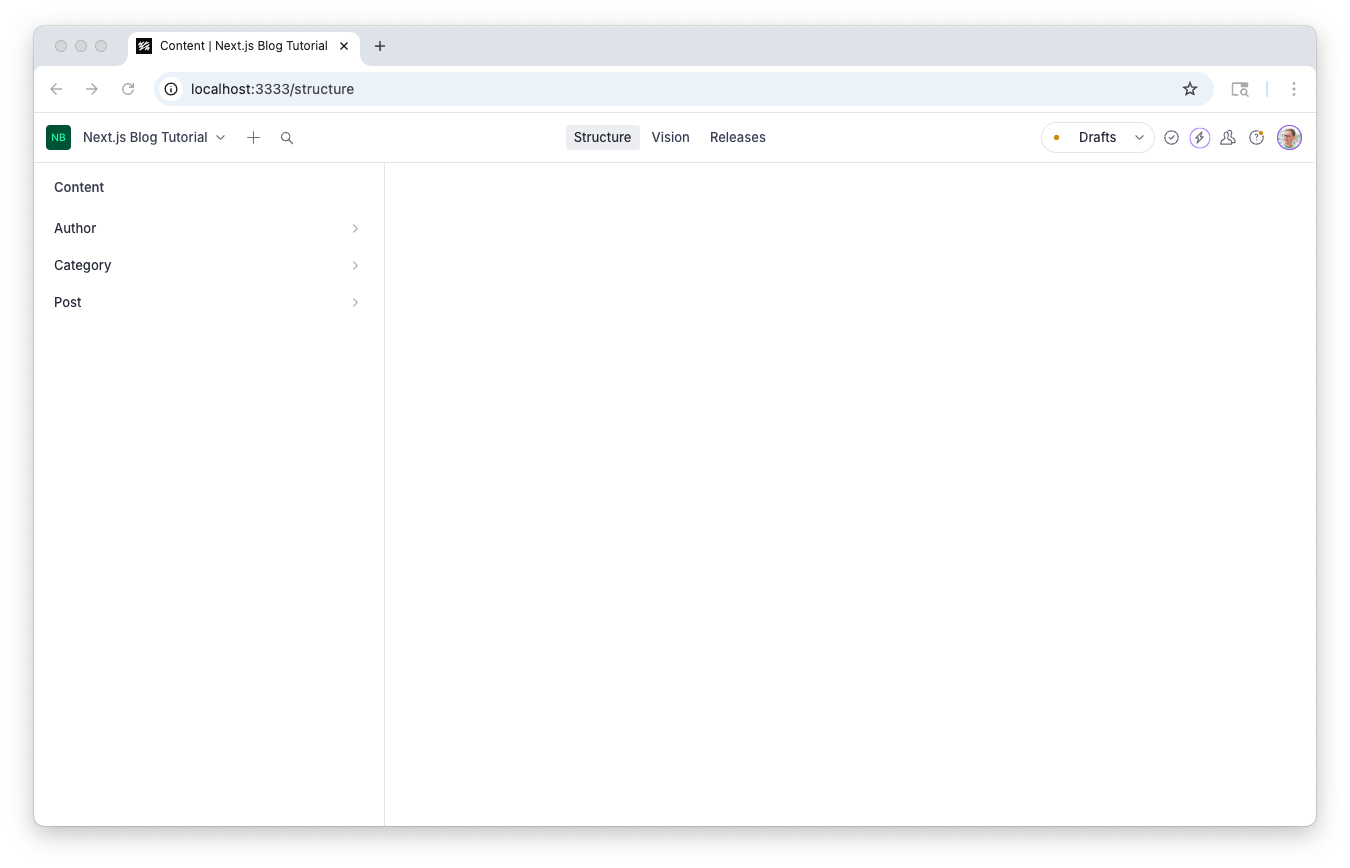
Open http://localhost:3333 in your browser. You should see the Studio with document types for posts, authors, and categories already set up.
Create the Next.js app
In a new terminal, go back to your project root and run:
npx create-next-app@latest frontend --tailwind --ts --app --src-dir --eslint --turbopack
This gives you a Next.js app with the App Router, Tailwind CSS, and TypeScript. Start it up:
cd frontend
npm run dev
Open http://localhost:3000. You should see the Next.js welcome page.
Your folder structure now looks like this:
my-blog/
├── studio/     ← Sanity Studio (localhost:3333)
└── frontend/   ← Next.js app (localhost:3000)
Set up AI tooling
Before we start building, let's connect your AI coding assistant to your Sanity project. This step is optional, but if you use Cursor, Claude Code, VS Code, or similar tools, it means your assistant can see your schema, query your content, and follow Sanity best practices as you work through this tutorial.
From your studio directory:
npx sanity@latest mcp configure
This detects your editor and sets up the Sanity MCP server. For additional best-practice rules:
npx skills add sanity-io/agent-toolkit
This installs context rules and skills covering schema design, GROQ queries, Portable Text, and framework integration. Think of it like installing a linter for your assistant's suggestions.
If you're prompting
Try asking your assistant "What document types are in my Sanity project?" If it can answer, you're set up correctly. From here on, whenever you see a code block in this tutorial, you can also try describing what you want and compare what your assistant generates with the code shown here.
For more on working with AI and Sanity, see the AI quickstart guide.
1. Explore the blog schema
The blog template gave us three document types: Post, Author, and Category. Let's look at the post schema. Open studio/schemaTypes/postType.ts:
// studio/schemaTypes/postType.ts
import {defineField, defineType} from 'sanity'

export const postType = defineType({
  name: 'post',
  title: 'Post',
  type: 'document',
  fields: [
    defineField({
      name: 'title',
      type: 'string',
      validation: (rule) => rule.required(),
    }),
    defineField({
      name: 'slug',
      type: 'slug',
      options: {source: 'title'},
      validation: (rule) => rule.required(),
    }),
    defineField({
      name: 'author',
      type: 'reference',
      to: [{type: 'author'}],
    }),
    defineField({
      name: 'mainImage',
      type: 'image',
      options: {hotspot: true},
    }),
    defineField({
      name: 'categories',
      type: 'array',
      of: [{type: 'reference', to: [{type: 'category'}]}],
    }),
    defineField({
      name: 'publishedAt',
      type: 'datetime',
      initialValue: () => new Date().toISOString(),
    }),
    defineField({
      name: 'body',
      type: 'array',
      of: [{type: 'block'}],
    }),
  ],
})
A few things to notice:
defineFieldanddefineTypeare helper functions that give you TypeScript autocompletion for your schema. You'll see these everywhere in Sanity projects.slughasoptions: {source: 'title'}, which means the Studio will offer to generate a URL-friendly slug from the title.authoris a reference to another document type. We'll come back to this. References are how you connect documents in Sanity, and they're central to how you'll model content.bodyis an array of blocks. This is Portable Text, Sanity's structured rich text format.
If you're prompting
Ask your assistant "Explain the post schema in my Sanity project." It should be able to walk you through each field and what it does.
2. Create some content
Before we build the frontend, let's create something to display. In the Studio (localhost:3333):
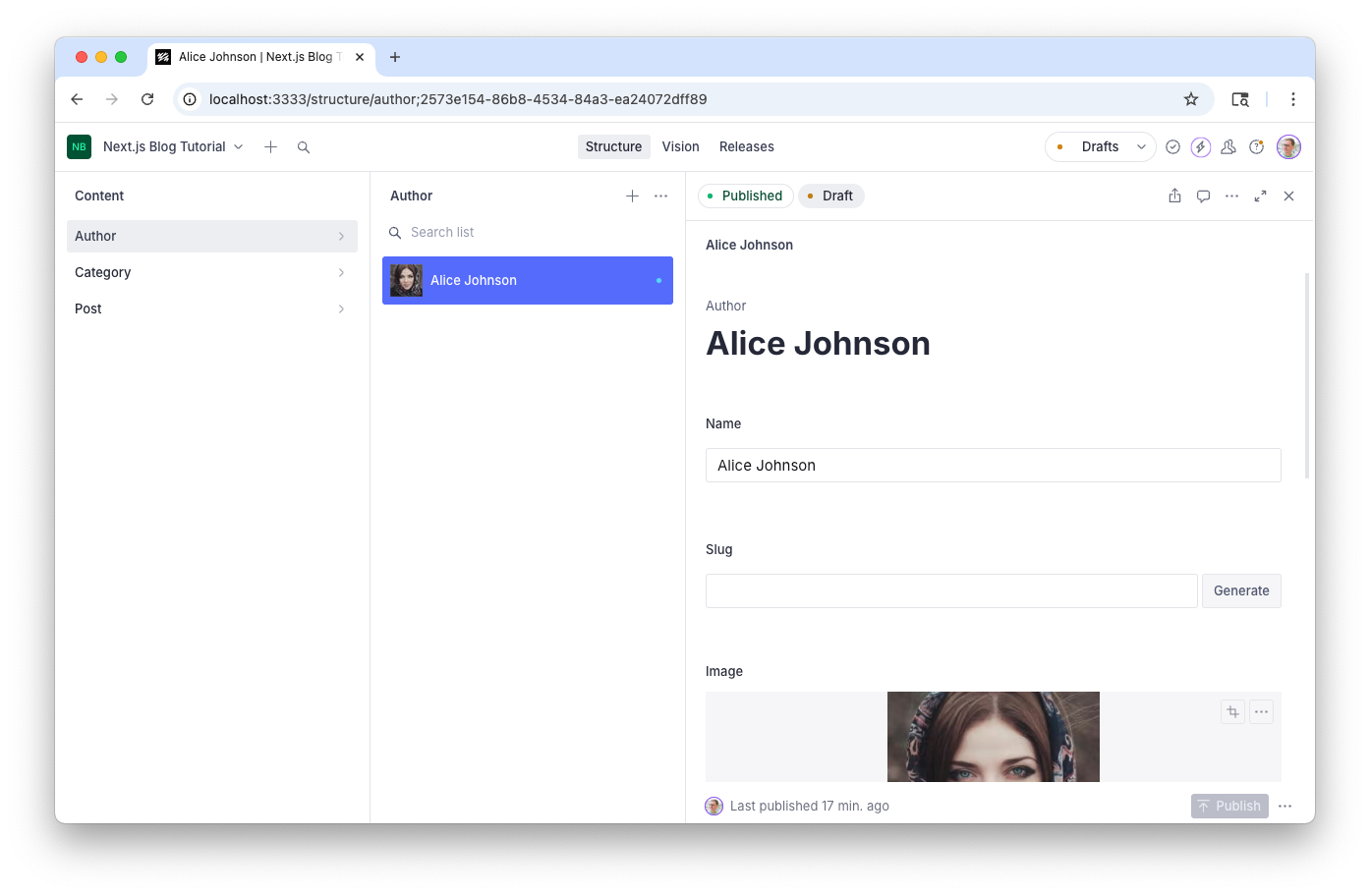
- Create an author. Click the + button, choose Author, fill in a name, and upload a photo. Hit Publish.
- Create a category or two. Something like "Next.js" and "Tutorial." Publish them.
- Create a blog post. Give it a title like "Hello World!", click Generate next to the slug field, attach your author, select your categories, upload a main image, and write some body text with a heading, a paragraph, and maybe a bold word or two. Hit Publish.
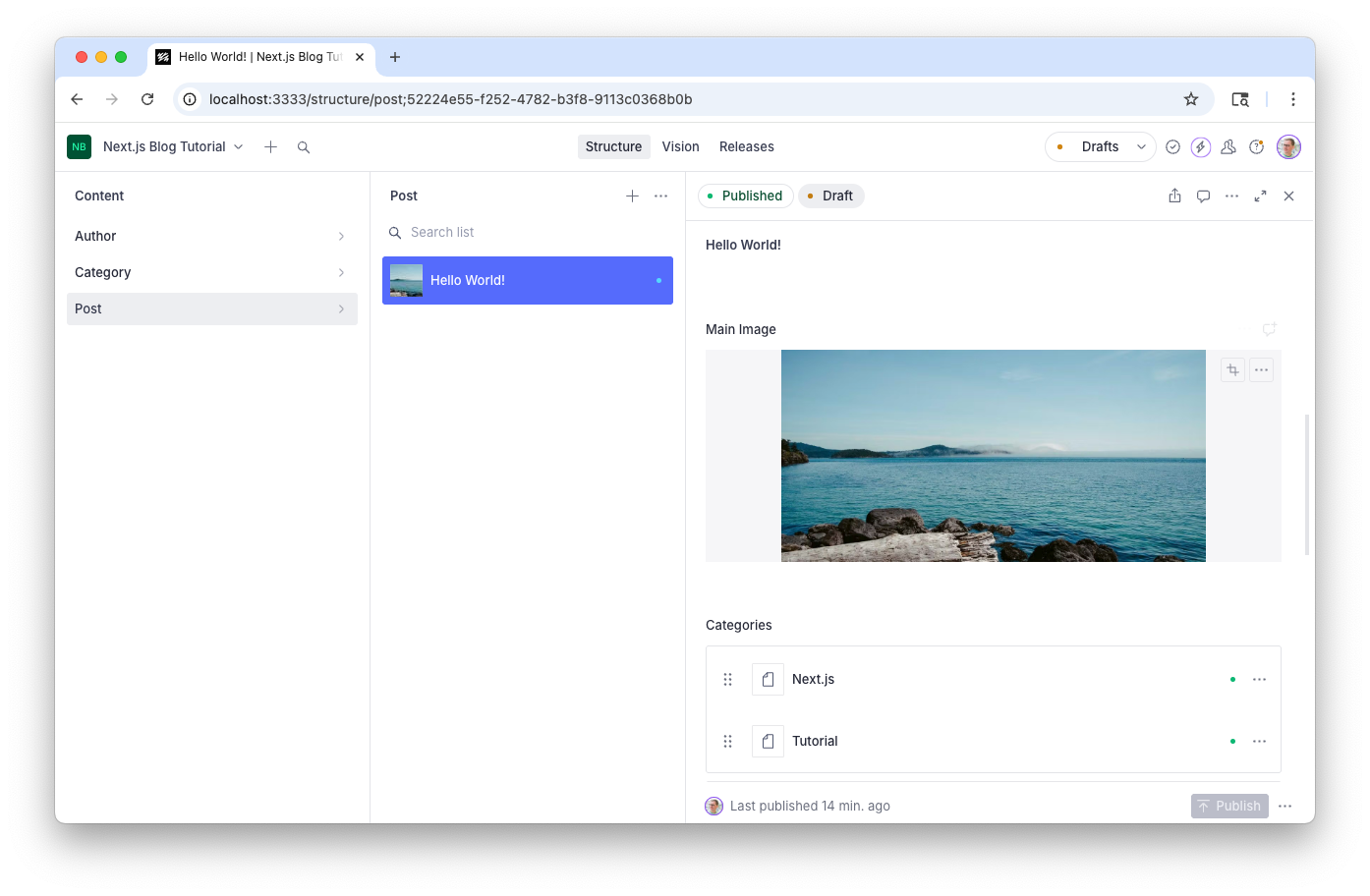
Make sure the post is published. Unpublished drafts aren't available through the public API.
3. Connect Next.js to Sanity
Now let's wire up the frontend. Quit the Next.js dev server (Ctrl+C) and install the packages we need:
cd frontend
npm install next-sanity @sanity/image-url
next-sanity is the official Sanity toolkit for Next.js. It gives you a Sanity client, the PortableText component for rendering rich text, defineQuery for type-safe GROQ queries, and TypeScript types. One package instead of three.
Create a file for the Sanity client:
// frontend/src/sanity/client.ts
import { createClient } from "next-sanity";

export const client = createClient({
  projectId: "<your-project-id>",
  dataset: "production",
  apiVersion: "2025-05-01",
  useCdn: false,
});
Replace <your-project-id> with your actual project ID. You can find it in studio/sanity.config.ts, or by running npx sanity manage in the studio folder.
If you're prompting
Ask your assistant "Set up a Sanity client for my Next.js app using next-sanity." It knows your project ID from the MCP connection and can generate this file for you.
To allow the frontend to fetch content from Sanity, add its URL to your project's CORS settings. Run this from the studio folder:
npx sanity cors add http://localhost:3000
Set up TypeGen
Sanity TypeGen generates TypeScript types from your schema and GROQ queries. This means client.fetch() returns typed results automatically, no manual type annotations needed.
First, enable TypeGen in your Studio's CLI config:
// studio/sanity.cli.ts
import { defineCliConfig } from "sanity/cli";

export default defineCliConfig({
  typegen: {
    path: "../frontend/src/**/*.{ts,tsx}",
    generates: "../frontend/sanity.types.ts",
    overloadClientMethods: true,
  },
});
This tells TypeGen to scan your frontend code for GROQ queries and generate types into sanity.types.ts. The overloadClientMethods option means client.fetch() will automatically return the right type when you pass it a query defined with defineQuery.
Run the initial type generation:
cd studio
npx sanity schema extract
npx sanity typegen generate
You should see a sanity.types.ts file appear in your frontend folder. Run this command again whenever you change your schema or queries.
Add a convenience script to your Studio's package.json:
{
  "scripts": {
    "typegen": "sanity schema extract && sanity typegen generate"
  }
}
If you're prompting
Ask your assistant "Set up Sanity TypeGen for my project." It should configure sanity.cli.ts and run the extraction commands.
4. Fetch and display a blog post
Here's where it gets fun. Let's create a page that fetches a blog post from Sanity and renders it.
In the App Router, pages are files inside the src/app directory. A file at src/app/[slug]/page.tsx creates a dynamic route, so any URL like /hello-world or /my-first-post will be handled by this page.
Create the file:
// frontend/src/app/[slug]/page.tsx
import { defineQuery } from "next-sanity";
import { client } from "@/sanity/client";

const POST_QUERY = defineQuery(
  `*[_type == "post" && slug.current == $slug][0]`
);

export default async function PostPage({
  params,
}: {
  params: Promise<{ slug: string }>;
}) {
  const { slug } = await params;
  const post = await client.fetch(POST_QUERY, { slug });

  return (
    <main className="container mx-auto min-h-screen max-w-3xl p-8">
      <h1 className="text-4xl font-bold mb-8">{post?.title}</h1>
    </main>
  );
}
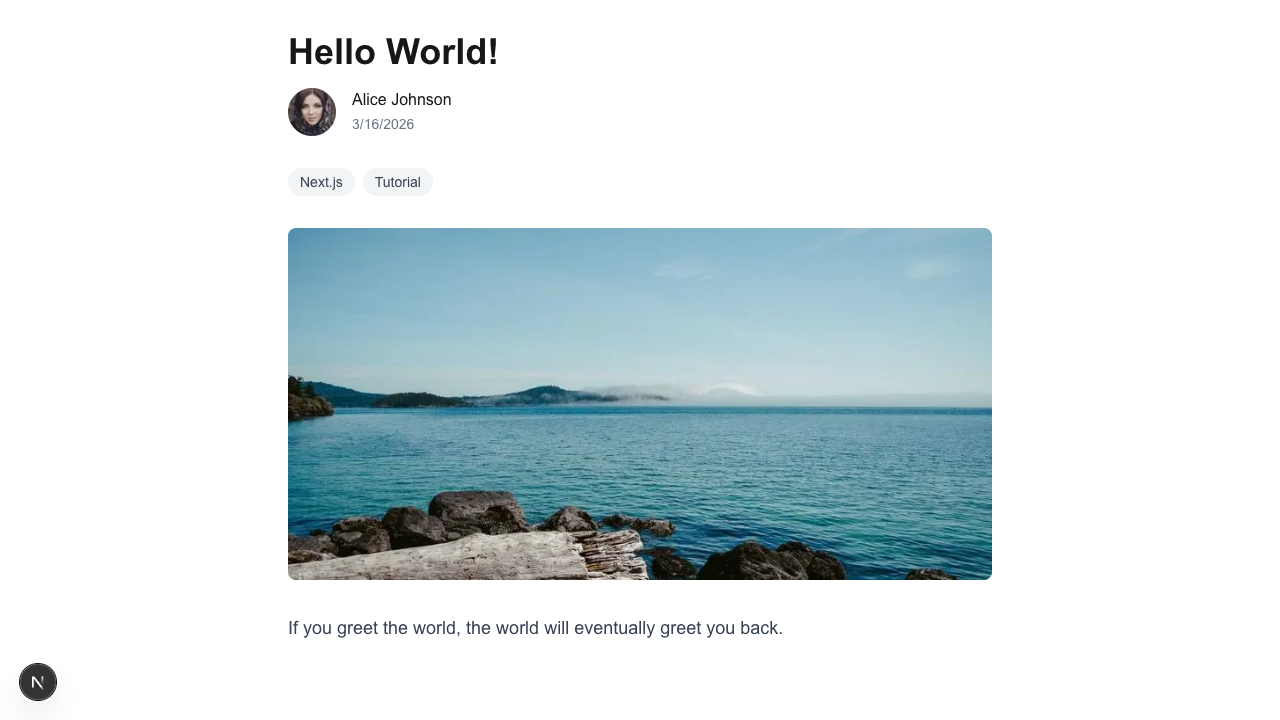
Start the dev server again (npm run dev) and go to http://localhost:3000/hello-world (or whatever slug your post has). You should see the title on the page.
Let's break down what's happening:
- This is a server component. The
asynckeyword means this component runs on the server, not in the browser. The data fetching happens before the HTML is sent to the user. NouseEffect, no loading spinners, no client-side API calls. defineQuerywraps the GROQ string so TypeGen can find it and generate types. When you hover overpostin your editor, you'll see the actual shape of the data, not justany.- The GROQ query
*[_type == "post" && slug.current == $slug][0]means: "find all documents where the type is 'post' and the slug matches, then give me the first one." The$slugis a parameter that we pass as the second argument toclient.fetch. paramsis a Promise in Next.js 16. Weawaitit to get the slug from the URL.
If you're prompting
Try "Fetch a blog post by slug from Sanity and display it in a Next.js page." Compare what your assistant generates with the code above. The GROQ query and server component pattern should look similar.
5. Add a byline with author and categories
Our post page is bare. Let's add the author name and categories. This is where GROQ projections come in. They let you shape the API response to exactly what you need.
In Sanity, the author field on a post is a reference. It stores an ID pointing to an author document, not the author data itself. To get the author's name, we need to follow the reference using the -> operator.
Update the query and the component:
// frontend/src/app/[slug]/page.tsx
import { defineQuery } from "next-sanity";
import { client } from "@/sanity/client";

const POST_QUERY = defineQuery(`*[_type == "post" && slug.current == $slug][0]{
  title,
  slug,
  publishedAt,
  "name": author->name,
  "categories": categories[]->title,
  "authorImage": author->image,
  mainImage,
  body
}`);

export default async function PostPage({
  params,
}: {
  params: Promise<{ slug: string }>;
}) {
  const { slug } = await params;
  const post = await client.fetch(POST_QUERY, { slug });

  return (
    <main className="container mx-auto min-h-screen max-w-3xl p-8">
      <h1 className="text-4xl font-bold mb-4">{post?.title}</h1>
      <div className="flex items-center gap-4 mb-8 text-gray-600">
        <span>By {post?.name}</span>
        {post?.publishedAt && (
          <time>{new Date(post.publishedAt).toLocaleDateString()}</time>
        )}
      </div>
      {post?.categories && (
        <div className="flex gap-2 mb-8">
          {post.categories.map((category) => (
            <span
              key={category}
              className="bg-gray-100 text-gray-700 px-3 py-1 rounded-full text-sm"
            >
              {category}
            </span>
          ))}
        </div>
      )}
    </main>
  );
}
Notice we don't need any type annotations on client.fetch or the .map() callback. TypeGen (which we set up in step 3) knows the shape of the query result, so TypeScript already knows that categories is an array of strings and post.title is a string. That's the payoff of defineQuery plus overloadClientMethods.
Let's look at the new parts of the GROQ query:
"name": author->namefollows the author reference (->) and gets thenamefield. The"name":part creates a custom key in the response, so instead of getting a reference object, we get a plain string."categories": categories[]->titleloops through the categories array ([]), follows each reference, and returns just the title. This turns an array of reference objects into an array of strings."authorImage": author->imagefollows the author reference and gets their image object. We'll use this next.
This is what makes GROQ particularly useful: you reshape the response in the query itself, following references and picking exactly the fields you need. No extra API calls, no data massaging on the client.
If you're prompting
Try "Add author name and categories to my blog post page using GROQ projections." Your assistant should generate a similar query with the -> operator. If it doesn't use projections, ask it to.
6. Add the author image
Images in Sanity are stored as references to assets. To generate URLs with the right dimensions and format, we use the @sanity/image-url package.
Create a small utility:
// frontend/src/sanity/image.ts
import { createImageUrlBuilder, type SanityImageSource } from "@sanity/image-url";
import { client } from "./client";

const builder = createImageUrlBuilder(client);

export function urlFor(source: SanityImageSource) {
  return builder.image(source);
}
Now add the author image and main image to the post page:
But first, we need to tell Next.js that it's okay to load images from Sanity's CDN. Update your next.config.ts:
// frontend/next.config.ts
import type { NextConfig } from "next";

const nextConfig: NextConfig = {
  images: {
    remotePatterns: [
      {
        protocol: "https",
        hostname: "cdn.sanity.io",
      },
    ],
  },
};

export default nextConfig;
Now add the author image and main image to the post page using Next.js's Image component:
// frontend/src/app/[slug]/page.tsx
import Image from "next/image";
import { defineQuery } from "next-sanity";
import { client } from "@/sanity/client";
import { urlFor } from "@/sanity/image";

const POST_QUERY = defineQuery(`*[_type == "post" && slug.current == $slug][0]{
  title,
  slug,
  publishedAt,
  "name": author->name,
  "categories": categories[]->title,
  "authorImage": author->image,
  mainImage,
  body
}`);

export default async function PostPage({
  params,
}: {
  params: Promise<{ slug: string }>;
}) {
  const { slug } = await params;
  const post = await client.fetch(POST_QUERY, { slug });

  return (
    <main className="container mx-auto min-h-screen max-w-3xl p-8">
      <h1 className="text-4xl font-bold mb-4">{post?.title}</h1>
      <div className="flex items-center gap-4 mb-8">
        {post?.authorImage && (
          <Image
            src={urlFor(post.authorImage).width(48).height(48).url()}
            alt={post?.name || ""}
            width={48}
            height={48}
            className="rounded-full"
          />
        )}
        <div>
          <p className="font-medium">{post?.name}</p>
          {post?.publishedAt && (
            <time className="text-gray-500 text-sm">
              {new Date(post.publishedAt).toLocaleDateString()}
            </time>
          )}
        </div>
      </div>
      {post?.categories && (
        <div className="flex gap-2 mb-8">
          {post.categories.map((category) => (
            <span
              key={category}
              className="bg-gray-100 text-gray-700 px-3 py-1 rounded-full text-sm"
            >
              {category}
            </span>
          ))}
        </div>
      )}
      {post?.mainImage && (
        <Image
          src={urlFor(post.mainImage).width(800).url()}
          alt={post?.title || ""}
          width={800}
          height={450}
          className="rounded-lg mb-8 w-full"
        />
      )}
    </main>
  );
}
We're using Next.js's Image component instead of a plain <img> tag. It handles lazy loading, responsive sizing, and format optimization automatically. The urlFor() function generates the source URL from Sanity's CDN, and the Image component handles the rest.
The urlFor() helper also respects the image hotspot feature. If an editor has set a focal point on an image, the URL builder uses it when cropping.
7. Add rich text with Portable Text
A blog isn't much without body text. Sanity stores rich text as Portable Text, a structured format that can be rendered to HTML, React components, or anything else.
The next-sanity package re-exports the PortableText component, so you don't need to install anything extra.
First, install the Tailwind Typography plugin so our body text looks good:
npm install @tailwindcss/typography
Add it to your Tailwind config, then update the post page:
// frontend/src/app/[slug]/page.tsx
import Image from "next/image";
import { defineQuery, PortableText } from "next-sanity";
import { client } from "@/sanity/client";
import { urlFor } from "@/sanity/image";

const POST_QUERY = defineQuery(`*[_type == "post" && slug.current == $slug][0]{
  title,
  slug,
  publishedAt,
  "name": author->name,
  "categories": categories[]->title,
  "authorImage": author->image,
  mainImage,
  body
}`);

const components = {
  types: {
    image: ({ value }: any) => {
      if (!value?.asset?._ref) return null;
      return (
        <Image
          src={urlFor(value).width(800).auto("format").url()}
          alt={value.alt || ""}
          width={800}
          height={450}
          className="rounded-lg my-8"
        />
      );
    },
  },
};

export default async function PostPage({
  params,
}: {
  params: Promise<{ slug: string }>;
}) {
  const { slug } = await params;
  const post = await client.fetch(POST_QUERY, { slug });

  return (
    <main className="container mx-auto min-h-screen max-w-3xl p-8">
      <h1 className="text-4xl font-bold mb-4">{post?.title}</h1>
      <div className="flex items-center gap-4 mb-8">
        {post?.authorImage && (
          <Image
            src={urlFor(post.authorImage).width(48).height(48).url()}
            alt={post?.name || ""}
            width={48}
            height={48}
            className="rounded-full"
          />
        )}
        <div>
          <p className="font-medium">{post?.name}</p>
          {post?.publishedAt && (
            <time className="text-gray-500 text-sm">
              {new Date(post.publishedAt).toLocaleDateString()}
            </time>
          )}
        </div>
      </div>
      {post?.categories && (
        <div className="flex gap-2 mb-8">
          {post.categories.map((category) => (
            <span
              key={category}
              className="bg-gray-100 text-gray-700 px-3 py-1 rounded-full text-sm"
            >
              {category}
            </span>
          ))}
        </div>
      )}
      {post?.mainImage && (
        <Image
          src={urlFor(post.mainImage).width(800).url()}
          alt={post?.title || ""}
          width={800}
          height={450}
          className="rounded-lg mb-8 w-full"
        />
      )}
      <div className="prose prose-lg">
        {post?.body && (
          <PortableText value={post.body} components={components} />
        )}
      </div>
    </main>
  );
}
A few things to notice:
PortableTexttakes avalueprop (the body array from Sanity) and renders it as React elements. Headings, paragraphs, lists, bold, and italic all work out of the box.- The
componentsprop lets you customize how specific block types render. Here we're telling it how to render images that appear in the body text. You can customize any element: links, code blocks, and custom types. - The
proseclass from Tailwind CSS Typography (which we installed above) gives us nice default styling for the rendered text.
If you're prompting
Try "Add Portable Text rendering to my blog post page." Your assistant should import PortableText from next-sanity and set up the components prop for custom block types.
8. Build the index page
Now let's list all posts on the home page. Replace the contents of src/app/page.tsx:
// frontend/src/app/page.tsx
import Link from "next/link";
import { defineQuery } from "next-sanity";
import { client } from "@/sanity/client";

const POSTS_QUERY = defineQuery(
  `*[_type == "post" && defined(slug.current)] | order(publishedAt desc)[0...12]{
    _id,
    title,
    slug,
    publishedAt
  }`
);

export default async function IndexPage() {
  const posts = await client.fetch(POSTS_QUERY, {}, { next: { revalidate: 30 } });

  return (
    <main className="container mx-auto min-h-screen max-w-3xl p-8">
      <h1 className="text-4xl font-bold mb-12">Blog</h1>
      <ul className="space-y-8">
        {posts.map((post) => (
          <li key={post._id}>
            <Link href={`/${post.slug?.current}`} className="group block">
              <h2 className="text-2xl font-semibold group-hover:underline">
                {post.title}
              </h2>
              {post.publishedAt && (
                <time className="text-gray-500">
                  {new Date(post.publishedAt).toLocaleDateString()}
                </time>
              )}
            </Link>
          </li>
        ))}
      </ul>
    </main>
  );
}
No manual type annotations needed here either. TypeGen infers the exact shape of POSTS_QUERY's result, so post._id, post.title, and post.slug are all typed automatically.
Let's look at the GROQ query:
defined(slug.current)only includes posts that have a slug. This filters out any drafts or incomplete posts.| order(publishedAt desc)sorts by publish date, newest first. The|pipes the results into the ordering function.[0...12]takes the first 12 results. This is a slice, likeArray.slice(0, 12)in JavaScript.{ _id, title, slug, publishedAt }returns only the fields we need. No point fetching the full body text for a list page.
The { next: { revalidate: 30 } } option on client.fetch tells Next.js to cache the page and revalidate it every 30 seconds. When you publish a new post in the Studio, it'll appear on the index page within 30 seconds without a full rebuild.
Go to http://localhost:3000 and you should see your blog posts listed. Click one to go to the full post.
9. Deploy to the web
Time to put your blog on the internet.
Deploy the Studio
From the studio folder:
npx sanity deployChoose a hostname (like my-blog). Your Studio will be available at https://my-blog.sanity.studio. You can invite collaborators from sanity.io/manage.
Deploy the frontend
The easiest way to deploy a Next.js app is with Vercel. Push your frontend code to a GitHub repository, then:
- Go to vercel.com/new
- Import your repository
- Add your environment variables (
NEXT_PUBLIC_SANITY_PROJECT_IDandNEXT_PUBLIC_SANITY_DATASETif you've extracted them) - Deploy
Or from the command line:
npx vercelOnce deployed, add your production URL to your project's CORS settings, running this command in the studio folder:
npx sanity cors add https://your-blog.vercel.app
Your blog is live. 🎉
Next steps
You've built a blog with structured content, type-safe GROQ queries, server-side rendering, and Portable Text. Here are some ways to keep going:
- Visual Editing: Click-to-edit your blog posts directly on the frontend. This is the next big upgrade for your editing experience.
- Work-ready Next.js course: Our that goes deeper on caching, Visual Editing, page builders, and SEO.
- Make it yours: Add more CSS, create new document types, and customize the Portable Text rendering. The schema is yours to extend.
If you're using AI tooling
Your assistant now has full context of your project. Try prompting it with things like "Add a related posts section to the blog post page" or "Create a new document type for project case studies." The MCP server and agent toolkit mean it'll generate code that follows Sanity best practices.