Build a prototype with Claude Code that your whole team can edit
You built a compelling proof of concept using AI. Now, let’s fix it so every content change doesn’t need to go through you.

Knut Melvær
Principal Developer Marketing Manager
Published
You built a prototype. Maybe it’s a product catalog, a landing page, an internal tool. You prompted your way to something that looks real. The demo goes well. People are interested in pursuing the idea.
Then comes the next question: “Can the content team contribute to this?”
Yes, that would be awesome.
But you realize the problem. The product names are strings in a React component. The descriptions are hardcoded in a TypeScript file. Every piece of content lives in code in your project, which means every content change requires you. You can’t hand the prototype to a content writer and say “populate this with real product descriptions.” So the prototype sits in a folder, impressive but inert, while everyone waits for “real” development resources.
Adding a content backend changes this. Your content writer logs in, adds real products, and discovers that the categories don’t match the taxonomy they use. Your marketing lead puts in actual on-brand copy and realizes you need a short description field for product cards. These are the conversations that turn a prototype into a product, and they can’t happen when your content is locked in code files on your machine or trapped inside a vibe-coding tool like Lovable or v0.
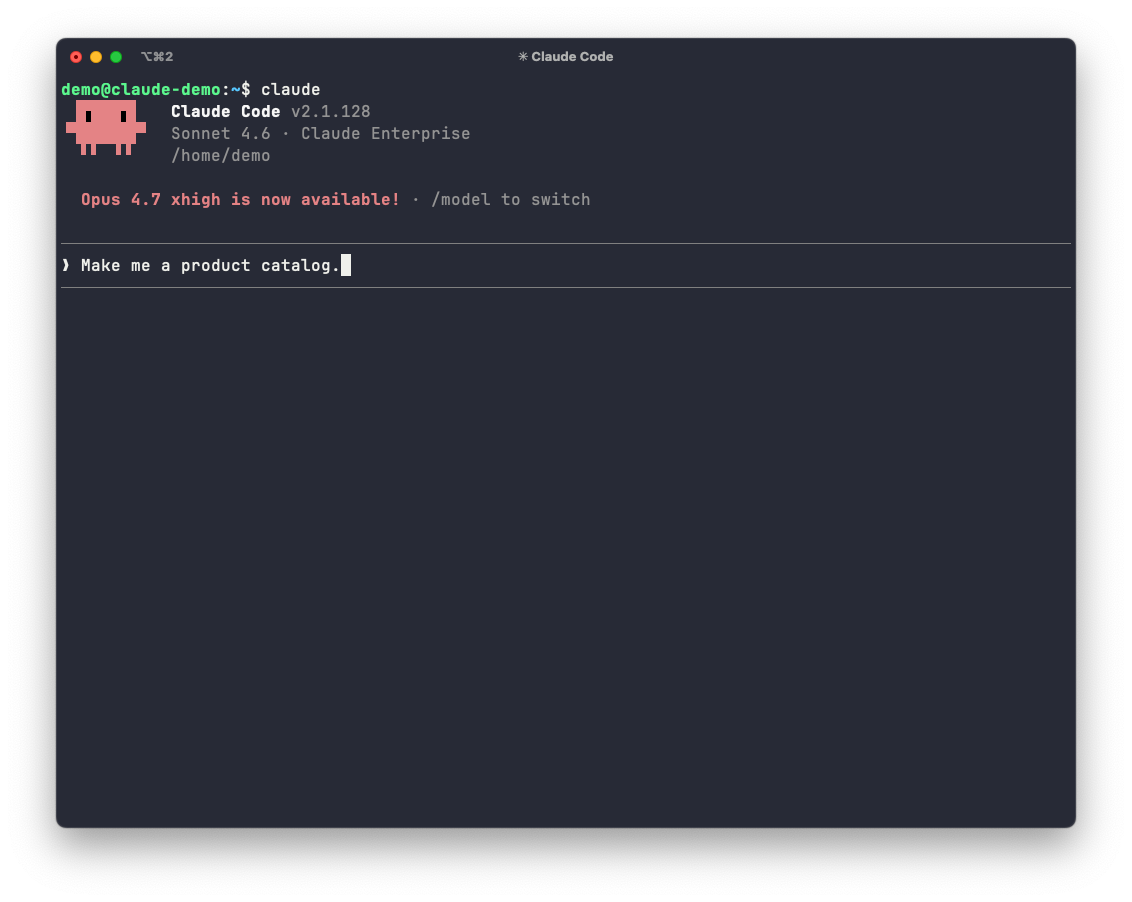
This guide walks you through adding a content backend to your prototype using Sanity for
It also serves as a hands-on introduction to prototyping with Claude Code, and teaches you how to make your prototypes accessible to collaborators who want to help with content.
By the end, you’ll have an editing interface where your team can add and change content, a frontend that displays it, and a prototype that can evolve based on real feedback from real users.
The whole thing takes about an hour. If it takes longer, don’t feel bad. This guide is written for folks who don’t have a developer background, but are eager and curious to learn agentic engineering. You’ll need an open mind for picking up some technical things along the way. As capable as these AI tools are getting, working with agentic engineering is still a lot of trial and error.
This guide isn’t a list of prompts to copy and paste. It teaches you a way of working with AI coding tools that’s different from casual chat prompting.
You’ll learn:
- How to set up an AI coding tool for a specific domain. Connecting it to real infrastructure, giving it expert knowledge through skills, and providing project context it reads before every task.
- How to describe what you need in terms of editorial workflows, not technical specs, and get output that’s designed for your team.
- How to go from an empty project to a working, editable prototype that your team can populate, test, and iterate on together.
The example is a product catalog on Sanity, but the approach (set up your tools, describe the workflow, let AI handle the implementation) applies to any project and any AI coding tool. This is what takes you from asking ChatGPT to write code snippets to using AI to build real things at work.
So feel free to swap parts of this guide with whatever fits your project: a marketing site, an event page, a resource library, a help center. The process is about the same.
Build a CMS-backed prototype your whole team can edit
Learn how to turn your vibe-coded prototype into a collaborative tool with a content backend. This step-by-step guide shows you how to set up Claude Code with Sanity, build a content model your editors will actually understand, and create a frontend that updates when content changes.
No developer bottleneck required!
Already used Claude Code a bit? Skip the install section below.
Claude Code is Anthropic’s AI coding assistant. You tell it what you want in plain English, it does the work, and it shows you what it changed. You approve or redirect. There are two ways to use it:
- Desktop app. Mac and Windows. No terminal required for the chat itself. If the idea of a command line makes you uneasy, start here. Get it at claude.com/code.
- Terminal (CLI). What this guide assumes from here on, because some of the Sanity setup steps are easiest to run as terminal commands. Desktop users can still follow along, the prompts you give Claude are the same.
Go through Anthropic’s Claude Code quickstart (10 to 15 minutes) before continuing. You’re aiming to install it, log in, and see the welcome screen. Never used a terminal? Their terminal guide for new users covers that part. Come back here once you’re in.
Four things. If you’ve used Claude Code or Cursor before, you probably have most of these already.
Node.js - A terminal. On Mac: open Terminal (in Applications > Utilities). On Windows: open PowerShell (search for it in the Start menu). This is where you’ll type commands. If you’ve never used one, it looks like a text-only interface. You type a command, press Enter, it runs. To copy text, select it and use Cmd+C / Ctrl+C. To paste, Cmd+V / Ctrl+V. To stop a running program, press Ctrl+C (yes, the same combo, it does double duty).
- Claude Code. Get it at claude.com/code. The prompts in this guide also work in Cursor and other AI coding tools, but the install steps are written for Claude Code.
- A text editor. VS Code is a good default. Optional, since Claude Code can create and edit files for you, but a text editor is useful for reading what’s been generated.
Ask Claude to help out!
If anything in this guide goes sideways, describe the error to Claude Code and ask it to fix it. That’s the advantage of working through an AI coding tool instead of writing code yourself. You don’t have to know what the error means, you just have to be able to copy and paste it.
A quick note before the work begins. Claude Code lets you pick which Claude model to use and how hard it thinks before acting. Both affect speed, quality, and cost.
Models. Type /model inside Claude Code to see your options and switch. As a rule of thumb:
- Claude Sonnet: a strong default for this guide. Fast, capable, reasonably priced.
- Claude Opus: better for complex schema design and reasoning, slower and more expensive.
- Claude Haiku: cheapest and fastest, underpowered for the schema work here.
Effort. Claude Code shows the current effort level in its status line (look for something like ● high · /effort). The default is fine for everything in this guide. You don’t need to adjust it.
Cost. Token costs accrue as you prompt. Run /cost inside Claude Code at any time to see usage so far. There’s a “what this cost” section at the end of the guide with real numbers from a run-through, so you’ll know what to expect.
If you want a hard ceiling, set a usage limit in your Anthropic console before you start.
This setup takes about 15 minutes across six small steps. The pacing:
- Steps 1 and 2 get you a folder and a running Claude Code session.
- Step 3 is your first useful prompt. About 10 minutes in, Claude Code writes its first file based on what you described in plain English. That’s your first milestone.
- Steps 4 to 6 wire Claude up to Sanity (access plus expertise) and scaffold the project.
Heads up about approval prompts. Claude Code pauses and asks permission before doing things like writing files, running terminal commands, or calling Sanity tools. The prompt looks something like this:
Bash command

  cd ~/my-prototype/studio && npm install
  Install studio dependencies

Do you want to proceed?
  1. Yes
❯ 2. Yes, and don't ask again for: npm install *
  3. No

Esc to cancel · ctrl+e to explain
The wording varies by action type. Bash commands show the command and a short description. MCP tool calls show the tool name and the folder, like “Yes, and don’t ask again for Sanity - list_sanity_rules commands in your project folder.” Same three choices in all cases.
For everything in this guide, option 2 (“Yes, and don’t ask again”) is the right pick. It’s scoped to the specific tool or command pattern in your project folder, so you’re not granting blanket permission across your whole machine. You’ll cut through dozens of approvals this way and keep the flow moving.
Two shortcuts worth knowing: Esc cancels the prompt, and Ctrl+E asks Claude Code to explain what the command does before you decide. Use Ctrl+E any time you’re not sure what’s about to happen. If something still looks off after the explanation, pick No and tell Claude what you’d rather it do.
One more thing. Claude Code will sometimes offer to fix small things you didn’t explicitly ask about: a deprecation warning, a version mismatch, a config tweak it spotted along the way. That’s normal and usually helpful. The approval prompt always tells you what’s about to change, so you’re never out of the loop. When the reason in the explanation makes sense, approve. When it doesn’t, say no and ask Claude to focus on the task at hand.
Pick a place on your computer where you keep code projects. If you don’t have one, your home folder is fine. Avoid folders that sync to the cloud (iCloud Drive, OneDrive, Dropbox) because they can interfere with how Node.js writes files.
Open your terminal. You’ll see a prompt that looks something like you@your-mac ~ % or PS C:\Users\You>. That’s the terminal waiting for input.
Create a folder and move into it:
mkdir my-prototype
cd my-prototype
mkdir makes a directory (a folder). cd means “change directory,” which is the terminal’s way of saying “open this folder.” After running cd my-prototype, every command you run will happen inside that folder until you cd somewhere else or close the terminal.
To check you’re in the right place, run pwd (Mac/Linux) or cd with no arguments (Windows PowerShell). You should see the path ending in /my-prototype.
From the same terminal, launch Claude Code:
claudeYou’ll see Claude Code’s welcome screen. From here on, when this guide says “tell Claude Code…” it means type into this session and press Enter. When it says “in your terminal,” it means you’ll need a separate terminal window. We’ll get to that later.
Tip: On Mac you can open a new terminal window with Cmd+N or a new tab with Cmd+T. On Windows PowerShell, click the dropdown arrow at the top of the window for a new tab.
Claude Code reads a file called CLAUDE.md from your project folder before every task it does in that folder. Anything you put in CLAUDE.md shapes the work that follows. Writing it is your first useful prompt.
In the Claude Code session you just started, copy-paste this (edit to make it yours if you want to):
Create a new CLAUDE.md file with the following content:

# Product catalog proof of concept

## Who uses the Studio
A sales team of 5 people who are not developers. They need to add and update products weekly.

## What the content represents
A product catalog with categories. Each product has a name, description, price, category, and image.

## Where the content appears
An internal tool where the sales team browses products, filters by category, and sees pricing.

## Editorial workflow
Sales team adds products directly. Marketing lead reviews before publishing.
Claude Code might ask you some follow up questions and then write the file and show you the result. Confirm if it asks. That’s your first milestone!
Swap the brief content for whatever matches your project. The specifics matter: “a sales team of five non-technical people” produces different output than “a development team that publishes API documentation.”
Prefer to write the file by hand? Open your project folder in VS Code (or any text editor), create a file named CLAUDE.md, and paste the brief into it. Claude Code will pick it up the next time you ask it to do something.
The Sanity MCP server gives Claude Code direct access to Sanity’s infrastructure. With it installed, Claude can create projects, read schemas, and write content directly to your Sanity Content Lake. Without it, Claude is writing Sanity code from memory, so you get schemas that technically work but feel half-finished. No field descriptions, no validation messages, no useful previews. An editor opening that Studio sees a blank form with no guidance.
Quit the Claude Code session for a moment by typing /exit and pressing Enter (or pressing Ctrl+C twice). When it exits, your terminal will print a couple of lines that look something like:
Resume this session with:
claude --resume <a long string of letters and numbers>
That long string is your session ID. Copy the whole claude --resume ... line straight from your terminal and paste it somewhere safe (a sticky note, a scratch text file, anywhere). You’ll use it in a moment so Claude Code remembers the work you did in Step 3 instead of starting fresh.
Now, from your terminal (not from inside a Claude Code session), run:
claude mcp add Sanity -t http https://mcp.sanity.io --scope userYou should see something like:
Added HTTP MCP server Sanity with URL: https://mcp.sanity.io to user configThe MCP server is registered with Claude Code. Resume your previous session with the claude --resume ... line you copied a moment ago.
You’re back inside Claude Code. The next step authenticates the MCP and adds Sanity’s expertise.
Two things to do here, both from inside the running Claude Code session.
The MCP is registered but not authenticated yet. Type /mcp in your Claude Code session and press Enter. Use the arrow keys to highlight Sanity in the list of MCP servers, then press Enter to open it. You’ll see a screen like this:
Sanity MCP Server

  Status:           △ needs authentication
  Auth:             ✘ not authenticated
  URL:              https://mcp.sanity.io
  Config location:  ~/.claude.json

  ❯ 1. Authenticate
    2. Disable

  ↑↓ to navigate · Enter to select · Esc to back
Press Enter on Authenticate. Claude Code opens a browser tab and asks you to sign in to Sanity and approve the connection. After you approve, the browser tab will say you can close it. Come back to the terminal. If it worked, you’ll see something like:
/mcp
  ⎿  Authentication successful. Connected to Sanity.
That’s the green light. The MCP server is wired up and Claude Code can now read and write your Sanity project.
The MCP gives Claude Code the ability to talk to Sanity. Skills give Claude Code domain-specific knowledge you compose for the work ahead: schema design, GROQ patterns, Visual Editing, SEO, localization, framework integrations, and frontend craft. They're plain-text instructions that Claude reads before each relevant task, the same way it reads your CLAUDE.md.
You'll install two skill sets here: Sanity's agent toolkit for content modeling and
You can install them by running npx commands yourself, but a more elegant move (and a useful pattern for the rest of this guide) is to ask Claude Code to do it for you. Tell Claude Code:
Install Sanity's agent toolkit by running `npx skills add sanity-io/agent-toolkit --yes`.
The --yes flag matters: without it, the installer asks an interactive question that Claude Code can’t answer. With it, the install runs straight through.
Claude Code will show you the command before running it and ask for permission. Approve. It downloads and installs the Sanity Agent Toolkit. When it finishes, you’ll see something like:
Successfully installed all 6 skills from the Sanity agent toolkit:
  - content-experimentation-best-practices
  - content-modeling-best-practices
  - portable-text-conversion
  - portable-text-serialization
  - sanity-best-practices
  - seo-aeo-best-practices

All skills are symlinked to Claude Code and ready to use.
Each skill is a folder of plain-text guidance Claude Code reads before relevant tasks. content-modeling-best-practices shapes how it designs schemas. seo-aeo-best-practices covers structured content for search and AI search visibility. The two portable-text-* skills handle Sanity’s AGENTS.md file into your project that points Claude to the right skill for whatever task you ask about.
Now add Anthropic's frontend-design skill. It encodes the same craft principles a senior frontend engineer applies by default: color contrast, interactive states, spacing, and component hierarchy. With it loaded, Claude Code's UI output starts from a higher baseline, and you won't need to prompt for the basics.
Run this command in Claude Code:
/plugin marketplace add anthropics/skills
And then you can install the frontend design skill with this command in Claude Code:
/plugin install frontend-design@claude-plugins-official
The install takes about 60 seconds. When it finishes, you'll see a confirmation that the skill is installed and registered. That's your full stack: Sanity's content expertise plus Anthropic's frontend craft, both loaded and ready.
Want more skills?
You can go to skills.sh to find more skills. Remember that installing and using skills is like letting someone else add their context to your prompts so evaluate its popularity, start with skills from known companies etc.
Skills load when Claude Code starts up. The running session doesn’t pick up new ones mid-conversation. You can verify this by typing /skills right now: it’ll say No skills found, which is misleading but expected.
Restart the session. Type /exit and press Enter, then run claude (or paste in the new claude --resume ... line if you want to keep the conversation history).
Once you're back inside Claude Code, type /skills. You should see the six Sanity skills plus the frontend-design skill listed there. That's your confirmation that both toolkits are loaded and ready.
Tip: If you lose the resume command, runningclaudeon its own starts a fresh session in the same folder. It’ll still read yourCLAUDE.mdand any installed skills, so you won’t lose the brief, only the in-progress conversation. You can also scroll up in your terminal to find the resume line again.
Now for the big one. This single prompt does a lot of work: it creates your Sanity project, builds a Studio with a schema based on your CLAUDE.md, and scaffolds a
Tell Claude Code:
Read my CLAUDE.md and scaffold the whole project. Create a Sanity project. Build a studio folder with a schema based on the content model in my CLAUDE.md, with useful field descriptions, validation rules, and a clean sidebar for non-developer editors. Build a frontend folder with a Next.js app (App Router, next-sanity, Tailwind) that reads from the project, with a product grid plus category filter on the list page and a detail page for each product. Use Sanity's best-practice rules throughout. Keep it simple, this is for a stakeholder demo.
This is the heaviest step in the guide. Claude Code will generate a wave of approvals as it creates the project, runs dependency installs, writes schema files, scaffolds the Next.js app, and configures the data layer. Option 2 (“Yes, and don’t ask again for: …”) is the right pick for almost everything here. Expect to spend roughly five to 10 minutes watching files appear.
If you haven’t authenticated with Sanity before, Claude Code will prompt you through that flow in your browser too.
When it finishes, you’ll have a studio folder, a frontend folder, and a Sanity project connected to the Content Lake. The Studio is where your editors work. The Content Lake is where content lives. The frontend is what your stakeholders see. All three are wired up to talk to each other.
You haven’t seen the project structure yet. Take a beat to inspect it before moving on. This is the wow moment for a non-dev: one prompt, and Claude scaffolded the whole thing.
A quick vocabulary check first. Your
In Sanity, the content model lives in code as a schema. The Studio reads the schema to generate the editing interface your team uses. The frontend reads the same schema (through GROQ queries) to know what to render. This is the heart of structured content: define the shape once, and every surface follows the same rules.
Open my-prototype/studio in VS Code. Claude built a schema that matches the content you described in CLAUDE.md. Here’s the product schema, abridged. You don’t need to understand every line. What’s worth noticing are the description fields and validation rules, because those are what your editors will see when they open the Studio. Part of working with AI coding tools is building a feel for what the code does even if you can’t write it yourself yet. That instinct gets sharper every time you look.
import { defineType, defineField } from 'sanity'

export const product = defineType({
  name: 'product',
  title: 'Product',
  type: 'document',
  preview: {
    select: { title: 'name', subtitle: 'category.name', media: 'image' },
  },
  fields: [
    defineField({
      name: 'name',
      title: 'Name',
      type: 'string',
      validation: (Rule) => Rule.required(),
    }),
    defineField({
      name: 'description',
      title: 'Description',
      type: 'text',
      rows: 4,
    }),
    defineField({
      name: 'price',
      title: 'Price',
      type: 'number',
      validation: (Rule) => Rule.required().positive(),
    }),
    defineField({
      name: 'category',
      title: 'Category',
      type: 'reference',
      to: [{ type: 'category' }],
      validation: (Rule) => Rule.required(),
    }),
    defineField({
      name: 'image',
      title: 'Image',
      type: 'image',
      options: { hotspot: true },
      fields: [
        defineField({
          name: 'alt',
          title: 'Alt text',
          type: 'string',
          validation: (Rule) => Rule.required(),
        }),
      ],
    }),
  ],
})
Five fields and a preview block. There’s a separate category schema next to it with a name and description, and the Studio’s left sidebar has been customized to show just Products and Categories. No clutter for non-dev editors.
Things to notice that came out of your CLAUDE.md plus the Sanity skills you installed:
- Validation rules guard the important fields. Name, price, and category are required, so editors can’t save a product without them. Price has to be positive, so nobody types
-49. The image’salttext is required too, which keeps the catalog accessible by default. - The
descriptionfield uses Sanity’stexttype withrows: 4instead of a single-linestring. That’s a small detail that turns the editor into a friendly multi-line textarea, which matters when descriptions are a sentence or two. - The
previewblock drives how each product appears in the Studio’s document list: the product name as the title, the linked category name as a subtitle (resolved through the reference), and the image as a thumbnail. No more “Untitled” rows. - The image field has
hotspot: true, which lets editors click on the part of the image that should always stay in frame, so the same image can crop differently for product cards and detail pages without re-uploading.
You described a sales team that needs to add products. Claude Code built an editing interface designed for that team.
Open my-prototype/frontend. Claude scaffolded a Next.js app that already knows how to read from your Sanity project:
- A list page at
src/app/products/page.tsxwith a product grid showing images, names, and prices, plus category buttons along the top to filter. - A detail page for each product with the full description, larger image, and all the fields you defined.
- GROQ queries in
src/sanity/lib/queries.ts. GROQ is Sanity’squery language - A Sanity client in
src/sanity/client.tsand adefineLivesetup insrc/sanity/lib/live.tsfor real-time content updates. - Tailwind styling that’s clean and presentable. Not fancy, not ugly. Appropriate for a stakeholder demo.
- A pre-filled
.env.localwith your project ID, dataset, and a read token. This is what connects the frontend to your Sanity project.
If anything in the configuration looks off later (the frontend can’t see your content, for example), ask Claude Code: “Make sure the frontend is configured to read from my Sanity project and that the .env.local file has the right project ID and dataset.”
So far everything lives on your machine. The schema is in local code. The Studio runs at localhost:3333, which only works on your laptop. Time to deploy.
A single command (npx sanity deploy) does two things at once: it pushes your schema to your Sanity project (so the frontend can read content), and it publishes the Studio itself to a hosted URL like https://your-name.sanity.studio/ that anyone on your team can open in a browser without running anything locally. That’s how you’ll invite teammates later.
Both the login and the deploy commands are interactive in ways Claude Code’s shell can’t drive, so you’ll run them yourself in a regular terminal.
Open a new terminal window. Keep your Claude Code session running. From your project folder:
cd studio
npx sanity login
Why a separate terminal? The login command starts with an interactive provider picker that uses arrow keys to navigate:
? Please log in or create a new account (Use arrow keys)
❯ Google
  GitHub
  E-mail / password
Claude Code’s shell can’t respond to arrow-key prompts, so don’t try to run this through Claude Code or with the ! shell escape. You’ll get stuck on the picker. A regular OS terminal handles it just fine.
Pick your provider, complete the browser flow, and approve. The browser tab will say you can close it. Come back to your terminal and you should see a confirmation that you’re logged in.
In the same terminal, run:
npx sanity deployThe first time you deploy, Sanity asks for a Studio hostname. This becomes the public URL for your Studio. Pick something memorable but specific to this project:
? Studio hostname (<value>.sanity.studio): product-catalog-prototypeType a name, press Enter, and the deploy starts. You’ll see output like this (abridged):
✓ Checking project info
✓ Build Sanity Studio
✓ Deployed 1/1 schemas
✓ Verifying local content
✓ Deploying to sanity.studio

Success! Studio deployed to https://product-catalog-prototype.sanity.studio/
Two things just happened. First, your schema is now in your Sanity project so the frontend can query content. Second, your Studio has a public URL. You can keep using localhost:3333 for fast local development, but when you want a teammate to add content or kick the tires, send them the .sanity.studio URL.
Tip: On future deploys, Sanity will skip the hostname prompt because the name is now saved in sanity.cli.ts. The deploy becomes non-interactive, which means you can also ask Claude Code to redeploy for you (“redeploy the Studio”) and it’ll handle it.
You have two Studios now: the one you just deployed at <your-name>.sanity.studio and a local copy you’ll run on your own machine for fast iteration during development. The hosted one is for sharing. The local one is for working. Both edit the same content.
The fastest way to start the local Studio is to ask Claude Code:
Start the Studio development server.
It’ll offer to run the command for you. Approve it and you’ll see logs in the terminal ending with something like http://localhost:3333/.
If you’d rather run it manually, open a new terminal window (so your Claude Code session keeps running), then:
cd my-prototype/studio
npm install
npm run dev
npm install downloads the Studio’s dependencies (only needed the first time, or after dependencies change). npm run dev starts the Studio.
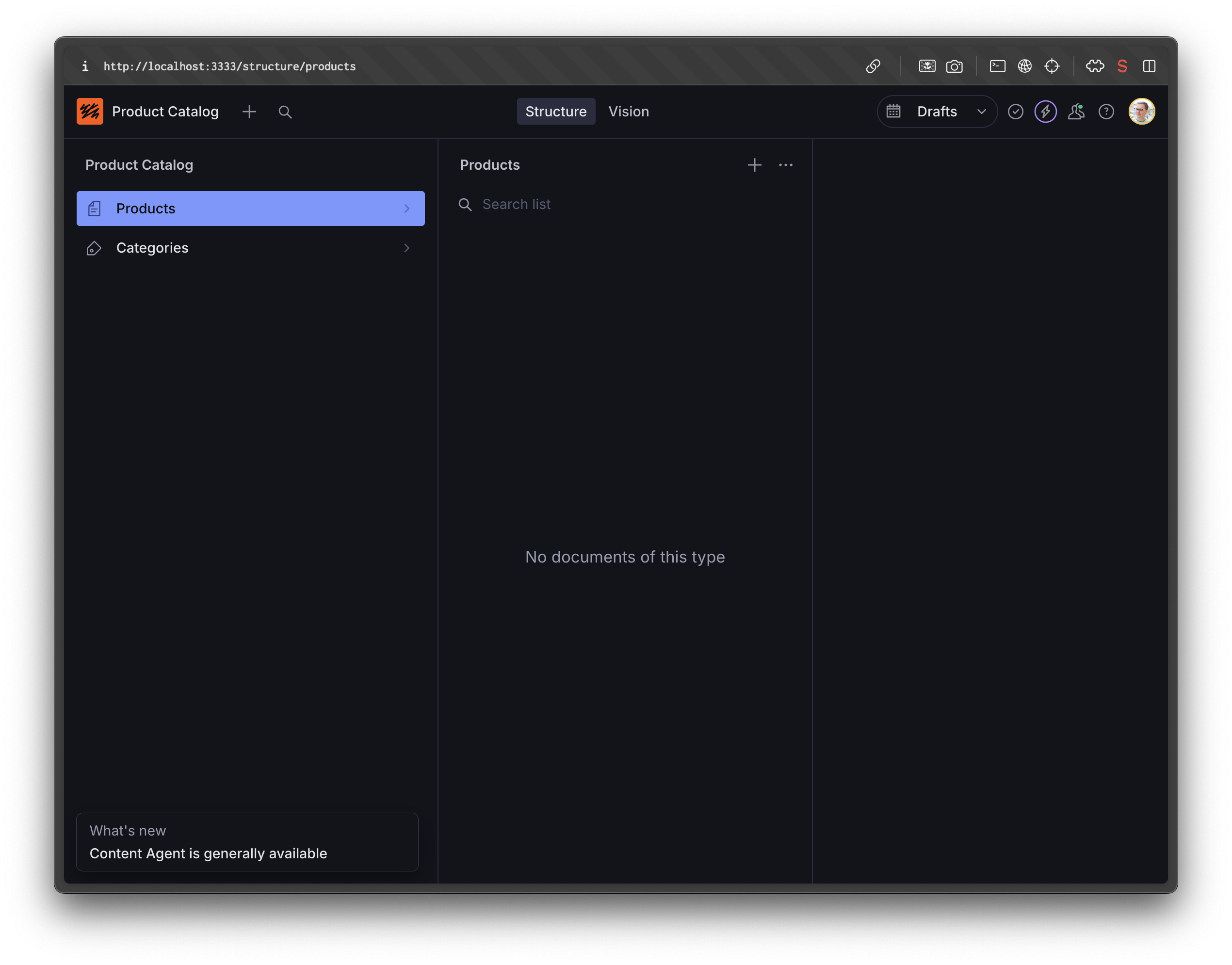
Open http://localhost:3333 in your browser. The first time you load it, Sanity will ask you to sign in. Use the same Sanity account you used during setup. If you see your document types (“Product” and “Category”) in the left sidebar, the schema is working.
Tip: To stop a dev server, click the terminal window where it’s running and press Ctrl+C. To start it again, run npm run dev from the same folder.
With the Studio running, it’s time to put real content into your project. Start with a couple of categories, then add a product.
To create a category:
- Click Category in the left sidebar.
- Click Create in the top-right.
- Fill in the Name field (try “Electronics”).
- Click Publish in the bottom-right.
Repeat for a second category like “Accessories.” Then create a product the same way: click Product in the sidebar, Create, fill in the fields, and Publish. The category field will let you pick from the categories you just published.
When you open the product editor, you’ll see the field descriptions you saw in the schema. The short description field shows a character count warning if you go over 200 characters. The image field prompts you for alt text. The category field lets you pick from the categories you created. Every field tells your editors what it expects and where the content will appear.
Content quality makes or breaks a proof-of-concept demo. Placeholder text and stock photos make stakeholders see a mockup. Real content makes them see a product. Use your actual product names, descriptions, and images if you have them.
If you don’t have real content ready, or you want to populate the catalog quickly, ask Claude Code:
Generate 10 realistic products for my catalog with descriptions, prices, and categories. Add them to my Sanity project.
Because Claude Code is connected to your Sanity project through the MCP server, it writes the content directly to the Content Lake. You go from an empty Studio to a populated demo in one prompt. You can edit or replace these with real content later. The point is to have something convincing for the demo.
Once you have content in the Studio, invite a teammate to try it. Send them the hosted Studio URL you got back from npx sanity deploy (the https://...sanity.studio/ link). They can sign in with their own Sanity account and add or edit content without running anything on their machine. If they can figure out the interface without your help, your proof of concept is ready to demo.
The Studio is running and full of content. Time to start the frontend and watch the two talk to each other.
The fastest way to start the frontend is to ask Claude Code:
Start the Next.js dev server for the frontend.
It’ll offer to run the command for you. Approve it. You’ll see install logs (first run only) and then a line like Ready on http://localhost:3000. The frontend runs on a different port than the Studio, so both can be running at the same time.
If you’d rather run it manually, open a new terminal window (you can leave Claude Code running):
Either way, open http://localhost:3000 in your browser.
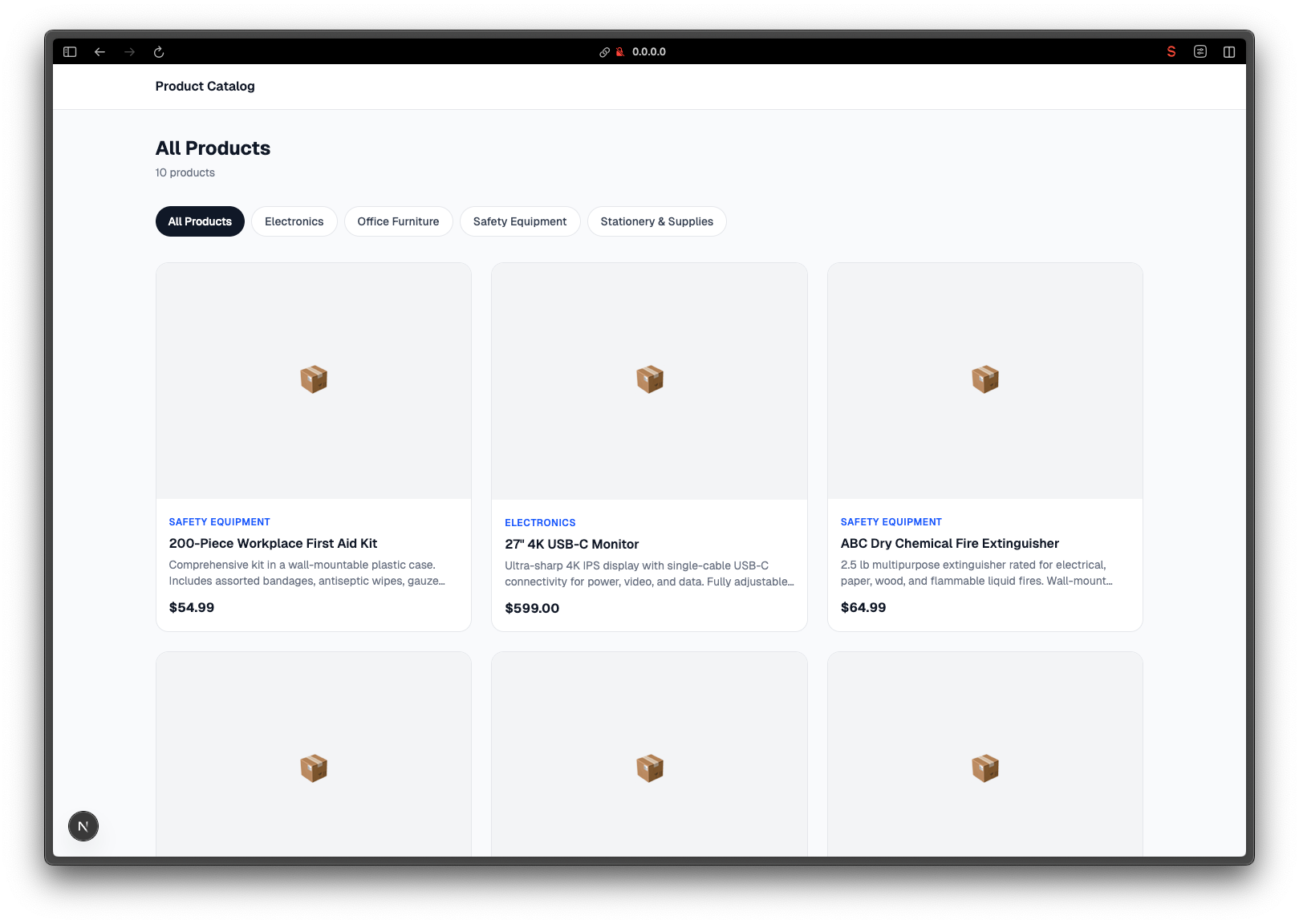
Here’s the moment that matters. Open the frontend in one browser tab and the Studio in another. In the Studio, change a product name. Click Publish. Switch back to the frontend tab and refresh. The name updates.
And that’s the prototype! A stakeholder can open the Studio, change any piece of content, and see it reflected on the site. No code changes. No deploys. No developer needed. (In a production setup, you’d add real-time updates so changes appear without a refresh. For a demo, refreshing the page works fine.)
You’re running a working prototype. Click through it. Scroll the list. Resize the window. Notice what bugs you. The page heading might be hard to read against the background. The product cards might not be clickable. The grid might feel too sparse. None of this is wrong, exactly. It’s the default Claude Code chose when you told it to keep things simple. Now’s when you shape it.
The loop is the same one you've been using all along: tell Claude Code what's off, approve the changes, refresh the browser tab. A quick example:
Add our company name in a header at the top of every page.
Most fixes like these take Claude Code less than a minute. The browser tab updates on refresh. When something doesn’t land the way you wanted, describe what’s still off and Claude will adjust.
This is the part that’s hard to overstate. You’re now in the iteration loop that real software gets shaped in. You don’t need to know CSS or React or what a Tailwind class is. You need to be able to see what’s off and describe it. Claude does the rest.
A few things worth cleaning up before you demo to stakeholders:
- Anything visibly broken: overlapping elements, missing images, misaligned grid items.
- Navigation: confirm the list-to-detail flow works end to end.
- A first pass at brand: your company name, a logo, a primary color. Rough versions land better than generic.
You don’t need it polished. You need it convincing. The point of the demo isn’t “this is finished,” it’s “this is real, and it can grow.”
A localhost:3000 URL works while you’re driving the demo in person. For stakeholders to click a link from their own machine, you’ll want the frontend on a public host. Vercel is the most direct fit since they make Next.js. Netlify and Cloudflare Pages work fine too. Pick whichever your team already uses.
The first deploy is interactive (account auth, project setup, naming the app) so it’s easiest to run yourself in a regular terminal, the same way you handled npx sanity login. After the first deploy, redeploys are non-interactive and Claude Code can handle them.
For Vercel, in a new terminal from your frontend folder:
npx vercelWalk through the prompts. When it finishes, you’ll get a public URL like your-app.vercel.app. That’s what stakeholders see.
For redeploys after you’ve made changes, ask Claude Code:
Redeploy the frontend to Vercel.
Netlify (npx netlify deploy) and Cloudflare (npx wrangler pages deploy) follow the same shape. The first deploy stays in your terminal, the rest can run through Claude Code.
Tip: If the deployed site loads but the product grid is empty, the host probably doesn’t have your Sanity environment variables. Ask Claude Code to set up the env vars on the deployment host so the frontend can read from the Content Lake the same way it does locally.
Now you have two public URLs: the hosted Studio at your-name.sanity.studio and the hosted frontend at the host’s URL. Both are real things you can hand to anyone. That’s the prototype.
You have a working prototype with a content backend. Here’s how to show it off in a way that gets buy-in.
Walk through three things, in this order:
- The frontend. This is the product. Show the list page, click into a detail page, use the category filter. Let it speak for itself.
- The Studio. This is where content lives. Open it, show the document list, click into a product. Point out the field descriptions, the image handling, the rich text editor.
- The live connection. Change something in the Studio (a product name, a price, a description). Publish. Refresh the frontend. The change appears.
Lines that land well:
- “Everything you see on this site comes from the editing interface.”
- “You can log in and change any of this content right now.”
- “The content model can grow. We can add new fields, new content types, new pages.”
Questions you’ll get (and answers):
- “Who can access the editor?” You control access. Invite team members by email from the project dashboard at sanity.io/manage. You can set roles so some people can edit and others can only view.
- “Can we change the design?” Yes. The frontend is separate from the content. Design changes don’t affect the content, and content changes don’t affect the design. Different people can work on each.
- “What happens when we’re ready to launch?” The content infrastructure you built for this prototype is production infrastructure. You’re not throwing anything away. The schema, the content, the editing interface: it all carries forward. As the project grows, you’ll refine the frontend design and add features, but the
content layer
The single most useful habit while working through this guide: copy the error message back to Claude Code and ask “what’s happening here?” Claude can read the error, find the file, and propose a fix. You don’t have to know what the message means.
A few specific snags and how to clear them:
claude: command not found. Claude Code didn’t install correctly, or your terminal can’t find it. Close and reopen your terminal, then try again. Still failing? Reinstall from claude.com/code.claude mcp addsays “command not found”. You’re inside Claude Code’s interactive session. Type/exitand run the command from your OS terminal, not from inside Claude Code.- The Studio won’t open at
localhost:3333. Check the terminal where you rannpm run dev. If you see red error text, copy it to Claude Code. If the terminal looks idle, the server probably crashed. Runnpm run devagain. - The frontend says “no products found” even though they exist in the Studio. Two causes are common: the products aren’t published yet (open the Studio, click each product, click Publish), or the frontend’s
.env.localfile is missing or wrong. Ask Claude Code to verify the configuration. - You closed the terminal and the Studio or frontend stopped working. Closing a terminal kills any dev server running in it. Reopen a terminal,
cdback into the folder, and runnpm run devagain.
A full run through this guide came in at $3.52 in API token costs, with about an hour of wall-clock time and roughly 13 minutes of actual API activity. The other 47 minutes was reading, approving, looking at the Studio, and testing the live edit. Here’s the breakdown by model:
- Sonnet 4.6 did almost all the work: $3.24. The big spend was Step 6 (scaffolding the project) and the schema generation.
- Opus 4.7 handled some of the heavier reasoning: $0.29.
- Haiku 4.5 showed up for trivial bits: less than a penny.
The session also produced 506 lines of code added across the studio and frontend, with 84 lines removed during iteration. That’s the project getting shaped in real time.
If you’re on a Claude Pro or Max plan, the dollar figure isn’t billed to you directly. You’re paying a flat subscription, and the work counts toward session and weekly limits instead. The same hour came in at about 38% of the session limit and 10% of weekly usage on a Max-tier plan, so you’ve got plenty of headroom for the polishing pass and a few demo iterations.
You can see your own usage at any time inside Claude Code:
/cost
Costs vary with how much you re-prompt, how chatty you get, and which model you’re using. Sonnet is the workhorse and the right default for everything in this guide. Opus is overkill but harmless if it’s your default. Switching to Haiku would cut costs dramatically but produce a less capable scaffold.
You started with a prototype that only you could edit. Now you have a content backend your team can use, a frontend that reads from it, and a demo that answers “can we change this headline?” with “yes, go ahead.”
The prototype is a starting point. When you’re ready to go further:
- Sanity documentation covers everything from schema design to
deployment - Sanity templates show more complex projects with multiple content types, if you want to see what a larger build looks like.
- The Sanity community on Slack is where you can ask questions and see what others are building.
Your next prompt to Claude Code might be: “Add a blog section to this project” or “Deploy the Studio so my team can access it.” The setup you did carries forward. Claude Code already knows your project, your editors, and your content model.
As your project grows, you can create your own skills that encode your team’s specific patterns: your naming conventions, your content model rules, your editorial guidelines. Skills are plain-text files. You write them in natural language, and Claude Code reads them before every task. Your standards get enforced automatically, even when someone new joins the project and starts prompting. The agent skills documentation explains how to create and share them.
Browsing anthropics/skills is also worth a few minutes, and Anthropic ships skills for testing, documentation,
Keep building!
We are still figuring out how all of this AI and agent stuff should work. And yes, there is a lot of movement in the AI space. So if you have feedback on this guide we’d love to hear from you. Feel free to send me an email on knut@sanity.io or reach out on social, you can find me on X, LinkedIn, and BlueSky.